
Windows Server Installation Fails to Detect Hard Drive: Diagnostic Steps and Data Recovery Limits
Published 2026-09-29 | JiWang Data Recovery Technical Team
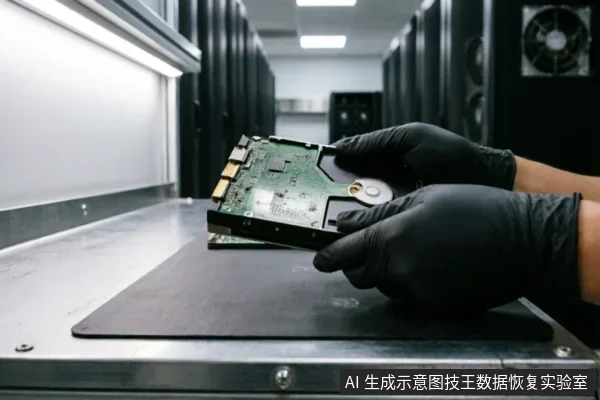
When Windows Server installation fails to detect a hard drive, the primary concern is not just the installation failure but the potential loss of existing data on that storage medium. The inability of the operating system installer to recognize the disk indicates a breakdown in the communication chain between the server motherboard and the storage device. Before attempting any software-based fixes or driver installations, it is critical to understand that subsequent user actions directly dictate whether the data can be recovered. If the drive contains valuable information, the first step is to stop all write operations and verify the physical connection chain.
Direct Answer and Immediate Action
If the server installer does not list the hard drive, do not proceed with the installation. Proceeding may trigger partition formatting or initialization processes that overwrite existing data structures. Instead, immediately power down the server. Verify the external connection chain, including cables, ports, and backplanes, and check for existing backups. Avoid formatting, initializing, or writing recovered results back to the original medium until the data is secured.
Diagnostic Branch: Connection vs. Logic vs. Hardware
The failure to detect a drive during OS installation typically falls into one of three categories. Distinguishing between these is essential for determining the correct path forward without risking data integrity.
| Fault Category | Observable Symptoms | Immediate Action |
|---|---|---|
| Connection Failure | Drive is completely silent;no LED activity;BIOS/Installer shows zero devices. | Check cables, ports, and backplanes. Power cycle the server. |
| Logical/Firmware Issue | Drive spins up;recognized in BIOS but not in Installer;capacity mismatch. | Do not initialize. Stop repeated boot attempts. Assess for read-only cloning. |
| Physical Hardware Failure | Abnormal mechanical noise (clicking/grinding);repeated dropouts;inconsistent capacity. | Stop power immediately. Do not attempt software scans. Seek professional intervention. |
Verifying the External Connection Chain
In many cases, the issue is not the drive itself but the path it takes to the controller. Before assuming drive failure, verify the entire external connection chain. This includes checking SAS/SATA cables for damage, ensuring ports are functional, and inspecting backplane connections. If the drive is connected via an external enclosure, try different cables and ports. Only after confirming the connection chain is stable should you consider more complex diagnostics.
Recognizing Physical Damage Risks
If the storage device exhibits abnormal mechanical noise, such as clicking or grinding, or if it experiences repeated dropouts where it connects and disconnects intermittently, this indicates a high risk of physical damage. In such scenarios, continuing to power on the device can cause permanent platter damage. For completely unrecognizable devices, confirm the external connection chain first. If the drive still fails to appear after connection verification, and especially if physical symptoms are present, stop repeated power-on attempts and long-duration scans.
Impact of User Actions on Recovery Limits
The extent to which data can be recovered from a server drive that is not detected during installation is heavily influenced by what actions are taken after the initial failure. Understanding these boundaries is crucial for preserving data.
- Formatting and Initialization: If the drive appears in Disk Management or the Installer but is marked as "Uninitialized" or prompts for formatting, performing these actions will create new file system structures. This process overwrites the existing directory entries and metadata, making recovery significantly more difficult or impossible for logical errors.
- Driver Installation Attempts: While installing storage drivers is a standard troubleshooting step, doing so while the drive is actively being written to or scanned by recovery tools can lead to unintended data modification. Drivers should only be loaded in a controlled environment where the drive is mounted as read-only.
- Repeated Boot Cycles: Continuously rebooting the server in an attempt to force the installer to see the drive increases the wear on the drive'
Safe Next Steps and Professional Intervention
Once the connection chain has been verified and physical symptoms assessed, the next steps depend on the stability of the drive.
For Stable Drives with Logical Issues
If the drive is recognized by the BIOS but not by the Windows Server installer, and there are no signs of physical damage, the issue may be related to missing storage drivers or firmware incompatibilities. However, before loading drivers, ensure that no data has been written to the drive. If data recovery is the priority, the safest approach is to connect the drive to a separate workstation and perform a bit-by-bit image clone using read-only software. This creates a working copy that can be used for driver testing and data extraction without touching the original source.
For Unstable or Physically Damaged Drives
Do not open or disassemble the drive;keep the original media protected and seek professional assessment.keep the original media protected and seek professional assessment.
Frequently Asked Questions
Can I use remote data recovery tools if my server won't see the drive?
No. Remote data recovery technologies are designed for logical data extraction from accessible file systems. They cannot resolve hardware-level recognition failures where the operating system cannot even detect the presence of the storage device. If the drive is not visible in the BIOS or installer, remote tools are ineffective and may waste time while the drive continues to degrade.
What happens if I format the drive to make it appear in the installer?
Formatting the drive creates a new file system structure, which overwrites the existing directory entries and metadata that point to your files. This action irreversibly reduces the chances of successful data recovery. If the drive contains important data, formatting should never be performed until the data has been successfully extracted or cloned to a safe location.
Is it safe to keep trying to boot the server to find the drive?
It is not safe if the drive exhibits any signs of instability, such as unusual noises or intermittent recognition. Repeated power cycles increase the mechanical stress on the drive components. For drives with potential physical damage, continued booting can lead to complete failure. If the drive is silent and stable, limited boot attempts may be acceptable for diagnosis, but stopping repeated attempts is the safer course of action to preserve data integrity.