
External Hard Drive Ejection Failure: Assessing Data Loss Risk and Safe Troubleshooting
Published 2026-10-19 | JiWang Data Recovery Technical Team
When an external hard drive fails to eject safely, the risk of data loss depends on whether the underlying issue is logical (software/file system) or physical (hardware). If the drive is still recognized by the operating system but shows as RAW or Unallocated, it is likely a logical error with high recovery potential. If the drive is not detected at all or makes abnormal noises, it may indicate a physical failure. In either case, avoid formatting or running repair tools before backing up or imaging the data.
Assessing the Risk: Logical vs. Physical Indicators
The first step in assessing data loss risk is distinguishing between logical and physical failures. A logical failure typically occurs when the file system is corrupted or the partition table is damaged, but the physical media remains intact. In Windows, this often manifests as the drive showing as RAW or Unallocated in Disk Management. According to Seagate’s USB External Troubleshooter, if a drive shows as RAW or Unallocated after basic troubleshooting, it indicates a possible issue with the drive’s formatting. In macOS, if the drive does not mount in Disk Utility, it indicates some level of file system corruption. These are generally recoverable through software means if no further write operations occur.
Physical failures, on the other hand, involve hardware damage such as motor failure, head crash, or controller board issues. Symptoms include the drive not being detected by the operating system, abnormal clicking or grinding noises, or the drive light not turning on. If the drive is not detected in Device Manager or Disk Utility after trying different cables and ports, it may be a hardware failure. In such cases, the risk of permanent data loss is higher, and professional intervention is often required.
Safe Troubleshooting Steps
Before attempting any data recovery, perform basic troubleshooting to rule out simple connection issues. Seagate recommends trying a different USB port, using a different cable, or connecting the drive to a different computer. Verify that the drive light is on, as this indicates power is reaching the device. If the drive is recognized but inaccessible, do not attempt to format it. Formatting erases all data on the drive, as noted in Seagate’s documentation. Instead, consider data recovery options if the data is needed.
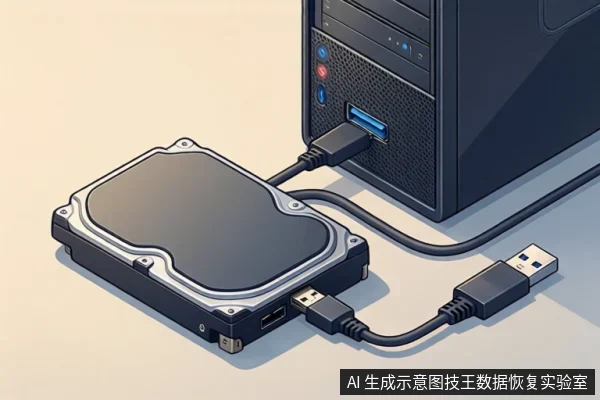
If the drive is recognized but shows as RAW or Unallocated, it is likely a logical error. In this case, you can attempt to create a read-only image of the drive using specialized software, provided the drive is stable. Avoid running disk repair tools like CHKDSK, as these can sometimes overwrite data. If the drive is not recognized at all, stop all power and seek professional help. Do not attempt to open the drive or perform physical repairs on your own, as this can cause irreversible damage.
What to Avoid: Formatting and Repair Tools
One of the most common mistakes users make after an ejection failure is attempting to format the drive to fix the issue. This is highly dangerous because formatting erases all data on the drive. If you need the data, you should consider data recovery first. Similarly, running disk repair tools can be risky. While these tools can sometimes fix logical errors, they can also overwrite data, making recovery more difficult or impossible. It is safer to create a read-only image first if possible, and then attempt repairs on the image rather than the original drive.
If the drive is making abnormal noises, such as clicking or grinding, stop all power immediately. These sounds indicate mechanical failure, and continued use can cause further damage to the platters or heads.
Frequently Asked Questions
Is it safe to format the drive if it shows as RAW?
No. Formatting erases all data on the drive. If you need the data, you should consider data recovery first. According to Seagate, if a drive shows as RAW or Unallocated and you need the data, you should consider data recovery rather than reformatting. If you do not need the data, you may format the drive to restore usability, but ensure you have confirmed that no critical files are required before proceeding.
What should I do if the drive is not detected?
Try a different cable, port, or computer. If it still is not detected, it may be a hardware failure. Seagate recommends verifying the drive light is on and trying different connection methods. If the issue persists, seek professional help to avoid further damage. Specifically, check if the drive appears in Device Manager (Windows) or Disk Utility (macOS) as a non-functional or unknown device; if it does not appear at all, this strongly suggests a physical connection or controller issue requiring professional assessment.
Can I use disk repair tools to fix the ejection error?
Be cautious. Repair tools can sometimes overwrite data. It is safer to create a read-only image first if possible. Running repair tools on a potentially failing drive can exacerbate the problem, so it is best to consult a professional if the drive is unstable or making noises. For example, if the drive is recognized but slow or intermittent, imaging is critical before running any repair utilities, as these tools may trigger additional read errors that degrade the drive's condition.