
Hikvision NVR 'No Hard Drive': How to Assess Risk and Act Safely
Published 2026-09-15 | JiWang Data Recovery Technical Team
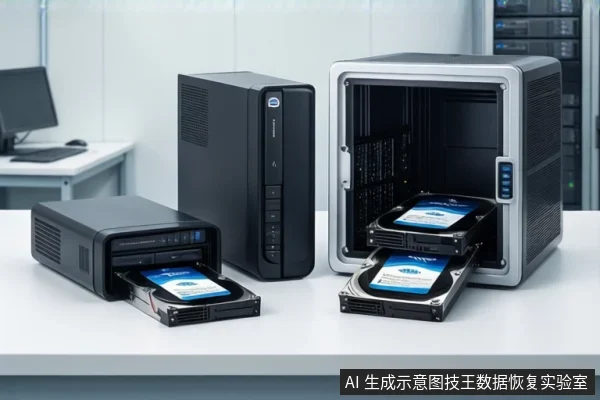
Direct Answer: Immediate Safety Assessment
When a Hikvision NVR displays the error 'No Hard Drive,' the immediate priority is to determine if the drive is physically damaged. If you hear clicking, grinding, or high-pitched whining sounds during spin-up, power off the device immediately and do not attempt to boot it again. These sounds are a critical warning sign of potential physical damage. While not a guaranteed diagnosis without testing, they strongly suggest that software-based recovery is ineffective and further power cycles may cause irreversible harm. If the drive is silent and the connection cables are secure, the issue may be logical or a loose connection, but you should still avoid running automated repair tools until the drive's stability is confirmed.
Distinguishing Connection Faults from Physical Damage
The 'No Hard Drive' alert can range from a simple cable issue to catastrophic physical failure. To distinguish between these scenarios, observe the following indicators:
- Connection or Power Issue: The drive is healthy but not detected due to loose SATA cables, insufficient power supply, or a faulty interface on the NVR motherboard. In this case, the drive may be silent. Check and reseat SATA data and power cables. Ensure the power supply unit has sufficient wattage. If the drive is recognized after reconnection, back up data immediately.
- Logical or Firmware Failure: The drive spins up silently but the file system is corrupted, partition table is lost, or firmware is unstable, causing the NVR to report it as missing or inaccessible. Do not format or initialize. If the drive is recognized by a computer as RAW or unallocated, stop DIY software repairs that involve writing and seek professional imaging.
- Physical Media Damage: The drive exhibits signs of mechanical failure, such as audible noises or visible damage. This suggests potential issues like head crash or motor seizure. Power off immediately. Do not attempt to open the drive. Contact a professional data recovery lab for cleanroom evaluation.
Why Software Recovery Tools Are Dangerous in This Context
Many users attempt to use data recovery software when the NVR says 'No Hard Drive.' However, this approach has strict limitations. Software scanning tools require the drive's controller to respond to read/write commands and the firmware layer to be stable. If the NVR cannot enumerate the drive, the underlying communication link is broken, making software recovery ineffective. Even if the drive is briefly recognized by a computer, if it shows 0 bytes, RAW format, or requires repeated reconnection, it is in a high-risk state. Running standard recovery software in this condition can increase drive load, trigger secondary failures, or cause the software to attempt repairs that modify metadata, thereby reducing the success rate of professional recovery. True 'read-only' detection should be performed in a professional environment using hardware write-protection devices or sector-level cloning tools to create a complete image without altering the original data.
Safe Next Steps and Professional Intervention
If you cannot simply rule out the fault by checking connections, take the following safe steps:
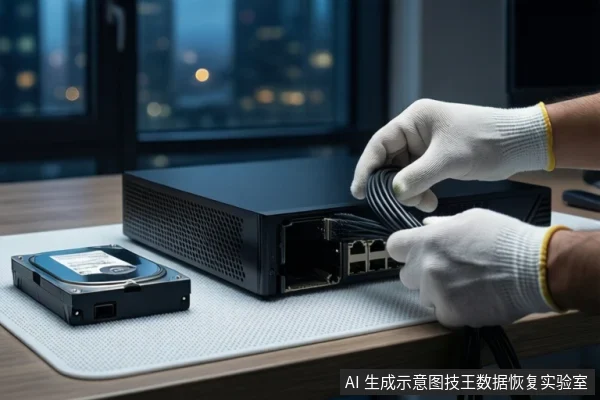
- Power Down and Isolate: Immediately turn off the NVR and unplug the power source. This prevents further damage from short circuits or voltage fluctuations. Do not hot-swap the drive while powered on.
- Inspect Visually: If you are comfortable removing the drive, do so carefully while handling the edges to avoid static discharge. Look for burn marks, deformation, or liquid residue. If you see physical damage or smell burning, do not power it on again. Store the drive in an anti-static bag.
- Seek Professional Help: If the drive is not recognized by the host system at all, or if you have heard mechanical noises, contact a professional data recovery lab. A specialized lab can provide cleanroom evaluation and professional imaging services to assess the drive's condition and attempt data recovery safely.
Frequently Asked Questions
What should I do if I hear clicking sounds when the NVR tries to start?
Power off the device immediately. Clicking sounds are a strong indicator of potential mechanical failure, such as head crash or motor seizure. Treat this as a critical warning to stop all DIY attempts. Do not attempt to boot it again, as this can cause further physical damage to the platters. Contact a professional data recovery lab for cleanroom evaluation.
Can I use data recovery software if the NVR says 'No Hard Drive'?
No, not if the drive is not recognized by the host system. Software recovery requires the drive to be enumerated and stable. If the drive is not detected, software cannot establish a read channel. If the drive is recognized but unstable (e.g., RAW format), running software may cause further damage. Seek professional imaging instead.
Is it safe to reseat the SATA cables if the drive is not making noise?
Yes, if the drive is silent and you have not heard any mechanical noises. Ensure the device is powered off before reseating the cables. Check both data and power connections. If the drive is recognized after reconnection, back up data immediately. If it is still not recognized, stop and seek professional help.