
External Hard Drive Not Detected: Logical vs. Physical Failure
Published 2026-09-17 | JiWang Data Recovery Technical Team
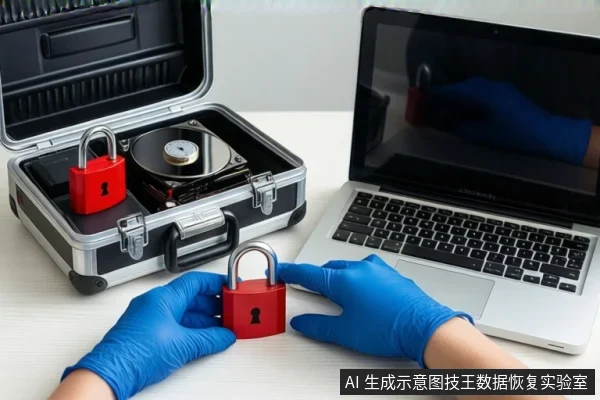
Direct Answer: What Determines Recovery Possibility?
Recovery feasibility depends on whether the drive is physically intact and logically accessible. If the drive is detected in Device Manager but shows as RAW or Unallocated, it is a logical formatting issue where software recovery is possible . If it is not detected at all or shows Error Code 10 after testing different cables and computers, the drive has likely suffered physical failure, requiring professional intervention . Always stop using the drive to prevent overwriting data .
Diagnosing the Failure: Logical vs. Physical
External hard drives should typically be detected by the operating system without needing specific drivers or software updates . When a drive fails to appear, the root cause is either a logical configuration error or a physical hardware defect. The distinction dictates the safe course of action.
Logical Failure (Software-Recoverable): If the drive appears in Disk Management as RAW or Unallocated, the file system is corrupted or missing, but the physical media is likely intact . In this scenario, the data is still present on the platters or flash cells, but the operating system cannot read the directory structure. This is a common state after accidental formatting or power loss during a write operation.
Physical Failure (Professional Intervention Required): If the drive is not detected in Device Manager, or if it appears with Error Code 10 after you have tried different cables and computers, the drive has probably failed at the hardware level . Error Code 10 indicates that the operating system cannot start the device, often due to controller failure, motor issues, or head damage. In these cases, software tools cannot access the data, and repeated attempts to power on the drive may worsen the damage.
Safe Next Steps for Logical Issues
If you have confirmed the drive is physically stable (no clicking or grinding noises) and shows as RAW or Unallocated, you can attempt data recovery using software. However, you must follow strict protocols to prevent data loss.
1. Minimize Computer Use: To increase the chances of recovering a file, users should minimize or avoid using the computer to prevent overwriting free space where deleted file data may still exist . Every time the system writes temporary files, it risks overwriting the very data you are trying to save.
2. Use Appropriate Recovery Tools: Windows File Recovery is a command-line app available from the Microsoft Store that can recover lost files from local storage devices, including external drives and USB devices . Note that recovering files from non-NTFS file systems (such as FAT and exFAT) is only supported by the extensive mode in Windows File Recovery . If your drive was formatted as exFAT (common for external drives), you must use the extensive mode to scan for data.
3. Do Not Format: Even if the drive shows as RAW, do not format it to make it usable. Formatting will erase the file system structure and make recovery significantly harder or impossible. Instead, use recovery software to extract files to a different, healthy drive.
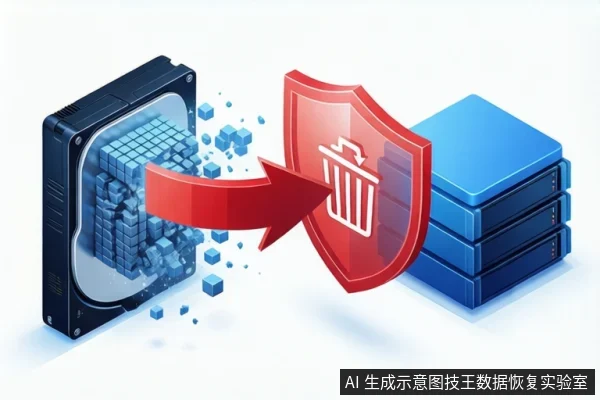
When to Stop and Seek Professional Help
Stop all software attempts and seek professional help if you observe any of the following conditions:
- Physical Noises: The drive makes clicking, grinding, or beeping noises. This indicates mechanical failure, such as head or motor issues.
- Device Manager Errors: The drive is not detected in Device Manager, or it shows Error Code 10 after trying different cables and computers .
- Instability: The drive disconnects and reconnects randomly, or the capacity shown in Disk Management fluctuates.
In these cases, the drive has likely suffered physical damage. Software tools cannot repair hardware faults, and continued use may cause irreversible data loss. Professional data recovery services, such as those provided by Jiwang Data Recovery Lab, operate in cleanroom environments to safely access damaged media.
Frequently Asked Questions
Is it safe to format the drive if it shows as RAW?
No. Formatting a RAW drive will erase the file system and make data recovery significantly harder. If the drive is physically stable, use recovery software to extract data first. If the drive is physically failing, formatting will not help and may worsen the damage.
What does Error Code 10 in Device Manager mean?
Error Code 10 indicates that the operating system cannot start the device. If you have already tried another cable and computer and still see Code 10, the drive has probably failed at the hardware level . This requires professional intervention.
Can I recover data from an external drive using Windows File Recovery?
Yes, Windows File Recovery can recover lost files from external drives and USB devices . However, if the drive is formatted with a non-NTFS file system like exFAT, you must use the extensive mode to recover files . This tool is only effective if the drive is physically intact and logically accessible.