
Hard Drive Repair Tools: How to Interpret Results and When to Stop
Published 2026-10-16 | JiWang Data Recovery Technical Team
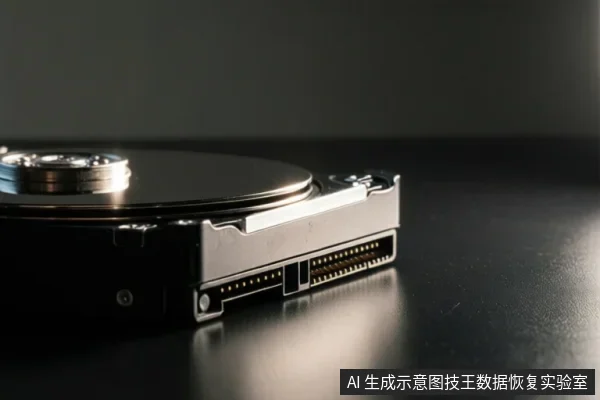
Hard drive repair tools typically address logical errors like bad sectors or file system issues, but they cannot physically fix damaged magnetic heads. If your drive is stable and recognized by the system, you can safely use tools like Windows File Recovery to extract data. However, if the drive makes clicking sounds or is not recognized, you must stop all software operations immediately to prevent further physical damage.
Logical vs. Physical: What Repair Tools Actually Do
It is a common misconception that software can repair physical hardware. In reality, generic repair tools operate at the logical level, handling tasks such as remapping bad sectors, repairing file system structures, or adjusting firmware parameters. They do not repair physical components like magnetic heads, which are precision optical-grade parts. If a magnetic head is damaged, deformed, or contaminated, no software can fix it. Physical damage to these components requires professional intervention in a cleanroom environment to replace the parts. Therefore, if your drive exhibits physical symptoms, running repair tools is not only ineffective but dangerous, as it may cause permanent data loss.
Interpreting Tool Results: Logs vs. User Interface
When running diagnostic or repair software, the visual output on the screen often shows a progress bar or a "Success" message. This indicates that the software completed its algorithmic process, not that your data is safe or fully recovered. To accurately assess the health of your drive, you must look at the underlying logs. These logs, often found in the software's installation directory, ProgramData folder, or via an export function, contain critical details such as skipped sectors, retry counts, and I/O errors. A high number of I/O errors or timeouts in the log suggests that the drive's read capability is severely degraded. Relying solely on the user interface's "completed" status can be misleading and dangerous if the underlying physical medium is failing.
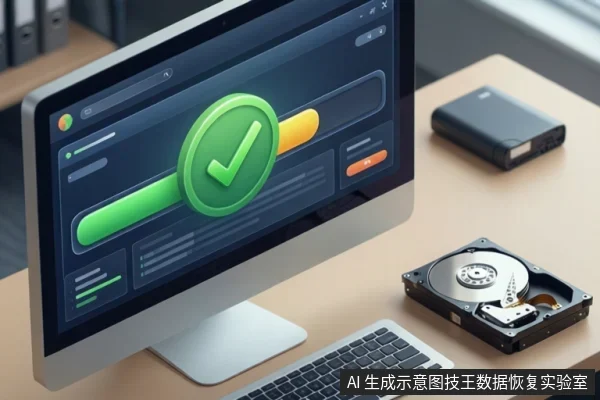
Safe Data Recovery Steps with Windows File Recovery
If your drive is stable and recognized, and you are dealing with logical data loss (such as deleted files or file system corruption), Windows File Recovery is a reliable command-line tool available from the Microsoft Store. Before using it, ensure you minimize or avoid using the computer to prevent overwriting free space, which can destroy recoverable data. A critical rule is that the source drive (where the data is) and the destination drive (where you save the recovered files) must be different to prevent data overwriting. Additionally, if you are recovering files from non-NTFS file systems like FAT or exFAT, you must use the extensive mode, as this is the only mode supported for those file systems. You can also save a log file of the recovery operation to a different location using the /p: switch, which is useful for verifying the integrity of the recovery process.
When to Stop: Signs of Physical Failure
There are specific conditions under which you must immediately stop using any software tools and power off the drive. These are clear indicators of physical failure where software intervention will cause more harm than good. The primary signs include: the drive making clicking or grinding noises, which indicates mechanical failure often known as the "click of death"; the drive not being recognized in BIOS or Device Manager, suggesting a hardware-level detection failure; or SMART data showing critical physical errors with a rising count of real-time errors. In these scenarios, continuing to run software scans applies additional stress to the drive, potentially causing the magnetic heads to scratch the platters and permanently destroy data. The only safe course of action is to power off the drive and seek professional hardware-level service.
Frequently Asked Questions
Can software repair a physically damaged hard drive head?
No. Software operates at the logical level and cannot repair physical components like magnetic heads. If you hear the specific rhythmic "click of death" associated with mechanical failure, stop all operations immediately and seek professional hardware-level service.
Where are the logs for Windows File Recovery saved?
By default, logs are saved on the destination drive. If you need to verify the integrity of the recovery process without cluttering the destination folder, use the /p: switch to save the log to a separate diagnostic folder.
What should I do if my hard drive is making clicking sounds?
Unplug the power source immediately to stop the mechanical movement. Do not attempt to restart the drive or run any diagnostic scans, as this can cause the heads to scratch the platters. Seek professional hardware-level service to prevent permanent data loss.