
Word Document Recovery: Actions That Compromise Data Integrity and Safe Protection Steps
Published 2026-09-24 | JiWang Data Recovery Technical Team
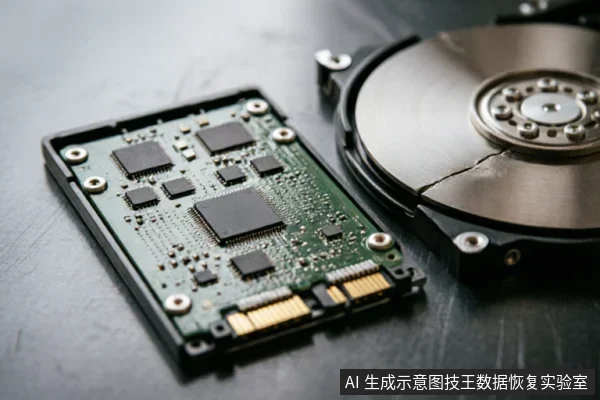
When a Word document is lost or corrupted, the immediate instinct is often to open it to verify its contents. However, this action can be catastrophic. The most critical rule in data recovery is to immediately stop all write operations on the affected drive upon detecting any anomaly. Avoid formatting, initializing, or writing recovered files back to the original media. Before attempting any recovery, verify the drive's physical stability and check for existing backups. If the drive exhibits physical symptoms like clicking or failure to spin, stop all software-based attempts and seek professional help.
Immediate Actions to Prevent Further Data Loss
The moment you realize a Word document is missing or unreadable, the priority shifts from "access" to "preservation." Many users mistakenly believe that opening the file will simply show them what is there. In reality, the operating system may attempt to update file metadata, such as the "last accessed" timestamp, or trigger automatic repair mechanisms that overwrite the very sectors you are trying to save. This is especially dangerous if the file system is already compromised.
To protect your data, you must treat the storage device as a crime scene. Do not save new files to the drive. Do not install recovery tools on the same partition where the data was lost. Instead, connect an external drive or use a different computer to download recovery software if necessary. The goal is to keep the source drive in a static state, ensuring that no new data overwrites the deleted or corrupted fragments of your Word document.
Why Recovery Software Can Be Harmful
Consumer-grade data recovery tools are designed for convenience, not precision. While they can recover simple deleted files from healthy drives, they often lack the sophistication required for complex logical errors or corrupted file headers. These tools typically perform a quick scan that reads the file allocation table (FAT) or Master File Table (MFT). If these structures are damaged, the software may misinterpret the data, leading to incomplete or corrupted output files.
The Danger of Writing Back Recovered Files
One of the most common mistakes users make after a successful scan is saving the recovered files directly back to the original drive. This action is equivalent to digging a hole with the shovel you are trying to rescue someone with. When you write new data to the drive, you are overwriting the free space where your original Word document fragments might still reside. Even if the file appears "deleted," the actual data blocks remain until they are overwritten by new information.
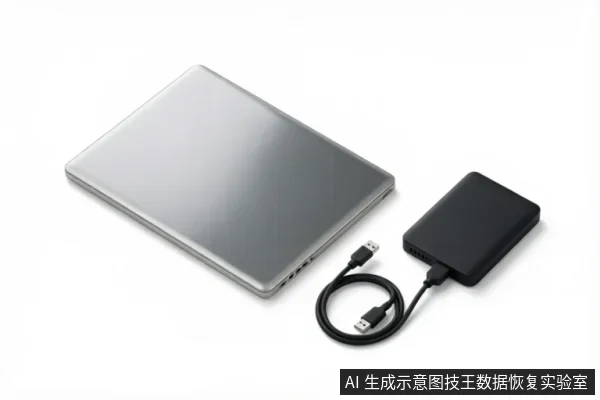
Writing back files also creates a chaotic environment for subsequent recovery attempts. It becomes difficult to distinguish between the original data and the newly written recovery files. This confusion can lead to false positives, where the software recovers a file that was just saved during the previous attempt, giving a false sense of security while the original data continues to degrade. Always save recovered files to a separate, healthy storage medium.
Logical vs. Physical Failure Indicators
Understanding the type of failure is crucial for determining the next steps. Logical failures involve the file system, partition tables, or virus corruption. In these cases, the hardware is functioning correctly, but the software structure is broken. Symptoms include prompts to format the drive, missing folders, or files showing as zero bytes. Physical failures involve hardware damage, such as bad sectors, head crashes, or circuit board failures. Symptoms include unusual noises, failure to spin up, or the drive not being recognized by the BIOS.
| Indicator | Type | Action |
|---|---|---|
| Prompt to Format | Logical | Stop writes;seek professional imaging |
| Missing Folders | Logical | Avoid system repair tools;use deep scan tools |
| Unusual Noises | Physical | Power off immediately;seek lab help |
| Not Recognized | Physical/Logical | Check cables;avoid repeated power cycles |
When to Stop and Seek Professional Help
Do not open or disassemble the drive;keep the original media protected and seek professional assessment.keep the original media protected and seek professional assessment.
Professional data recovery services have the tools and cleanroom environments to handle physical failures. They can create bit-by-bit images of the drive, allowing them to work on a copy rather than the original. This process minimizes stress on the failing hardware and maximizes the chances of recovering every possible byte of data. If you suspect a physical failure, do not attempt further DIY recovery. Instead, power down the device and consult with experts who specialize in hardware-level restoration.
Frequently Asked Questions
Can I use free recovery software to fix my corrupted Word document?
No, using free recovery software is risky and often ineffective for complex corruption. Free tools typically rely on standard file headers and may not be able to reconstruct damaged documents. They can also inadvertently write to the drive during the scanning process, causing further data loss. Professional services can extract raw text or images from the binary data without relying on the standard file header, which consumer tools cannot do. For critical documents, it is safer to seek professional assistance rather than risking further damage with unverified software.
What should I do if my Word document opens but shows garbled text or missing pages?
If the document opens but is corrupted, immediately save it to a different location, such as an external drive or cloud storage, to preserve the current state. Do not continue editing or saving over the original file. Then, stop all write operations on the source drive. The corruption may indicate deeper file system issues or partial data loss. Running repair tools or continuing to use the file could exacerbate the problem. Consider seeking professional data recovery services to analyze the underlying binary structure and attempt a more thorough reconstruction.
Is it safe to run system repair tools on a drive where I lost Word documents?
No, running system repair tools (such as Check Disk) on a drive with lost or corrupted Word documents is generally unsafe. System repair tools attempt to fix file system errors by rewriting directory entries and marking bad sectors. This process can overwrite the data fragments of deleted or corrupted files, making them unrecoverable. If you suspect logical errors, avoid automated repair tools. Instead, use specialized data recovery software that operates in read-only mode to scan for recoverable files without modifying the disk structure.