
TOSHIBA-TR200 Not Recognized: When to Stop Software Attempts
Published 2026-09-11 | JiWang Data Recovery Technical Team
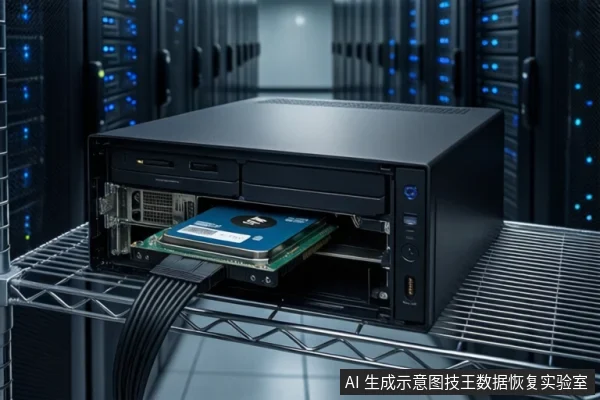
For a TOSHIBA-TR200 SSD that is not recognized at boot, software intervention is only safe if the drive is visible in the BIOS/UEFI and shows no signs of physical failure. If the drive is invisible in BIOS or exhibits intermittent 'drop-outs,' you must stop all software attempts immediately. These symptoms indicate firmware or controller failures where software writes can trigger TRIM commands and permanently erase data.
Direct Answer: When to Stop vs. When to Proceed
The critical distinction for the TOSHIBA-TR200 lies in the drive's visibility to the motherboard's firmware (BIOS/UEFI) rather than the operating system. This determines whether the failure is logical (software-fixable) or physical/firmware-related (requires professional lab intervention).
- Proceed with caution (Logical Failure): The drive is visible in BIOS/UEFI storage lists, even if it shows as 'Uninitialized,' 'RAW,' or has a 0-byte capacity in Windows. In this scenario, the controller is communicating, and the NAND chips are likely intact. You may attempt data recovery, but only via read-only imaging.
- Stop Immediately (Firmware/Physical Failure): The drive is completely invisible in BIOS/UEFI after checking connections, or it appears and disappears intermittently. In this scenario, the controller is unstable or locked. Any power-on cycle risks triggering security locks or TRIM commands that erase data.
Risk Assessment: Logical vs. Firmware vs. Physical Failure
Understanding the failure type is essential because SSDs behave differently from HDDs during recovery. The primary risk in SSD recovery is the TRIM command. When an operating system or recovery tool writes to an SSD, it may issue TRIM commands to the controller, instructing it to erase specific NAND blocks to optimize performance. Once TRIM is executed, the data is physically gone, making professional recovery impossible.
There are three distinct failure boundaries for the TOSHIBA-TR200:
- Interface/Connection Issues: Caused by loose SATA cables, oxidized M.2 contacts, or power supply instability. Data is usually safe. Fixing the connection restores access.
- Firmware/Controller Issues: The controller fails to report the drive to the BIOS, or reports it with incorrect parameters. The data exists on the NAND chips but is inaccessible via standard OS tools. Software recovery tools often fail here because they cannot communicate with the locked controller. Repeated power-ons can worsen this state.
- Physical/NAND Damage: The NAND chips are degraded or the controller is burned out. This requires chip-level recovery in a cleanroom environment. Software tools are useless and potentially harmful.
Safe Diagnostic Steps: BIOS Check and Physical Inspection
Before running any software, perform these read-only checks to determine the risk level:
- Check Physical Connections: For 2.5-inch SATA models, reseat the data and power cables. For M.2 models, remove the drive, clean the gold fingers with a soft eraser, and reinsert it firmly. Try a different port or computer to rule out motherboard issues.
- Verify BIOS/UEFI Visibility: Boot into the BIOS/UEFI setup utility. Check the storage device list.
- If visible: The controller is alive. Proceed to the 'Imaging' step below.
- If invisible: Stop. Do not boot into Windows. Do not run diagnostic software. This indicates a firmware or hardware fault.
- Observe Behavior: If the drive appears in BIOS but disappears after a few seconds, or if it is recognized in one PC but not another, this 'intermittent recognition' is a sign of controller instability. Stop all operations immediately.
The Danger of TRIM: Why Software Writes Are Risky
Many users attempt to fix an unrecognized SSD by formatting it or initializing it in Disk Management. This is the most dangerous action you can take. Formatting writes a new file system structure and partition table to the drive. In SSDs, this write operation can trigger the garbage collection mechanism. The controller may interpret the new file system as 'free space' and issue TRIM commands to erase the underlying NAND blocks that previously held your data. Once this happens, the data is unrecoverable by any means, including professional lab services.
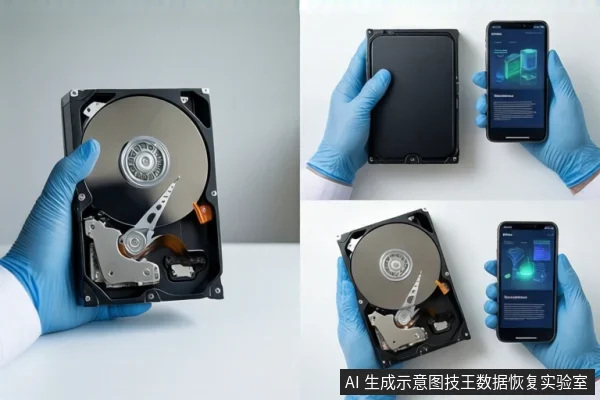
Similarly, running 'one-click' recovery software on the original drive is risky. These tools often scan the drive, which involves reading, but some may attempt to write logs or temporary files. If the drive is unstable, these writes can trigger the same TRIM cascade. Therefore, the golden rule is: Never write to the original drive.
Correct Next Steps: Imaging vs. Recovery
If the drive is visible in BIOS but not in Windows, or if it shows as 'RAW,' the correct next step is to create a sector-level image (mirror) of the drive. This process copies every readable sector from the TOSHIBA-TR200 to a healthy hard drive or external storage.
- Use Read-Only Tools: Use specialized imaging tools that operate in read-only mode. Tools like DD (with caution) or professional imaging software can create a bit-for-bit copy.
- Work on the Image: Once the image is created, you can safely attempt to recover files from the image file. If the image fails, you can retry without risking the original drive.
- Professional Help: If the drive is invisible in BIOS, or if imaging fails due to controller errors, stop. Contact a professional data recovery lab. Attempting to flash firmware or disassemble the drive yourself will likely result in permanent data loss.
For users in the US, UK, or other regions, it is advisable to seek local professional services if the drive is not visible in BIOS. If you are in a region where SOSIT Data Recovery Lab operates, they can provide a free assessment to determine if the drive is recoverable via firmware repair or chip-level extraction.
Frequently Asked Questions
Why can't I just format the TOSHIBA-TR200 to fix the recognition issue?
Formatting writes a new file system structure, which overwrites existing metadata. In SSDs, this can trigger the garbage collection mechanism, causing the controller to erase the underlying NAND data, making professional recovery impossible.
The drive is visible in BIOS but not in Windows. Is my data still there?
In most cases, yes. This usually indicates a partition table or file system error. The data is likely intact on the NAND chips. You should stop all write operations and create a disk image to attempt recovery from the copy.
What is the difference between backing up and recovering data from a failed SSD?
Backing up is an active process of copying readable data to a safe location while the drive is still functional. Recovery is a passive process of extracting data from a failed or corrupted drive. If the drive is still partially readable, backing up (imaging) is always the safer and faster option.