
WD Portable Drive Driver Error: Diagnosis and Safe Handling Guide
Published 2026-10-21 | JiWang Data Recovery Technical Team
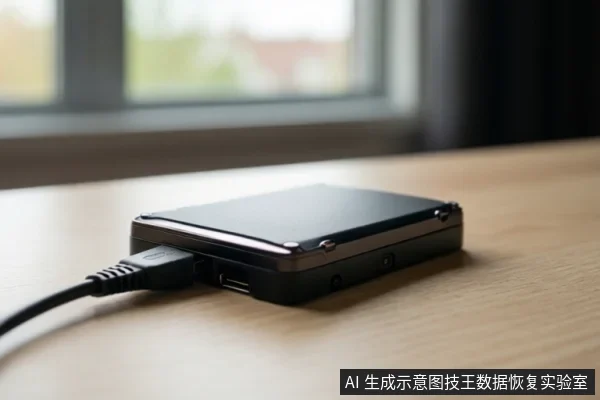
When a Western Digital portable hard drive reports a driver error or is unrecognized, first verify physical connections and test the drive on another computer. If the drive is detected in Device Manager but shows a driver error, such as Code 28, try uninstalling the device and rebooting. If the drive is not detected at all or shows Code 10, it likely has a hardware failure. In cases of RAW or Unallocated status, or confirmed hardware failure, stop all write operations and seek professional data recovery to avoid permanent data loss.
Immediate Safety Steps for Unrecognized Drives
Before attempting any software fixes, ensure the drive is physically stable. If the drive is unresponsive or making abnormal sounds, disconnect it immediately to prevent further issues. If the drive is not detected in Device Manager after trying different cables and ports, or if it shows as RAW or Unallocated with critical data, stop all self-troubleshooting and consider professional data recovery.
Diagnosis: Driver vs. Hardware Failure
External hard drives should typically be detected by the operating system without the need for specific drivers, software, or firmware updates, according to general USB external drive troubleshooting guidelines. A 'driver error' often means the operating system cannot communicate with the drive's controller, not that the data is lost. However, if the error persists across different computers and cables, it may indicate a physical failure of the USB-to-SATA bridge chip or the drive's internal electronics. Distinguishing between these two states is crucial: logical driver issues can often be resolved by reinstalling drivers, while physical failures require professional intervention.
Safe Troubleshooting Steps
- Verify the drive light is on and try connecting the drive to a different USB port on the computer.
- If possible, try using a different USB cable to rule out connectivity issues.
- Test the drive on a different computer to determine if the problem is with the host system or the drive itself.
- In Windows Device Manager, if you see a yellow exclamation mark or Code 28, right-click the device, select 'Uninstall device,' and then reboot the computer to allow the system to reinstall the driver.
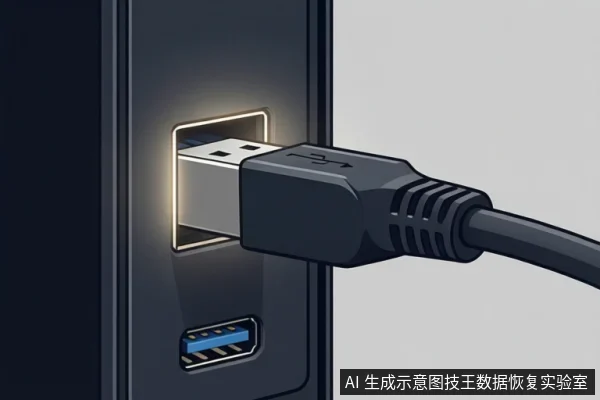
These steps are safe because they do not involve writing data to the drive. If the drive is detected in Disk Management but shows as RAW or Unallocated, do not attempt to format or initialize it, as this will erase the file system structure and make data recovery significantly more difficult.
When to Stop and Seek Professional Help
Stop all troubleshooting and seek professional data recovery if the drive is not detected under Disk Drives in Device Manager and shows Code 10 after trying another cable and computer. This code typically indicates that the device has failed at the hardware level. Additionally, if the drive shows as RAW or Unallocated and you have already tried a different port, cable, and computer, but you need the data, data recovery should be considered. In these cases, the drive's controller or file system is likely compromised, and further software attempts may overwrite recoverable data or cause the drive to lock up completely.
Frequently Asked Questions
Does a driver error mean my data is lost?
Not necessarily. A driver error often means the OS cannot communicate with the drive's controller. If the drive is physically intact, the data may still be present. However, if the error is due to a hardware failure (e.g., Code 10), the data may be at risk and requires professional assessment.
Can I fix a WD hard drive driver error myself?
Yes, for logical driver issues. Try changing cables, ports, and computers. In Windows, you can try uninstalling the device in Device Manager and rebooting. If these steps fail, or if the drive is not detected at all, do not attempt further software fixes, as they may worsen the situation.
What should I do if my WD hard drive is not recognized?
First, check physical connections. If it's still not recognized, check Device Manager. If it shows a Code 10 error or is not listed, it likely has a hardware failure. Stop using the drive and seek professional data recovery to prevent further damage to the storage media.