
Mobile Hard Drive Data Loss: Why Protecting Media Beats Immediate Scanning
Published 2026-10-06 | JiWang Data Recovery Technical Team
Protecting the original media is more important than immediate scanning because active read/write operations on unstable devices can cause irreversible data loss. If your mobile hard drive shows physical instability, noise, or recognition errors, stop all power cycles and software scans immediately.
Direct Conclusion: Why Media Protection First
When a mobile hard drive fails, the instinct to run a recovery scan is common but often dangerous. The primary goal must be preserving the physical integrity of the storage medium. Active operations, such as repeated power cycles or software scans, can exacerbate physical damage or overwrite logical structures, making recovery impossible. The decision to scan depends entirely on the stability of the device.
Common Anomalies and Risk Assessment
Understanding the specific symptoms helps determine the risk level. Different failure modes require different responses to protect the data.
- Drive powered on but not detected: This may indicate a connection issue or hardware failure. Check the connection chain first.
- Drive detected but shows RAW/Unallocated: This suggests a file system issue. Do not format; consider professional recovery if data is needed.
- Drive detected but files are corrupted or unreadable: This could be logical corruption. Avoid writing new data to the drive.
- Drive makes abnormal noises: Clicking, grinding, or friction sounds indicate physical mechanical failure. Stop immediately.
Data Protection Principles: Read-Only and Minimal Intervention
The core principle is to avoid any write operations to the original media. Formatting erases all data on the drive, so it must be avoided if data recovery is a goal. Even seemingly harmless actions like disk checks or virus scans can write logs or modify system records, potentially overwriting fragmented data. For logical issues, a read-only assessment is the safest approach. For physical issues, any power-on attempt can worsen damage.
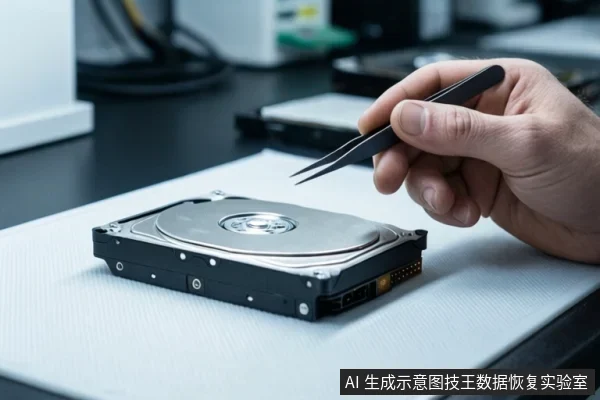
When to Stop and Seek Professional Help
There are specific conditions where you must stop all operations and seek professional assistance. These are critical stop conditions to prevent permanent data loss.
- If the drive makes clicking, grinding, or friction sounds, stop immediately.
- If the drive is completely unrecognized after checking connections and cables, stop repeated power cycles. If you have tried different ports, cables, and computers, and the drive is still not detected (or shows Code 10), it has probably failed. Repeated attempts can cause further electrical or mechanical damage.
- If the drive shows as RAW or Unallocated, do not format. Formatting erases all data. If you need the data, consider professional data recovery instead of reformatting.
Before seeking help, verify the drive light is on and try connecting to a different port, cable, or computer. If the issue persists, disconnect the drive and keep it in a safe, static-free environment. Do not attempt to open the drive or perform any physical repairs yourself.
Frequently Asked Questions
Is it safe to run a data recovery scan immediately after the drive stops working?
No, if the drive shows signs of physical instability (noise, disconnection) or logical corruption (RAW), immediate scanning can cause further damage. Protect the media first.
What does it mean if my drive shows as RAW or Unallocated?
It indicates a possible issue with the drive's formatting or file system. If you need the data, consider professional data recovery rather than reformatting.
Should I format the drive if it is not recognized properly?
No, formatting erases all data on the drive. Only format if you do not need the data and have confirmed the drive is not physically failing.