
Word Web Version Accidental Save Impact: Data Recovery Limits and Critical Actions
Published 2026-09-24 | JiWang Data Recovery Technical Team
Understanding Sync Conflicts and Overwrite Risks
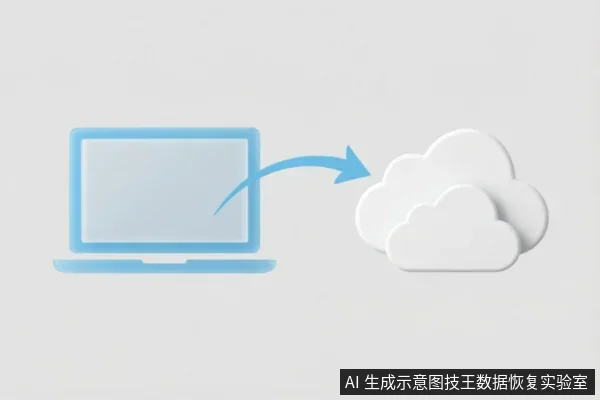
When a Word document is accessed through the web version, it initiates an automatic synchronization process with cloud storage services such as OneDrive or SharePoint. This mechanism ensures that the most recent version of the file is available across all devices. However, this convenience introduces specific risks regarding data integrity and recovery potential. If the AutoSave feature is enabled, any modifications made within the browser are immediately pushed to the cloud server. Consequently, these changes can overwrite the local copy of the file on the user’s computer. This overwriting action is critical because it replaces the previous state of the document with the new one stored in the cloud. Furthermore, if a user saves changes directly in the browser while a local version exists, the system prioritizes the cloud version. This behavior means that the local file may be updated to match the online version, potentially discarding unsaved work or earlier edits that were not yet synchronized. The sequence of operations matters significantly. Opening the file via the web interface first establishes the cloud connection. Subsequent actions, such as editing and saving, determine whether the local file remains unchanged or gets overwritten. Understanding this flow is essential for users who need to preserve specific versions of their documents. The risk of overwriting is not limited to explicit save actions. Background processes associated with AutoSave can also trigger updates without direct user intervention. Therefore, the timing of when the web version is opened relative to local edits plays a crucial role. If the web session is active during local work, the synchronization engine may detect conflicts or prioritize the cloud state. This dynamic interaction between local and cloud environments creates a complex landscape for data preservation. Users must be aware that accessing the web version is not a passive activity;it actively engages the synchronization protocol. This engagement can lead to unintended consequences if the user’s intent was solely to view the document without altering its state. The potential for overwriting underscores the importance of managing AutoSave settings and understanding the default behaviors of cloud-integrated applications.
Recovery Strategies: Cloud History vs Local Shadows
| Recovery Strategy | Applicability & Scope | Key Operational Considerations |
|---|---|---|
| Cloud Version History | Primary method for resolving web-induced conflicts. Accessible via the service provider’s interface. | Relies on server-side retention policies. Users should verify available timestamps immediately after detecting unintended changes to ensure the target state is preserved in the cloud archive. |
| Local Shadow Copies | Secondary fallback when cloud history is insufficient or unavailable. Utilizes system-level snapshot features (Previous Versions). | Dependent on local storage configuration and backup schedules. Effectiveness varies based on whether shadow copies were actively maintained prior to the conflict event. Immediate access is required before new data overwrites potential recovery points. |
| Physical Media Extraction | Last resort option, only considered if both cloud and local logical recovery methods fail to retrieve the necessary data. | Involves direct hardware intervention. This step is distinct from software-based restoration and requires specialized handling. It is not recommended as an initial strategy due to complexity and potential risks associated with physical access. |
Data Persistence in Unallocated Space
When a local Word document is overwritten by its cloud counterpart, the immediate visual state reflects the latest synchronization. However, this action does not instantly erase the previous version from the storage medium. The original local data often remains accessible within unallocated space or temporary directories on the drive. This persistence occurs because the file system marks the sectors as available for new writes rather than actively scrubbing the old binary content immediately. Consequently, the prior iteration of the document may still exist in a dormant state until subsequent system activity overwrites these specific locations. Understanding this behavior is critical for determining the feasibility of recovery operations. The presence of data in unallocated space means that the original information has not been permanently destroyed at the logical level. Instead, it awaits replacement by new files generated by ongoing computer usage. Factors such as continued saving of other documents, installing software, or general system caching can accelerate the overwriting process. Therefore, the window for potential retrieval depends heavily on the volume of new data written to the disk after the overwrite event. If no significant new data is written, the chances of locating the previous version remain higher compared to scenarios with heavy disk activity. Users should be aware that relying on this residual data requires prompt action before further modifications occur.
Immediate Actions to Preserve Data Integrity
When a user accidentally interacts with the web version of Word, the immediate priority is to preserve data integrity for potential recovery. The most critical step is to stop all syncing activities immediately. Cloud services often propagate changes rapidly;therefore, halting synchronization prevents the overwriting of local files with potentially corrupted or unwanted versions from the server. This action helps maintain the state of the document on the local machine before further alterations occur. Simultaneously, users must avoid deleting any local files. Even if the file appears incorrect or outdated in the cloud interface, the local copy may contain valuable pre-sync versions that are essential for restoration. Deleting these files locally eliminates the possibility of extracting them from the hard drive later. It is important to understand that once a local file is removed, the opportunity to recover that specific version is lost permanently. Additionally, refrain from running disk cleanup utilities or defragmentation tools during this period. These operations can alter the file system structure, making it more difficult to locate and recover previous versions of the document. Users should also avoid installing new software that might write data to the same drive, as this could overwrite sectors containing the original file data. By taking these immediate actions, users maximize the chances of successfully recovering their work without relying on complex technical interventions.

Detection Boundaries and Next Steps
When a user accidentally clicks on the web version of a Word document, the immediate concern is whether this action impacts data recovery prospects. The critical factor here is the synchronization behavior between the local environment and cloud services like OneDrive or SharePoint. Opening a file through the browser initiates a connection that can lead to overwriting local files. This risk is significantly heightened if AutoSave is active. In such cases, any changes made in the browser are pushed back to the local storage, potentially replacing the previous state with newer, unwanted versions. Similarly, if the user saves changes directly within the browser interface, these updates are synchronized immediately. This process can obscure the original data that might have been recoverable from the local cache or temporary files. Therefore, the act of interacting with the web version creates a boundary condition for recovery efforts. It introduces variables that complicate the restoration process. Users must understand that their actions in the browser are not isolated;they affect the local file system through automatic sync mechanisms. Recognizing this interaction is vital for determining the next steps. If the goal is to preserve data integrity, avoiding further synchronization is key. The presence of AutoSave means that every edit is a potential overwrite event. Without disabling this feature, the window for successful recovery narrows considerably. Understanding this dynamic helps in setting realistic expectations about what can be restored. The focus shifts from simple file retrieval to managing synchronization states. This distinction is crucial for anyone dealing with accidental web-based edits.
Frequently Asked Questions
How can I determine if AutoSave is currently active in the web version?
Check for the toggle switch located near the file name in the top-left corner of the Word interface. If it is blue or labeled 'On', synchronization is active and changes are being pushed to the cloud automatically.
What specific steps should be taken before attempting data recovery from a sync conflict?
First, review the version history within OneDrive or SharePoint to identify the most recent correct cloud backup. Second, check the local folder properties for 'Previous Versions' (shadow copies) on Windows. Physical media extraction should only be considered if both digital methods fail.
Why might the original local data still be recoverable even after being overwritten by the cloud version?
When a file is overwritten, the operating system often marks the previous data blocks as unallocated space rather than immediately erasing them. This residual data may persist in temporary directories or unallocated drive sectors until new system activity writes over those specific locations.
What immediate actions must users take to maximize the chances of recovering pre-sync versions?
Users must immediately halt all syncing activities and avoid deleting any local files. Additionally, they should refrain from writing new data to the hard drive to prevent the overwriting of the unallocated space where the pre-sync versions may reside.