
Files Missing After Switching Computers: When to Use Software vs. When to Stop
Published 2026-10-26 | JiWang Data Recovery Technical Team
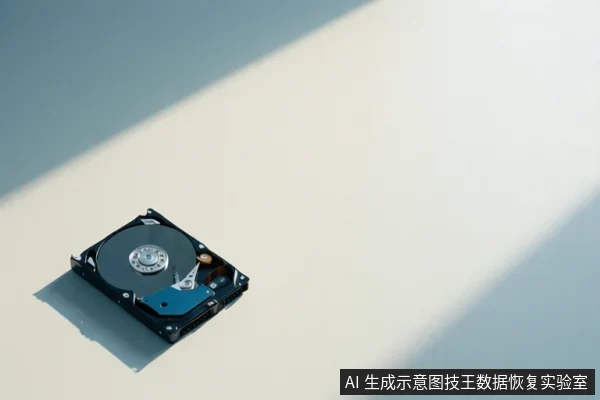
If your files disappear after moving to a new computer, you should attempt software-based recovery only if the drive is physically stable, silent, and recognized by the OS. If the drive makes clicking or grinding noises, is unrecognized, or shows physical damage signs, stop immediately and seek professional help to avoid irreversible data loss.
Direct Conclusion: When to Use Software vs. When to Stop
The core decision criterion is the physical state of the storage medium. In most cases of files disappearing after a computer switch, the issue is a logical deviation in system configuration or path recognition rather than actual data deletion. If the original hard drive is not damaged and has not been formatted, the files usually remain in their original location; the current operating system simply fails to index or display them. In these scenarios, adjusting settings or checking the correct user profile is sufficient. However, if the original hard drive has been repartitioned, formatted, or subjected to significant write operations, the integrity of the data is directly threatened. Blindly using recovery software in this state often accelerates irreversible data loss.
Common Causes: Logical vs. Physical Issues After Computer Switch
It is essential to distinguish between 'visual disappearance' and actual data loss. When migrating from one computer to another, 'disappearance' is often a visual absence rather than a technical deletion. Modern operating systems like Windows or macOS have strict permission management and user profile isolation. Documents, images, and desktop files from the old computer are typically stored in specific user folders such as Documents, Desktop, or AppData. If you use a new local account on the new computer, or if cloud synchronization has not fully pulled all offline files, the system will show the path as empty. This is a logical path difference, and the data remains intact.
Another common boundary involves the connection status of the storage medium. If the original hard drive is connected via an external enclosure or installed as a secondary drive, the new system may not automatically assign a drive letter, or it may refuse to mount it due to driver incompatibility. In this case, the files are physically safe on the magnetic tracks or flash chips, but the operating system cannot establish an access channel. You can check the disk management tools to see if the drive exists but lacks a drive letter or shows an abnormal status like RAW. This logical recognition failure is fundamentally different from physical media damage, which requires professional intervention.
Be wary of the boundary changes caused by quick formatting or initialization. If you performed a 'quick format' on the original hard drive out of anxiety after finding the files missing, the file system structure is reset, and the file allocation table is cleared. Although the file data itself may not yet be overwritten, the system logically marks it as writable space. Any new write behavior, including installing recovery software to that drive, saving temporary files, or even web browsing caches, can gradually overwrite the original data sectors. The endpoint of the judgment boundary is whether substantial data overwriting has occurred, which is the most critical dividing line for recovery success.
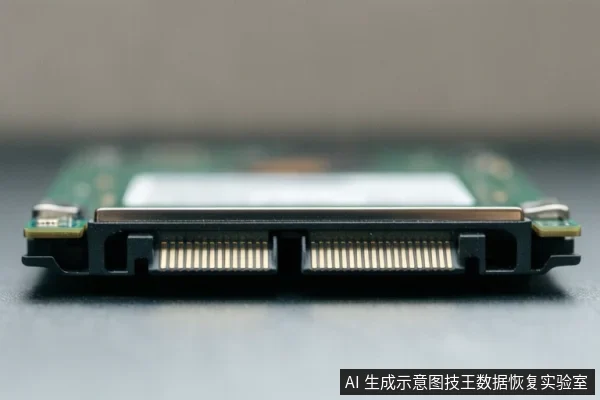
Data Protection Principles: Stop Writing, Create Image, Read-Only Mode
When facing an emergency where files are missing, the primary principle is to stop all write operations. If you suspect the original hard drive has logical faults or has been accidentally formatted, absolutely do not save any new files to it, including installing operating systems, downloading software, or saving documents. Any write behavior increases the probability of overwriting the original data sectors. Once data is overwritten, the difficulty of recovery rises exponentially, and it may become permanently unrecoverable. The safest approach is to disconnect the original hard drive from the host and connect it to another clean computer for inspection, or use read-only hardware tools to create an image.
Creating a disk image is the professional step for data protection. For important data, it is not recommended to perform repeated scans or repair attempts directly on the original drive. The professional practice is to use tools with sector-level replication capabilities to clone the entire hard drive to a healthy backup storage medium. This image file contains the original state of every bit on the drive, including deleted files and unallocated space. All recovery tests, data extraction, and file system analysis should be performed on this image file. This ensures that even if an unexpected error occurs during the recovery process, the original media is not affected, securing the safety baseline of the data.
Finally, choose software tools carefully and follow the read-only principle. Many data recovery software tools have different algorithms and varying levels of support for specific file systems. In the absence of a clear fault type, randomly using multiple software tools for overlapping scans may disturb file system pointers and increase recovery complexity. The correct approach is to first use lightweight tools for file preview and path search. Once you confirm the files are visible and previewable, consider exporting them to another safe storage device. If the original drive makes abnormal noises, disconnects frequently, or shows SMART health warnings, stop powering it on immediately and seek professional laboratory assistance for cleanroom or chip-level recovery. Do not attempt to disassemble the drive yourself.
Frequently Asked Questions
Why do my files disappear after moving to a new computer?
This is often due to user account context switching, drive letter conflicts, or cloud sync delays rather than actual data deletion. Check the old user profile folder or verify cloud storage status.
Is it safe to run data recovery software on a new computer?
Only if the drive is physically stable and recognized. If the drive makes noises or is unrecognized, software scans can accelerate data loss. Always create a disk image first if possible.
What should I do if the drive makes clicking sounds?
Stop immediately. Clicking sounds indicate physical failure (e.g., head crash). Continued use can cause permanent data loss. Seek professional cleanroom repair.