
Drive Not Detected: Distinguishing Interface, Logical, and Physical Faults for Safe Recovery
Published 2026-09-24 | JiWang Data Recovery Technical Team
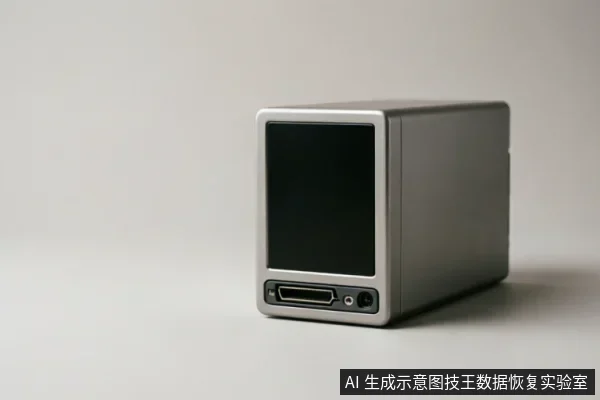
When a storage device suddenly becomes undetectable by the operating system, the most critical step is to immediately stop all attempts to force recognition and disconnect the device from power. The integrity of your files after recovery depends entirely on accurately distinguishing between three distinct fault categories: interface connectivity issues, logical file system errors, and physical hardware damage. Before any diagnostic steps are taken, you must first verify if there are existing backups and record any previous operations performed on the device. Avoid formatting, initializing, or writing any recovery results back to the original medium until the data has been confirmed secure.
Immediate Actions and Device Recognition Status
The primary indicator of the fault type is the device's recognition status within the computer's BIOS or Disk Management utility. If the target data on the original medium has not been confirmed secure, the first priority is to verify this recognition status. A drive that is completely undetectable requires a different approach than one that is detected but shows no capacity. Understanding this distinction prevents unnecessary power cycles that could exacerbate underlying issues. The following table outlines the observable symptoms associated with each fault category to help you determine the appropriate next steps.
| Fault Category | Observable Symptom | System Recognition Status | Immediate Action Required |
|---|---|---|---|
| Interface Issue | Intermittent connection, loose cable, or insufficient power supply. | Detected intermittently or not at all;may appear in BIOS with fluctuating capacity. | Check external connection chain;replace cables or ports. |
| Logical Fault | File system corruption, partition loss, or RAW format display. | Detected with correct capacity but inaccessible or unformatted. | Do not format;proceed to read-only assessment. |
| Physical Damage | Abnormal mechanical sounds, repeated dropouts, or abnormal recognized capacity. | Completely undetectable or detected with zero/incorrect capacity. | Stop repeated power-on;do not attempt software scans. |
Distinguishing Interface Problems from Logical Errors
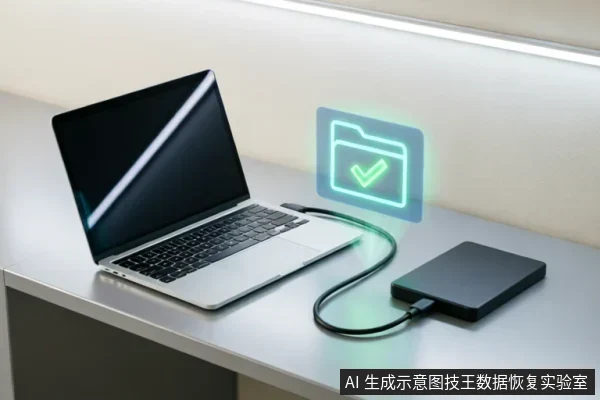
Interface problems are often the simplest to resolve but can be mistaken for more severe failures. These issues typically stem from aging USB data cables, unstable power supplies, or oxidized SATA interfaces. In such cases, the data itself remains intact because the storage medium has not been compromised. The key characteristic is that the device may be detected by the system but fails to mount properly, or it drops offline repeatedly. If replacing the cable or connecting to a different port restores stable detection, the file integrity is preserved, and access can be regained once the connection is fixed.
In contrast, logical faults involve the corruption of the file system structure, such as the Master File Table (MFT) or partition table. Here, the drive is usually detected by the BIOS with its full capacity visible, but the operating system cannot read the files, often displaying the drive as "RAW" or prompting to format it. While the data is still present on the disk, it is inaccessible due to broken pointers. It is crucial to understand that remote data recovery technology is only applicable for logical layer data extraction when the operating system can access the device. It cannot solve hardware-level recognition failures. Therefore, if the drive is logically corrupted but physically stable, professional tools can often reconstruct the file structure without damaging the original data.
Identifying Physical Damage Risks
Do not open or disassemble the drive;keep the original media protected and seek professional assessment.
The Critical Role of Media Protection
Regardless of the fault type, the principle of media protection is paramount. This involves creating a bit-by-bit image of the original drive before attempting any recovery operations. By working on a clone rather than the original medium, you ensure that the source data remains untouched. This is particularly important for logical faults, where software scans might inadvertently write temporary files or modify metadata, potentially overwriting recoverable data. For physical faults, imaging allows technicians to work around bad sectors or unstable connections without stressing the failing hardware. Without this protective measure, the chances of achieving complete file integrity diminish significantly.
Recovery Boundaries and File Integrity
Understanding the boundaries of recovery helps set realistic expectations. If the issue is purely an interface problem, file integrity is virtually guaranteed once the connection is restored. For logical faults, recovery rates are generally high provided no new data has been written to the drive since the incident. However, for physical damage, the outcome depends on the extent of the hardware failure. Data may be partially recoverable if the platters or flash memory chips are intact, but severe mechanical damage can result in permanent loss. The decision to proceed with professional recovery should be based on the value of the data and the severity of the symptoms observed.
Frequently Asked Questions
Can I use data recovery software if my computer doesn't see the drive?
No, you cannot use standard data recovery software if the drive is not detected by the operating system. Remote data recovery techniques are limited to logical layer data extraction and require the system to recognize the device. If the drive is completely undetectable, it indicates an interface or physical hardware issue that software cannot resolve. Attempting to run recovery tools will have no effect and may waste valuable time. You must first address the hardware recognition issue by checking connections or seeking professional assistance.
What should I do if the drive makes clicking or grinding noises?
Do not open or disassemble the drive;keep the original media protected and seek professional assessment.
Is it safe to try connecting the drive to another computer?
It is safe to try connecting the drive to another computer only if you suspect an interface issue, such as a faulty cable or port. If the drive is detected stably on the new system, the data is likely intact, and you can proceed with backup or recovery. However, if the drive exhibits intermittent detection, abnormal sounds, or fails to spin up on the new computer, stop testing immediately. Repeatedly cycling power across different systems can accelerate physical degradation. In cases of suspected physical failure, professional evaluation is required rather than DIY troubleshooting.