
Alienware M15x Drive Not Recognized: Safe Steps and When to Stop
Published 2026-10-27 | JiWang Data Recovery Technical Team
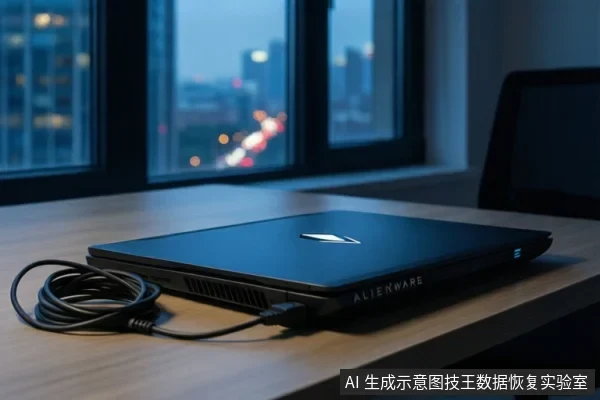
When an Alienware M15x drive fails to read, the immediate priority is to stop all write operations to preserve data integrity. Power off the laptop, disconnect the power adapter, and avoid formatting or running repair tools. If you hear clicking, grinding, or feel excessive heat, stop all DIY attempts immediately, as these indicate physical damage that software cannot fix and may worsen with further power cycles.
Immediate Safety Actions and Diagnostic Branches
The first step is to isolate the device to prevent further damage. If the system is unresponsive, force a shutdown by holding the power button, then unplug the power source. Wait for the system to fully power down before any further inspection.
Next, determine the failure type by checking BIOS recognition. Boot into BIOS/UEFI settings and look for the drive in the storage list. If the drive is visible in BIOS but not in the operating system, the issue is likely logical, such as a corrupted file system or partition table. In this case, read-only imaging tools may be safe to use, provided the drive is physically stable. If the drive is invisible in BIOS, the problem is likely physical, involving the controller, power circuit, or mechanical components (if HDD). Do not attempt to reseat the drive repeatedly if you are not confident in the process, as this can damage connectors.
Stop Conditions: When to Cease DIY Attempts
You must stop all self-repair efforts and seek professional help if you observe any of the following physical symptoms. These signs indicate hardware-level failure where software intervention is ineffective and potentially harmful:
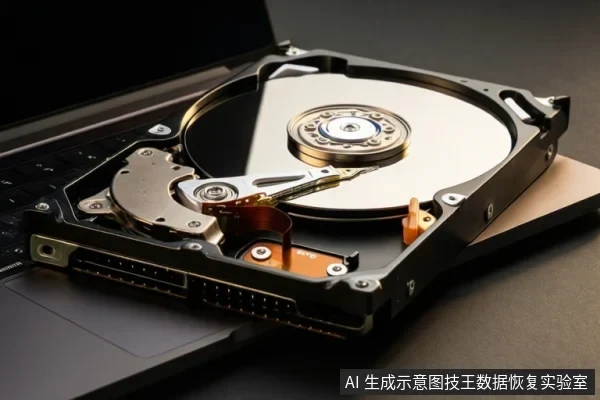
- Abnormal Noises: Clicking, grinding, or high-pitched squealing sounds indicate mechanical failure (in HDDs) or severe controller distress. Continued power-on can cause head crashes or platter scratches, leading to permanent data loss.
- Excessive Heat: If the drive or laptop chassis becomes unusually hot without heavy load, it may indicate a short circuit or failing power management. This can burn out sensitive components.
- System Instability: Frequent blue screens, freezes, or unexpected reboots during drive access suggest the drive is dropping off the bus due to electrical instability. This is a sign of imminent hardware failure.
- Physical Trauma History: If the laptop has been dropped, spilled on, or subjected to strong impact, internal components may be misaligned or damaged. Even if the drive appears to work briefly, latent damage can worsen with use.
Software Recovery Boundaries and SSD vs. HDD Differences
Software tools are only safe for logical errors on physically stable drives. For SSDs, the TRIM command poses a unique risk. When a file is deleted or a partition is formatted, TRIM instructs the SSD controller to erase the underlying data blocks to optimize performance. This makes software-based recovery of deleted files on SSDs significantly more difficult or impossible compared to HDDs, where deleted data often remains until overwritten. Therefore, if your M15x contains an SSD and you suspect logical deletion, act quickly, but be aware that TRIM may have already cleared the data. For HDDs, logical errors are more recoverable via software if the drive is stable, but physical bad sectors require professional imaging in a controlled environment.
Recovery Possibility Assessment
The likelihood of successful recovery depends on the fault type. Logical failures (e.g., accidental deletion, partition loss) have a higher success rate if no new data has been written. Physical failures (e.g., controller damage, head failure) require specialized equipment and cleanroom environments for HDDs, or professional hardware-level intervention for SSDs. The sooner you stop using the device and preserve the original media, the better the chances of recovery. Delay and improper handling significantly reduce the probability of successful data restoration.
Frequently Asked Questions
Why should I stop using my Alienware M15x immediately if the drive is not recognized?
Immediate power isolation is critical because the risk of data loss differs by drive type. On HDDs, continued access risks mechanical head crashes that physically destroy platters. On SSDs, the risk is logical: TRIM commands may permanently erase deleted blocks during background operations, making recovery impossible even if the drive remains physically intact. Stopping usage prevents both mechanical and logical degradation.
Is it safe to run disk repair tools like Chkdsk if the drive is unstable?
No. A 'stable' drive is one that is recognized in BIOS and does not produce abnormal noises or heat. An 'unstable' drive exhibits symptoms like clicking, freezing, or disappearing from the device list. Repair tools like Chkdsk perform write operations to fix file system errors, which can trigger further failures on unstable hardware. If the drive is unstable but still responsive, read-only imaging is the only safe option to capture data without writing to the media.
What is the difference in recovery chances between an HDD and an SSD in this scenario?
HDDs with physical damage require specialized cleanroom repair, while SSDs may suffer from TRIM commands that permanently erase deleted data blocks, making software-based recovery often ineffective for logical deletions on SSDs. SSDs also require professional hardware-level intervention for controller failures.