
Windows Installation: Actions Impacting Recovery and Safe Next Steps
Published 2026-09-24 | JiWang Data Recovery Technical Team
Verifying Drive Selection Before Formatting
During the Windows installation process, verifying drive selection before formatting is a critical step that directly impacts subsequent data recovery outcomes. The most important action is to immediately stop all write operations to the target drive and verify the correct disk selection in Disk Management before formatting or partitioning. This precaution prevents accidental data overwriting on the wrong volume.
- Use the Windows Disk Management tool or the installer's disk selection screen to verify the drive size, label, and partition structure.
Confirming these details ensures you are targeting the intended storage device. Incorrect selection can lead to irreversible data loss on unrelated drives. Always double-check the capacity and existing partitions to avoid misidentification. This verification step is essential for maintaining data integrity during the OS deployment phase.
Immediate Cessation of Write Operations
When installing Windows, the most critical factor influencing subsequent data recovery outcomes is the immediate cessation of all write operations to the target drive. Any action that modifies data on the disk can overwrite recoverable information, making it permanently inaccessible. Therefore, users must verify the correct disk selection in Disk Management before formatting or partitioning. This verification step is essential to ensure that the intended drive is selected and that no other drives containing valuable data are inadvertently affected by the installation process.- Stop All Write Operations: Immediately halt any processes that write data to the target drive. This includes avoiding file transfers, software installations, or system updates that might alter the disk's state.
- Verify Disk Selection: Open Disk Management and carefully check the disk labels and capacities to confirm the correct drive is selected. Mistakenly selecting a different drive can lead to data loss on unrelated partitions.
- Avoid Formatting Prematurely: Do not format or partition the drive until you have confirmed its identity and secured any necessary backups. Formatting erases file system structures, complicating recovery efforts.
- Monitor System Activity: Keep an eye on background processes that might automatically write to the disk, such as indexing services or update checks, and disable them if possible during the installation phase.
Handling Physical Symptoms During Installation
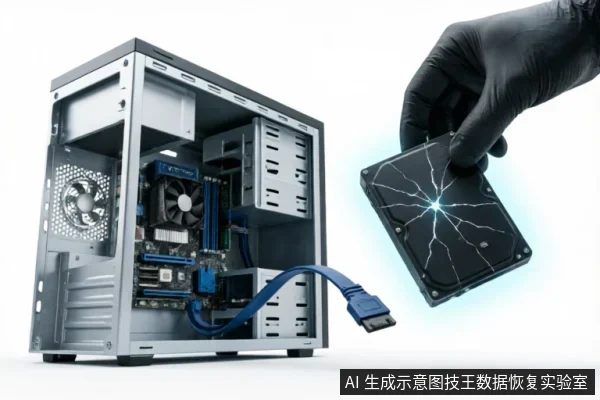
When installing a Windows operating system, the integrity of the storage device is paramount. If you encounter specific physical symptoms during this process, immediate action is required to preserve data potential. The most critical indicators are auditory and mechanical anomalies. Specifically, if the drive exhibits physical symptoms such as clicking noises or failure to spin, stop all software attempts and disconnect the device to prevent further damage. These sounds often indicate severe internal distress that software cannot resolve. Continuing to run installation scripts or disk checks in this state only exacerbates the risk. Do not attempt to bypass these warnings by forcing the installation or ignoring error messages. The presence of clicking noises suggests that internal components are struggling to operate correctly. Similarly, a failure to spin indicates that the drive is not initializing properly. In both scenarios, any further electrical activity poses a threat to the stored information. Therefore, the priority shifts from installation to preservation. You must cease all interaction with the drive immediately. This includes halting any background processes that might access the disk. Once disconnected, the device should be handled with care. Avoid moving it unnecessarily or exposing it to static electricity. The goal is to maintain the current state without introducing new variables. Professional assessment is necessary at this stage. Only qualified technicians with appropriate environments can evaluate the extent of the issue. Attempting DIY repairs or using consumer-grade tools will likely result in permanent data loss. Remember, the window for successful recovery narrows significantly once physical symptoms manifest. Prioritize safety and professional intervention over continuing the OS installation.

Using Disk Management for Accurate Identification
Using Disk Management for Accurate Identification When installing a Windows operating system, the initial phase is critical for ensuring that data recovery remains viable if errors occur. The most effective strategy involves utilizing specific built-in tools to verify drive characteristics before any formatting or partitioning actions are taken. This proactive verification step helps distinguish between healthy storage devices and those that may require immediate attention, thereby preventing accidental data loss on the wrong volume. The primary tool recommended for this task is the Windows Disk Management utility. Accessing this interface allows users to inspect the physical properties of connected drives in a clear, structured manner. By reviewing the information presented here, you can confirm essential details such as the total capacity, the assigned volume label, and the existing partition layout. This visual confirmation serves as a crucial checkpoint, ensuring that the target drive matches your expectations and that no other important data is inadvertently compromised during the installation process. Alternatively, the installer’s own disk selection screen provides another reliable method for identification. During the setup wizard, you will encounter a list of available drives. Carefully examining this list enables you to cross-reference the drive size and label with your known hardware specifications. This dual-approach verification minimizes the risk of selecting an incorrect drive, which is a common cause of irreversible data loss. By taking the time to accurately identify the correct drive through these standard interfaces, you establish a solid foundation for a safe installation. If discrepancies are found, it is advisable to pause the process and investigate further rather than proceeding blindly. This cautious approach prioritizes data integrity over speed, ensuring that your valuable files remain protected throughout the OS deployment. Always double-check the selected drive to avoid unintended consequences.
Safe Next Steps for Data Preservation
When installing Windows, the most critical factor for preserving data is immediate cessation of all write operations to the target drive. Before initiating any formatting or partitioning steps, you must rigorously verify the correct disk selection within Disk Management. This verification step ensures that you do not inadvertently overwrite partitions containing valuable information on adjacent drives. If the drive exhibits physical symptoms such as clicking noises or failure to spin, stop all software attempts and disconnect the device to prevent further damage. Continuing to interact with a mechanically compromised drive can exacerbate the issue, making professional recovery significantly more difficult.
- Verify Disk Selection: Open Disk Management and confirm the exact drive letter and size before proceeding with any installation tasks.
- Stop Write Operations: Immediately halt any processes that write data to the target drive if data preservation becomes a priority.
- Physical Symptoms: If clicking noises occur, disconnect the device immediately to avoid additional harm.
These actions create a stable environment for potential future recovery efforts. By adhering to these safe next steps, you maintain the integrity of the existing data structure without introducing new variables that could complicate the restoration process.
Frequently Asked Questions
How can I ensure I am selecting the correct drive before formatting or partitioning?
Use the Windows Disk Management tool or the installer's disk selection screen to verify the drive size, label, and partition structure.
What immediate actions should be taken if the target drive makes clicking noises or fails to spin?
Stop all software attempts immediately, disconnect the device to prevent further damage, and do not proceed with any write operations.
Is it safe to continue using the drive if I suspect physical hardware failure?
No. If physical symptoms like clicking noises are present, you must stop all write operations and disconnect the device to avoid irreversible data loss or hardware worsening.