
Portable Hard Drive Not Recognized or Unstable: Distinguish Logical, Interface, and Physical Faults
Published 2026-09-24 | JiWang Data Recovery Technical Team
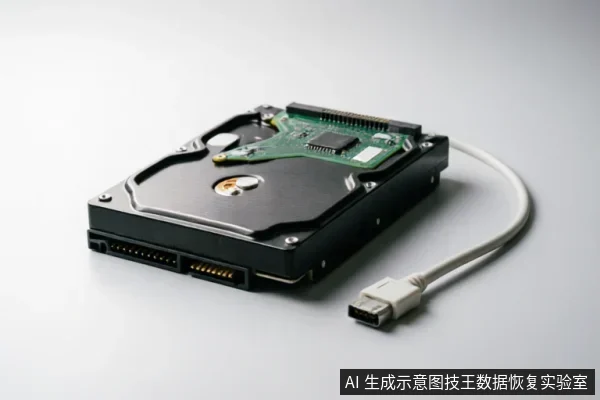
Diagnostic Table: Symptom vs. Fault Type
To accurately determine the nature of the fault, observe the device's response when connected to the computer. The following table maps observable symptoms to potential fault types and recommended actions:
| Observable Symptom | Potential Fault Type | Immediate Action |
|---|---|---|
| Drive appears in Disk Management but prompts "Format" or shows RAW file system | Logical Error | Stop writing;do not format. Proceed to logical recovery assessment. |
| Computer makes USB connection sound but drive does not appear;or drive disconnects/reconnects repeatedly | Interface Issue | Check cables and ports. If stable recognition returns, backup data immediately. |
| Abnormal mechanical sounds (clicking, grinding), complete non-recognition, or excessive heat | Physical Media Damage | Stop power immediately. Do not attempt further testing. Seek professional help. |
Logical Errors: Software-Level Issues
Logical errors occur when the file system structure is damaged, but the physical storage medium remains intact. Common signs include the drive being recognized by the operating system with its correct capacity, yet files are inaccessible, or the system prompts that the disk needs to be formatted before use. In these cases, the data is often still present on the platters or flash memory, but the directory pointers are corrupted.
For logical faults, the primary risk is accidental data overwriting. When target data on the original medium has not been confirmed secure, first verify device recognition status, existing backups, and prior operations. Avoid formatting, initializing, or writing recovered results back to the original medium. Users should refrain from using Windows built-in repair tools without caution, as these tools may attempt to fix file system structures by rewriting metadata, which can lead to permanent data loss. Instead, focus on creating a read-only image of the drive if possible, or use specialized data recovery software that operates in read-only mode to extract files to a different healthy storage device.
Interface Issues: Connection and Power
Interface issues are often the most benign type of failure, involving problems with the external connection chain rather than the drive itself. Symptoms include the computer failing to detect the drive entirely, the drive appearing and disappearing intermittently (flashing in Device Manager), or the drive making a faint buzzing noise indicating it cannot spin up due to insufficient power.
If a storage device exhibits frequent disconnection or is completely unrecognized, first confirm the external connection chain before deciding on read-only assessment. This involves trying different USB ports on the computer, preferably those directly on the motherboard for desktops, and replacing the USB cable with a known good one. For portable drives that require significant power, avoid using USB hubs or front-panel ports that may deliver inconsistent voltage. Once a stable connection is established, the goal is to quickly backup accessible data to a separate location. If the drive stabilizes after changing cables or ports, the issue was likely an interface problem, and no complex recovery is needed beyond securing the data.
Physical Media Damage: Hardware Failures
Do not open or disassemble the drive;keep the original media protected and seek professional assessment.keep the original media protected and seek professional assessment.keep the original media protected and seek professional assessment.
Do not open or disassemble the drive;keep the original media protected and seek professional assessment.keep the original media protected and seek professional assessment.keep the original media protected and seek professional assessment.
Critical Stop Conditions and Safety Rules
Regardless of the suspected fault type, there are universal stop conditions that must be observed to preserve data integrity. These rules apply to all portable storage devices, whether HDD or SSD.
- Stop Writing: Never save new files, install software, or format the drive if you intend to recover data from it.
- Stop Repeated Power Cycles: If the drive behaves erratically, each power cycle consumes the lifespan of the components and increases the risk of total failure.
- Stop Self-Disassembly: Do not open the casing of the drive. This voids warranties and exposes sensitive components to contamination.
- Stop Aggressive Scanning: Avoid running deep scans with consumer-grade recovery software on drives that show signs of physical instability.
Understanding these boundaries helps users make informed decisions about when to troubleshoot independently and when to seek professional assistance. The goal is always to prioritize data preservation over device functionality.
Frequently Asked Questions
Can I use software to fix my hard drive if it's making noise?
fix" the drive in this state is ineffective because the issue is hardware-based, not logical. Furthermore, every time the drive spins up under these conditions, the risk of the read head scratching the platter increases, potentially destroying the magnetic surface where data resides. You should stop power immediately and seek professional hardware-level intervention to preserve the data.
What should I do if my portable hard drive is not recognized by the computer?
If your portable hard drive is not recognized, first check the external connection chain before assuming the worst. Try connecting the drive to a different USB port on your computer, preferably one directly on the motherboard if you are using a desktop. Also, try using a different USB cable, as faulty cables are a common cause of connection issues. If the drive still does not appear after trying multiple ports and cables, and it does not make any unusual noises, it may be a logical error or a more serious internal failure. In this case, avoid formatting or initializing the drive, as these actions will erase data. Instead, consider seeking professional assessment to determine if the issue is logical or physical.
Is it safe to run system repair tools on a drive that shows errors?
Running system repair tools (such as Check Disk) on a drive with errors can be risky and is generally not recommended if data recovery is the primary goal. These tools attempt to fix file system errors by modifying the file allocation table and other metadata. While this can make the drive usable again, it may also overwrite or corrupt data fragments that were previously recoverable. If your drive is showing errors but you have not backed up your data, it is safer to use read-only data recovery software to extract your files first. Only after your data is safely backed up should you consider running system repair tools to repair the file system.
How can I tell if my drive has a logical error or a physical failure?
if it is not recognized or behaves erratically, it is likely physical.