
How to Distinguish Logical, Interface, and Physical Failures in a WD Mobile Hard Drive
Published 2026-10-17 | JiWang Data Recovery Technical Team
For a WD mobile hard drive, distinguish failure types by observation: interface issues show as non-detection or error codes; logical issues show as recognized but unreadable or RAW; physical issues show as abnormal sounds or complete failure. Stop writing immediately and seek professional help for physical signs.
Identifying the Failure Layer by Observable Symptoms
The first step in diagnosis is to determine whether the drive is recognized by the operating system. Under normal circumstances, an external hard drive should be detected by the system without the need for drivers or software updates. If the computer does not detect the drive at all, or if the Device Manager displays an unknown device or error code, the issue is likely at the interface level. This often stems from loose cables, oxidized connectors, or power supply issues. In such cases, the drive itself may be healthy, but the connection path is broken.
If the drive is recognized by the system but appears as RAW, Unallocated, or prompts for formatting, the issue is likely logical. This indicates a file system or partition table problem. The data may still be present on the media, but the index that tells the operating system how to read it is corrupted. On macOS, if the drive does not mount in Disk Utility, it also indicates some level of file system corruption.
If the drive makes abnormal sounds, such as clicking or grinding, or if it is completely unresponsive after verifying power and connections, the issue is likely physical. Physical failures involve mechanical or electronic components, such as head crashes, motor failures, or controller burnout. These are the most severe and require professional intervention.
Interface vs Logical vs Physical: What the Symptoms Mean
Interface issues are often the most common and the easiest to resolve. They typically manifest as the drive not being detected at all, or as an error code in the Device Manager. If you see Code 10 in the Device Manager and have already tried another cable and computer, the drive has probably failed at the interface level. However, before concluding this, you should try connecting the drive to a different port, using a different cable, and testing it on a different computer. If the drive works on another computer or with a different cable, the issue was likely a faulty connection or port, not the drive itself.
Logical issues are different. The drive is recognized, but the data is not accessible. This is often due to accidental deletion, formatting, or file system corruption. In these cases, the data is still on the drive, but the operating system cannot find it. The correct response is to stop writing to the drive immediately and consider data recovery. Running disk check or repair tools on a drive with logical issues can sometimes cause further data loss, so it is best to seek professional help or use a reliable data recovery tool in read-only mode.
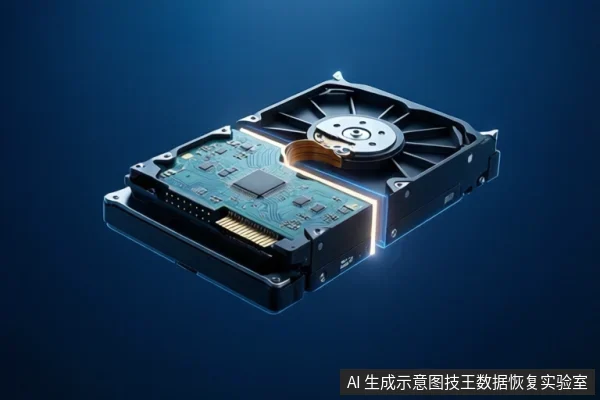
Physical issues are the most serious. They involve damage to the mechanical or electronic components of the drive. If the drive makes clicking or grinding sounds, it is likely that the heads are damaged or the motor is failing. In these cases, continuing to use the drive can cause further damage and make data recovery impossible. The correct response is to power off the drive immediately and seek professional help. Do not attempt to open the drive yourself, as this will expose the platters to dust and cause further damage.
Immediate Safety Actions to Prevent Data Loss
Regardless of the type of failure, the most important thing is to prevent further data loss. If the drive is making abnormal sounds, stop using it immediately. Clicking or grinding sounds are a sign of physical damage, and continuing to use the drive can cause the heads to scratch the platters, making data recovery impossible. If the drive is not detected after trying different cables and ports, stop DIY attempts and seek professional help. Continuing to try to force the drive to work can cause further damage to the interface or controller.
If the drive is recognized but shows as RAW or Unallocated, stop writing to it immediately. Do not run disk check or repair tools, as these can overwrite the data you are trying to recover. Instead, consider using a data recovery tool in read-only mode or seek professional help. The goal is to extract the data without causing further damage to the file system or the media.
In all cases, the best way to protect your data is to have a backup. If you have a backup, you can afford to be more cautious and seek professional help if needed. If you do not have a backup, you should act quickly to prevent further data loss. Remember, the goal of data recovery is to extract the data, not to repair the drive. If the drive is physically damaged, it may not be possible to repair it, but the data may still be recoverable.
Frequently Asked Questions
What does it mean if my WD drive shows as RAW?
It indicates a file system or partition table issue (logical failure). The data may still be recoverable, but you should stop writing and consider professional recovery.
Is it safe to run chkdsk on a failing drive?
No. If the drive has physical issues or is unstable, running chkdsk can cause further data loss. Only use it if the drive is stable and you have backups.
What should I do if my drive makes clicking sounds?
Stop using it immediately. Clicking sounds often indicate physical damage (head crash). Continued use will likely destroy the data. Seek professional help.