
Why a Faulty Hard Drive Blocks Booting and How to Stop the Damage
Published 2026-09-14 | JiWang Data Recovery Technical Team
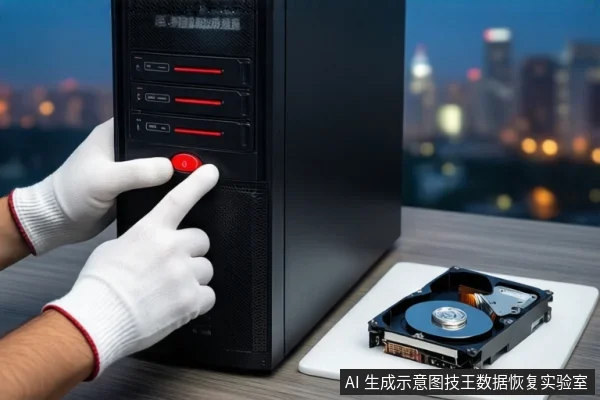
If a mechanical hard drive causes your computer to fail to boot, the immediate priority is to cut power and physically disconnect the drive. This is not a software issue that can be fixed by restarting or running scans. A boot failure in this context indicates a hardware-level conflict, such as a short circuit on the Printed Circuit Board (PCB) or a mechanical failure that interferes with the system's initialization process. Continuing to power on the drive can cause permanent physical damage to the platters or electrical damage to the motherboard.
Immediate Safety Protocol: Physical Isolation
The first step is to perform physical isolation to stop the drive from acting as an electrical interference source. Follow these steps carefully:
- Force Shutdown: If the system is frozen or stuck in a boot loop, hold down the power button until the system completely shuts off.
- Unplug Power: Disconnect the power cable from the wall outlet or power strip. For laptops with removable batteries, remove the battery if safe to do so.
- Disconnect Cables: Open the case (for desktops) and unplug the SATA data cable and power cable from the faulty hard drive. Do not unplug other drives or components unless necessary.
- Verify System Health: Attempt to boot the computer using only the system drive (SSD or other healthy HDD). If the computer boots normally, the motherboard and other components are likely safe, and the faulty drive is the source of the problem.
Do not re-test the faulty drive on the same machine. Each power-on cycle can worsen mechanical wear or cause irreversible thermal damage to the PCB chips. Keep the drive in a static-free, dry environment until professional assessment.
Why 'Boot Failure' Indicates Hardware Danger
When a hard drive prevents a computer from starting, it is usually because the drive is actively disrupting the system's power or signal integrity. This can happen for several reasons:
- PCB Short Circuit: A damaged control chip or capacitor on the PCB can draw excessive current, causing voltage drops that prevent the CPU or RAM from initializing.
- Motor Failure: If the spindle motor is seized or drawing too much current, it can cause the power supply to shut down or the SATA channel to hang during the self-test phase.
- Firmware Hang: Corrupted firmware can cause the drive to fail its handshake protocol with the motherboard, blocking the boot sequence.
In these scenarios, the drive is not just "not working"; it is actively interfering with the system. Software tools cannot fix these issues because they require a stable operating system environment, which is impossible to achieve when the drive is causing the boot failure.
Critical Stop Conditions: When to Cease All DIY Attempts
You must stop all attempts to power on or scan the drive if you observe any of the following symptoms. These indicate physical damage that will worsen with every second of power-on:
- Clicking or Grinding Noises: A rhythmic "click-click" sound (often called the "click of death") or grinding/scraping noises indicate that the read/write heads are crashing into the platters. This causes physical scratches on the magnetic surface, leading to permanent data loss.
- Visible Physical Damage: Bent pins on the SATA interface, burnt smell, or visible cracks in the drive casing indicate severe electrical or mechanical failure.
- Persistent Non-Recognition: If the drive is not recognized in BIOS/UEFI even after changing cables, ports, or host computers, it suggests a deep firmware or PCB failure that requires specialized equipment to diagnose.
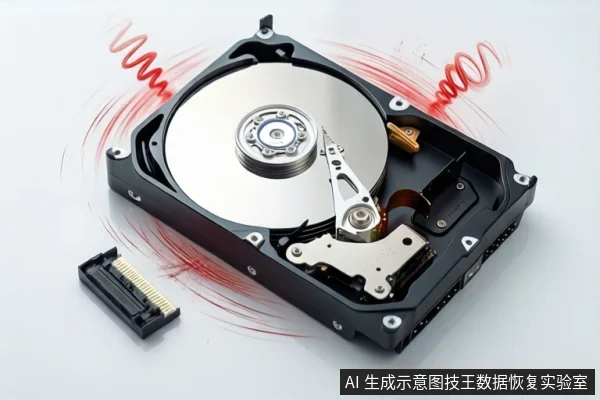
If you hear clicking sounds, stop immediately. Each second of power-on causes further physical damage to the platters. Seek professional clean-room recovery services.
Limitations of Software Recovery in Hardware Failures
Software data recovery tools are designed for logical errors, such as deleted files or corrupted file systems. They are ineffective and potentially harmful in cases of hardware failure. Here is why:
- No Physical Repair: Software cannot fix a short circuit, a seized motor, or a crashed head. It can only read data if the drive is stable and responsive.
- Risk of Data Corruption: If the drive has physical bad sectors, software scans can cause the system to hang or crash, potentially leading to further data corruption or head crashes.
- Misleading Results: Even if a scan completes, the recovered files may be incomplete or corrupted due to underlying physical damage. This can give a false sense of security while the drive continues to degrade.
For hardware failures, the only safe approach is professional imaging in a controlled environment, where technicians can bypass faulty components and read data sector by sector without causing further damage.
Frequently Asked Questions
Why does a bad hard drive prevent my computer from booting?
A faulty drive can cause boot failure if its PCB has a short circuit, its motor draws excessive current causing voltage drops, or its self-test process hangs the SATA/PCIe channel initialization. This is a hardware-level conflict, not a software issue.
Is it safe to run data recovery software if the computer won't start with the drive connected?
No. If the drive prevents the system from booting, it indicates a severe hardware fault. Running software requires the system to be stable, which is impossible in this state. Attempting to force boot or scan can cause head crashes or PCB burnout, making data unrecoverable.
What should I do if I hear clicking sounds from the drive?
Stop immediately. Clicking sounds usually indicate the read/write heads are crashing into the platters. Each second of power-on causes physical scratches on the magnetic surface. Disconnect the drive and seek professional clean-room recovery services.