
Storage Device Not Recognized: Safe Low-Risk Checks Before Initialization
Published 2026-09-24 | JiWang Data Recovery Technical Team
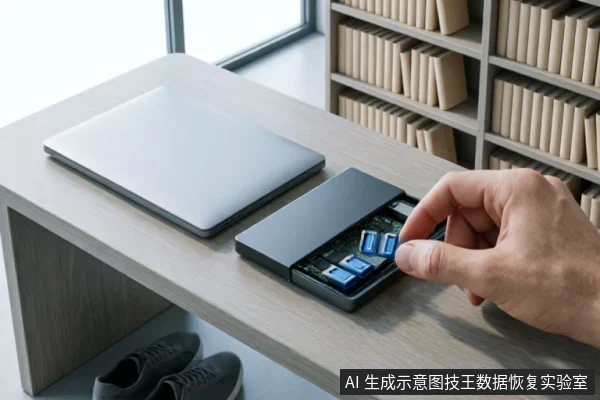
Direct Conclusion and Disposal Advice
When a storage device fails to be recognized by the operating system, the immediate priority is to stop all write operations to prevent data overwriting. The core principle is to distinguish between external connection failures and internal drive faults through low-risk physical checks. Do not attempt to initialize, format, or run disk scanning tools, as these actions can trigger permanent data deletion mechanisms in solid-state drives or exacerbate physical damage in mechanical hard drives. If basic connectivity checks fail to restore recognition, professional intervention is required to prevent irreversible data loss.
First Step Safety Operation
The first step in handling an unrecognized device is to ensure the safety of the original data by avoiding any actions that might modify the file system. Many users instinctively try to repair the disk or re-initialize it upon seeing error messages, which is often the key mistake leading to permanent data loss. Instead, maintain the device in a powered-off state to avoid automatic mounting or scanning instructions from the operating system. If the device must be powered on for basic detection, connect it only to a backup computer that does not have policies for automatic disk tool execution. Additionally, carefully inspect the physical interfaces. Replace the USB data cable, switch to different USB ports, or try another host computer to rule out factors such as cable breakage, port oxidation, or host driver anomalies. If the device remains unresponsive after changing multiple environments and ports, the fault likely lies within the device body or its internal connection layer. In this case, do not repeatedly plug and unplug the device, as frequent power cycling may cause secondary shock to the already fragile control circuit.
Software Read-Only Detection Boundary
Data recovery software cannot function if the operating system cannot detect or enumerate the storage device at a basic level. Software scanning requires the OS to normally access the logical structure of the storage medium. If the device does not show a drive letter in "My Computer" or Disk Management, or displays as RAW format and cannot be opened, it indicates that the file system index is damaged or underlying sectors are unreadable. Attempting to force-read such devices using software is ineffective and risky. Users should not rely on third-party recovery tools as a primary solution when the device is completely invisible to the system. The boundary for software intervention is strictly limited to scenarios where the device is visible but inaccessible due to logical errors. For unrecognized devices, software solutions are not applicable until the hardware communication issue is resolved.
Stop Self-Handling Conditions
Not all cases of non-recognition are suitable for user self-examination. When specific phenomena occur, immediately stop all self-attempts and seek professional support to avoid irreversible data loss. The following conditions indicate that self-handling should cease:
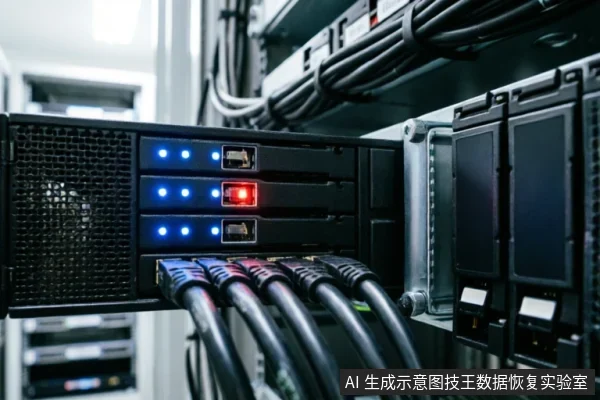
- Do not open or disassemble the drive;keep the original media protected and seek professional assessment.keep the original media protected and seek professional assessment.
- Complete Unresponsiveness After Cross-Testing: If the external mobile hard drive or USB flash drive has no reaction when inserted into a USB interface, and remains invalid after changing multiple USB interfaces and different hosts, while the device indicator light does not light up or flashes abnormally, this may mean that the internal main control chip is damaged or the circuit board is short-circuited.
- Intermittent Recognition (Dropping Disk): If the device is occasionally recognized in the system but disappears immediately afterward, or if file copying frequently reports errors and interrupts, this indicates severe instability in the storage medium. Continued scanning will only aggravate the damage.
- Do not open or disassemble the drive;keep the original media protected and seek professional assessment.keep the original media protected and seek professional assessment.
Recovery Possibility Assessment
The possibility of data recovery depends entirely on the nature of the failure identified during the diagnostic phase. If the issue is isolated to an external connection failure, such as a broken cable or faulty port, recovery is typically straightforward once the correct connection is established. However, if the device shows signs of physical damage, such as abnormal noise or complete electrical failure, the recovery process becomes complex and requires specialized equipment. In cases where the file system is corrupted but the hardware is functional, logical recovery methods may be employed. It is crucial to understand that every attempt to power on a physically damaged device reduces the chances of successful recovery. Therefore, the assessment of recovery possibility should be based on the results of safe, low-risk checks rather than speculative guesses. Users should consult with professionals who can perform detailed diagnostics to determine the exact scope of data preservation.
Information Needed for Detection
To accurately diagnose the issue, the following information is essential for any technical assessment or professional consultation:
| Category | Required Information | Purpose |
|---|---|---|
| Device Type | HDD, SSD, USB Flash Drive, or External Enclosure | Determines potential failure modes (e.g., background garbage collection for SSDs, mechanical parts for HDDs) |
| Connection Status | Cable type, port used, and cross-test results | Isolates external vs. internal faults |
| System Response | Error messages, BIOS detection status, and Disk Management visibility | Identifies logical vs. physical recognition issues |
| Physical Condition | Noises, temperature, LED indicators, and history of damage | Assesses risk of further physical damage |
| Data Importance | Backup availability and criticality of files | Guides the urgency and method of recovery |
Frequently Asked Questions
What should I do if my computer says the disk needs to be formatted?
Do not click "Format." Formatting a drive upon system prompt leads to direct overwriting of file system indexes, drastically reducing recovery success rates. Close the dialog box, disconnect the device, and treat it as a damaged medium for subsequent processing. Any attempt to bypass this prompt to force read may further complicate the file system.
Can I use data recovery software if the drive isn't showing up in My Computer?
No. Data recovery software cannot function if the operating system cannot detect or enumerate the storage device at a basic level. If the drive is not visible in Disk Management or Device Manager, software tools cannot access the raw data. You must first resolve the hardware or connection issue before attempting any software-based recovery.
How can I tell if the problem is a bad cable or a broken drive?
Cross-testing with different cables, ports, and host computers is the primary method to isolate external connection failures from internal drive faults. If the device works correctly on another computer with a different cable, the issue was likely with your original setup. If it remains unrecognized across multiple hosts and cables, the fault is likely internal to the drive itself.