
Hard Drive Freezes PC on Connection: Immediate Safety Checks and Data Integrity Assessment
Published 2026-09-24 | JiWang Data Recovery Technical Team
Immediate Actions Before Recovery Attempts
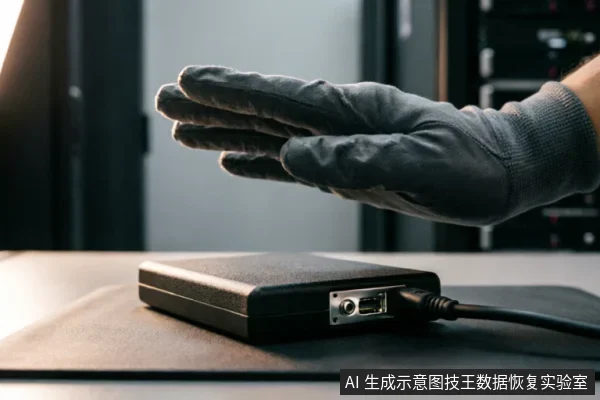
When a computer freezes immediately upon connecting an external drive, the system is likely struggling to enumerate or mount the device. This behavior often indicates that the storage medium is failing to respond correctly to standard I/O requests. Before attempting any data recovery procedures, it is critical to assess the current state of the hardware and software environment. The primary goal at this stage is to prevent further degradation of the original media and to establish a clear baseline for subsequent actions.
- Verify Device Recognition: Check if the operating system detects the drive in the disk management utility or BIOS/UEFI settings. Note whether the drive appears with its correct capacity or shows as unallocated/raw space. Do not attempt to format, initialize, or assign a drive letter if the system prompts you to do so, as these operations can overwrite critical metadata.
- Check Existing Backups: Determine if there are any recent backups of the data stored on the affected drive. If accessible backups exist, the urgency of immediate intervention may be reduced, allowing for a more controlled diagnostic process. However, assume that no backup exists until proven otherwise.
- Avoid Writing to Original Media: Under no circumstances should you write new files, install recovery software, or save extracted data back to the problematic drive. Any write operation risks overwriting recoverable sectors. Instead, use a separate, healthy storage device for all temporary files and recovered data.
- Document Previous Actions: Record any steps already taken, such as previous connection attempts, error messages received, or changes made to system settings. This information helps specialists understand the timeline of events and avoid repeating potentially harmful actions.
Recognizing Critical Stop Conditions
| Stop Condition | Immediate Action | Risk Assessment |
|---|---|---|
| Abnormal Mechanical Noise | Power off immediately. Do not attempt to restart or run diagnostic tools. | Continued operation may cause irreversible physical damage to internal components, leading to total data loss. |
| Intermittent Disconnection | Stop scanning. Check external connection chain for loose cables or faulty ports before proceeding. | Frequent reconnection attempts can trigger thermal stress and exacerbate instability in the storage device. |
| Inconsistent Capacity Recognition | Avoid long-duration scans. Verify if the device is recognized correctly by another system first. | Scanning a device with unstable identification parameters may corrupt file allocation tables or metadata structures. |
| Complete Non-Recognition | Confirm external connection integrity. Decide whether to enter read-only evaluation mode based on hardware status. | Forcing power on a completely unresponsive device without prior connection checks risks electrical failure. |
Diagnosing Recognition and Connectivity Issues
When a storage device exhibits abnormal mechanical sounds, repeated disconnections, or identifies an incorrect capacity, the immediate priority is to halt any further power cycling and prolonged scanning operations. These specific symptoms indicate that the media may be undergoing active degradation or experiencing critical interface failures. Continuing to power the drive under these conditions significantly increases the risk of permanent data loss, as each attempt to read or write can exacerbate existing faults. Therefore, stopping repeated power-on events and avoiding extended diagnostic scans are essential protective measures to preserve the current state of the data. If the device is completely unrecognizable by the operating system, the initial step must focus on verifying the external connection chain rather than assuming internal failure. This involves checking cables, ports, and adapters to ensure physical connectivity is stable and functional. Only after confirming that the external link is secure should one consider whether to proceed with a read-only assessment. This cautious approach prevents unnecessary stress on the drive’s components during the early stages of diagnosis. By prioritizing connection verification and limiting exposure to potential hazards, users can maintain a safer baseline for subsequent recovery efforts. It is crucial to recognize that improper handling during this phase can lead to irreversible consequences, making careful observation and restraint vital steps in the overall process of addressing recognition and connectivity issues.
Limitations of Remote Data Recovery Tools
When a computer freezes immediately upon connecting an external hard drive, the underlying issue often stems from hardware-level recognition failures rather than simple file system corruption. This critical distinction dictates the limitations of software-based solutions available to users. Remote data recovery tools are designed specifically for logical layer data extraction. They operate within the environment provided by the operating system, relying on the OS's ability to read and write files. However, these tools cannot resolve hardware-level recognition failures. If the drive is not recognized by the BIOS or the operating system, no software can access the data. The tool requires a stable communication channel between the host computer and the storage device. Without this connection, the software remains inert. Attempting to run remote recovery utilities in such scenarios is futile and potentially harmful. These programs may attempt to scan non-responsive devices, causing further system instability. The freezing behavior indicates that the hardware is failing to initialize properly. This could be due to controller failure, power delivery issues, or physical damage to internal components. Software cannot repair broken circuits or replace failed mechanical parts. Therefore, the scope of remote tools is strictly limited to cases where the drive is visible and accessible at the logical level. Users must understand that if the computer hangs during connection, the problem lies beyond the reach of digital intervention. Professional assessment is required to determine if the hardware can be stabilized. Only after successful hardware recognition can logical data extraction begin. Relying on software for hardware faults delays proper diagnosis and increases the risk of permanent data loss.
Assessing File Integrity Risks
When a computer freezes immediately upon connecting an external drive, the system’s input/output controller is likely struggling to enumerate the device or handle excessive error interrupts. This behavior often indicates that the storage medium is failing to respond within expected timeframes, potentially due to corrupted file system structures or hardware instability. Before attempting any repair actions, it is critical to assess the integrity risks associated with the files stored on this device. The primary concern is not merely whether the files can be accessed, but whether their current state represents a stable snapshot of the data or if they are subject to further degradation.
- Verify Device Recognition: Check if the operating system correctly identifies the drive in disk management tools without hanging. If the device appears intermittently or causes system-wide latency, do not attempt to open folders.
- Check Existing Backups: Determine if previous backups exist for the target data. If backups are available, the risk of data loss during subsequent diagnostic steps may be mitigated, though verification of backup integrity is still required.
- Review Recent Operations: Identify any recent formatting, initialization, or write operations performed on the drive. These actions can overwrite metadata or alter the file allocation table, directly impacting the ability to reconstruct original file boundaries.
- Avoid Writing to Original Media: Do not format, initialize, or save recovered files back to the same drive. Any write operation risks overwriting sectors that may still contain recoverable data fragments.
The goal at this stage is to establish a baseline of what is currently accessible and what has already been compromised. By correlating the device's recognition status with known backup states and prior user actions, you can determine if the media is in a static state suitable for imaging or if it requires immediate professional intervention to prevent further logical corruption. Understanding these preconditions helps in deciding whether to proceed with software-based recovery or to seek specialized hardware assistance.
Frequently Asked Questions
What immediate steps should be taken if the target data on the original medium has not yet been confirmed as secure?
Before proceeding, verify the device identification status, check for existing backups, and review previous operations. Avoid formatting, initializing, or writing recovery results back to the original medium.
How should one handle a storage device exhibiting abnormal mechanical noises, frequent disconnections, or inconsistent capacity recognition?
Stop repeated power cycling and long-duration scanning immediately. If the device is completely unrecognizable, first confirm the external connection chain before deciding whether to enter a read-only assessment phase.
What are the limitations of remote data recovery technology regarding hardware issues?
Remote data recovery is only applicable to logical layer data extraction where the operating system can access the drive. It cannot resolve hardware-level recognition failures.