
Hard Drive Not Detected After Reinstallation: Logical, Interface, or Physical Failure?
Published 2026-09-24 | JiWang Data Recovery Technical Team
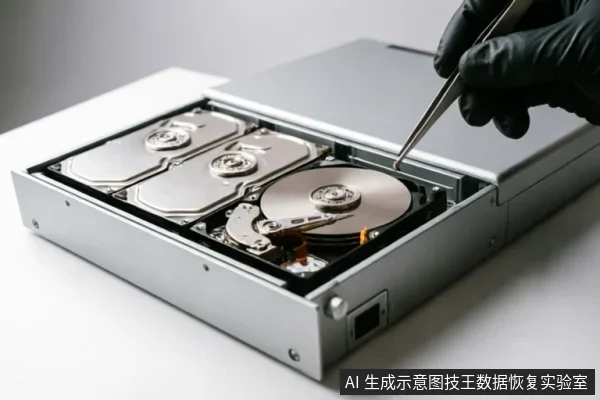
When a hard drive fails to appear in the system immediately after reinstallation, the most critical action is to stop all write operations and verify the device'
Immediate Actions and Device Identification
The first step in protecting your data is to accurately identify the current state of the storage device. Before attempting any software-based fixes, you must confirm whether the system can physically detect the hardware. This involves checking the BIOS/UEFI boot screen and the operating system's disk management utility. If the drive does not appear in these low-level interfaces, it indicates that the connection chain or the hardware itself is failing. At this stage, do not attempt to initialize the disk or create new partitions, as these actions will overwrite the existing file system structures and potentially destroy recoverable data.
Diagnostic Framework: Interface vs. Logical vs. Physical
To determine the appropriate next steps, you must categorize the failure based on observable symptoms. The following table outlines the key differences between the three primary failure modes:
| Failure Type | Observable Symptoms | Data Status | Recommended Action |
|---|---|---|---|
| Interface Issue | Drive makes no sound;flickers on/off;detected intermittently. | Intact (Data remains on the medium). | Check cables, ports, and power supply. Replace components if necessary. |
| Logical Error | Drive is detected but shows as RAW, unallocated, or asks to be formatted. | Accessible but corrupted (File system metadata is damaged). | Stop writes. Use read-only imaging tools to extract data before repair. |
| Physical Damage | Clicking, grinding noises;complete silence;extreme heat;capacity anomalies. | At Risk (Mechanical or electronic failure may cause further loss). | Power off immediately. Do not attempt self-repair. Seek professional cleanroom services. |
Understanding Interface Problems
Interface issues are often the simplest to resolve but require careful handling. When a drive is reinstalled, loose SATA or USB connections, insufficient power delivery from the motherboard, or faulty cables can prevent the system from recognizing the device. In these scenarios, the data on the drive is typically intact. However, repeatedly plugging and unplugging the drive or cycling power can exacerbate connection instability. If the drive is recognized only occasionally, it is crucial to stabilize the connection before proceeding with any data extraction.
Distinguishing Logical Errors
Logical errors occur when the file system structure—such as the Master Boot Record (MBR) or GUID Partition Table (GPT)—is corrupted. The drive will usually spin up normally and be detected by the BIOS, but the operating system will fail to assign a drive letter or will prompt for formatting. This type of failure does not involve physical damage to the storage media. Nevertheless, running standard Windows repair tools can sometimes write new data structures to the disk, which may overwrite lost files. Therefore, the priority is to create a bit-for-bit image of the drive using read-only methods before attempting any logical repairs.
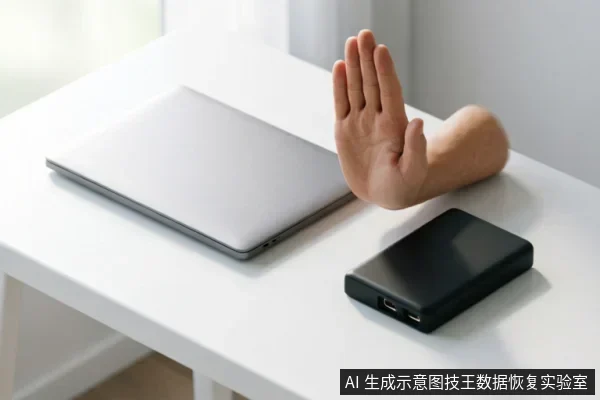
Identifying Physical Media Damage
Do not open or disassemble the drive;keep the original media protected and seek professional assessment.keep the original media protected and seek professional assessment.
The Critical Role of Read-Only Imaging
Regardless of whether the issue is logical or physical, the cornerstone of data protection is read-only imaging. This process involves creating an exact sector-by-sector copy of the entire drive onto a healthy storage medium. By working exclusively with the image file, technicians can perform deep scans and repairs without ever touching the original source drive. This method eliminates the risk of secondary damage caused by repeated reads or software-induced writes. If the original drive exhibits instability, such as dropping out of the system during scanning, the imaging process can be configured to skip bad sectors, preserving as much data as possible for later analysis.
Recovery Boundaries and Professional Intervention
There are clear boundaries to what can be achieved through user-level interventions. Remote data recovery techniques are generally limited to logical layer data extraction where the operating system can still access the device. They cannot resolve hardware-level recognition failures or physical media degradation. If the drive is completely unrecognized despite verified connections, or if physical damage is suspected, professional intervention is required. Attempting to force a failing drive to operate often accelerates its demise. The decision to seek professional help should be based on the severity of the symptoms and the value of the data at risk.
Frequently Asked Questions
Can I use data recovery software to fix my hard drive if it's not showing up?
No, you should not use standard recovery software if the drive is not detected by the system. Software tools require a stable communication channel between the OS and the drive to function. If the drive is invisible in BIOS or Disk Management, the issue is likely at the hardware or interface level, where software cannot establish a connection. Furthermore, if the drive is detected but appears as RAW or unallocated, running recovery software directly on the original disk can write temporary files or logs, potentially overwriting the very data you are trying to save. Instead, focus on stabilizing the connection or seeking professional imaging services.
What should I do if my hard drive makes a clicking noise after being reinstalled?
Do not open or disassemble the drive;keep the original media protected and seek professional assessment.Do not open or disassemble the drive;keep the original media protected and seek professional assessment.keep the original media protected and seek professional assessment.
Is it safe to format the drive if Windows prompts me to do so?
Formatting is never safe if your goal is to recover existing data. When Windows detects a corrupted file system, it may prompt you to format the drive to make it usable. Executing this command initializes the file system, effectively erasing the directory structure and marking the space as available for new data. While the actual file contents might remain on the disk temporarily, the opportunity to recover them is significantly reduced because new data could be written over them. Always decline the format prompt and consult a professional recovery service to extract your data first.