
Distinguishing Logical, Interface, and Physical Hard Drive Failures
Published 2026-10-24 | JiWang Data Recovery Technical Team
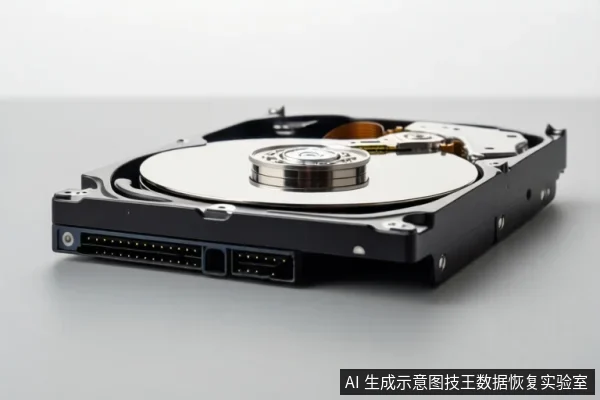
Distinguishing hard drive failures relies on observing recognition status and physical symptoms: interface issues typically manifest as complete non-detection or error codes; logical faults appear as recognized drives with missing files or formatting prompts; and media anomalies are accompanied by abnormal sounds, disconnections, or SMART errors. The correct response depends on this layer: replace cables for interface issues, stop writing and scan for logical faults, or immediately power off and seek professional help for physical damage.
Failure Type Determines Recovery Strategy
The core of a rational recovery decision lies in distinguishing between software-level and hardware-level faults. Logical failures involve the file system or partition table, where data remains on the media but the index is broken. In these cases, the drive is usually recognized by the operating system, but files are missing, corrupted, or the drive prompts for formatting. Physical failures involve mechanical or electronic components, such as head crashes, motor failures, or controller burnout. These often result in the drive being unrecognized, making unusual noises, or failing to spin up. Misidentifying a physical failure as a logical one and running software scans can cause irreversible mechanical damage. Conversely, treating a simple interface issue as a catastrophic hardware failure may lead to unnecessary costs. Accurate initial diagnosis is the most critical step in preserving data integrity.
Interface Issues: Common Misdiagnosis and Low-Cost Solutions
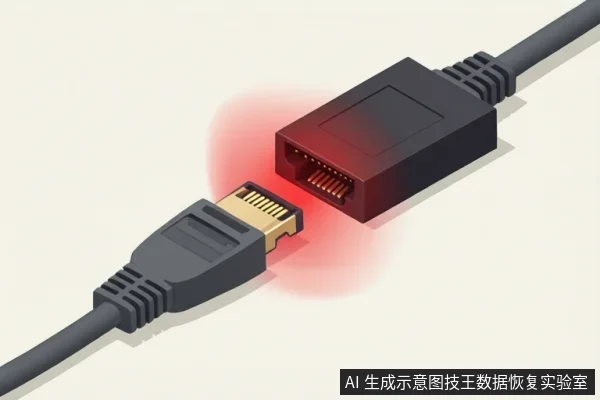
Interface problems are frequently mistaken for drive failures because the computer does not detect the device. Common symptoms include the drive not appearing in BIOS/UEFI, Device Manager showing an unknown device, or error code 10. These issues often stem from loose SATA or USB cables, oxidized connectors, insufficient power supply, or motherboard port faults. Before assuming the drive is dead, verify the physical connection. Try a different cable, a different port, or an external enclosure with a known good power adapter. If the drive is recognized after these changes, the issue was at the interface level, and no data recovery service is required. If the drive remains unrecognized after ruling out connection and power issues, the fault may be internal, such as a damaged controller board or firmware corruption, which requires professional assessment.
Core Data Protection Principles: Stop Writing and Avoid Secondary Damage
Once a failure is suspected, the immediate priority is to prevent further data loss. The most critical rule is to stop all write operations. If the drive is recognized but shows missing files or prompts for formatting, do not click “Format” or “Initialize.” These actions erase the file system index and may overwrite data. Instead, disconnect the drive or use a read-only mode if possible. For logical faults, a read-only scan with specialized software can reconstruct the file system without altering the original data. For physical faults, such as clicking sounds or intermittent disconnections, power off the drive immediately. Repeated power cycles can worsen mechanical damage, such as head crashes or platter scratches. Avoid using generic “repair” tools that force writes or refresh caches, as these can exacerbate physical wear. The goal is to preserve the current state of the media for professional imaging or repair.
When to Stop DIY Attempts and Seek Professional Help
DIY attempts are appropriate only for interface issues and stable logical faults. If the drive is making clicking, grinding, or beeping sounds, stop all software operations and power off the device. These sounds indicate mechanical failure, such as head crashes or motor bearing issues, which require cleanroom disassembly and component replacement. If the drive is not recognized in BIOS/UEFI after checking cables and power, it may have a controller or firmware fault, which also requires professional tools. If software scans cause severe lag, system crashes, or blue screens, this suggests underlying physical defects that software cannot fix. In these cases, attempting further DIY recovery risks permanent data loss. Professional data recovery centers have the equipment and expertise to perform hardware-level repairs and data imaging in controlled environments. For RAID arrays or enterprise drives, the complexity of data distribution and parity algorithms makes DIY recovery impossible and potentially destructive. Always seek professional help when physical symptoms are present or when the drive is not recognized at the hardware level.
Frequently Asked Questions
How can I quickly distinguish between a logical error and physical damage?
First, verify if the drive appears in BIOS/UEFI. If it is visible in the OS but files are missing or it prompts for formatting, it is likely a logical error. If it is unrecognized in BIOS, makes clicking or grinding noises, or fails to spin up, it is likely physical damage requiring professional help.
Should I format the drive if it prompts me to?
No. Formatting erases the file system index and may overwrite data. If the drive is recognized but prompts for formatting, it indicates logical corruption. Do not click “Format” or “Initialize.” Instead, disconnect the drive or use a read-only mode to prevent further data loss. Note that for NTFS drives, a quick format only removes the index, making recovery easier, whereas a full format overwrites sectors, significantly reducing recovery chances.
Is it safe to use data recovery software on a drive making clicking sounds?
No. Clicking sounds indicate mechanical failure, such as head crashes. Running software scans on a physically damaged drive can cause irreversible mechanical damage. Power off the drive immediately and seek professional help for cleanroom disassembly and component replacement. Distinct grinding or scraping noises may indicate platter contact, which is more severe than simple head misalignment and requires immediate cessation of all power cycles.