
WD My Passport Not Recognized: Immediate Steps to Prevent Data Loss
Published 2026-09-24 | JiWang Data Recovery Technical Team
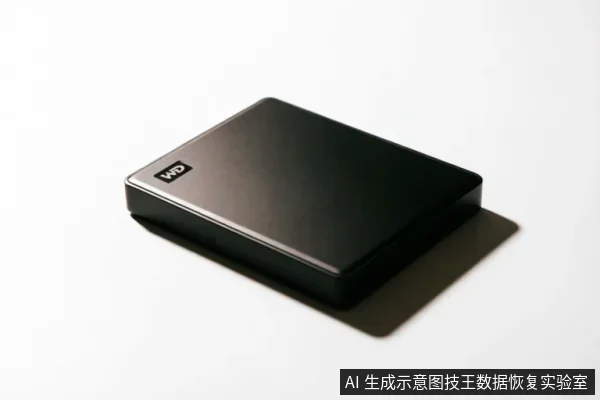
When a WD My Passport external hard drive is not recognized by the computer or becomes unreadable, the immediate and most critical action is to disconnect the device from power and stop all attempts to access it. Continued connection on an unstable device can trigger controller lockups or exacerbate electrical shorts, potentially leading to permanent data loss. The first step is to verify whether the issue stems from external connectivity problems—such as faulty cables or insufficient USB port power—rather than internal hardware failure. If basic connection checks fail, do not attempt to format the drive or run disk repair utilities, as these actions may overwrite recoverable data.
Immediate Safety Actions and Connection Checks
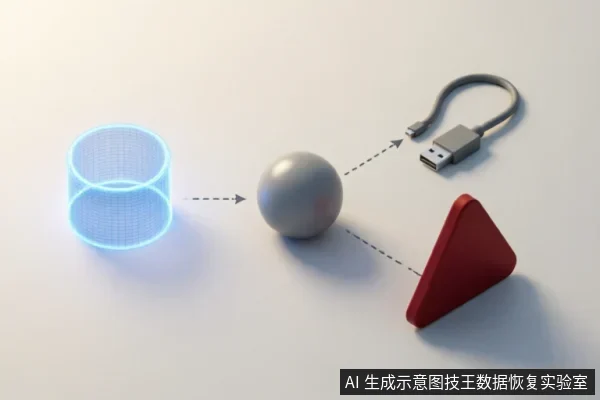
The initial phase of troubleshooting focuses on isolating external variables that prevent the operating system from detecting the storage medium. Many instances of "not recognized" errors are caused by simple infrastructure failures rather than drive corruption. Begin by unplugging the USB cable from both the drive and the computer. Inspect the cable for visible signs of wear, kinks, or broken connectors. Replace the cable with a known-good, high-quality USB data cable if available;many original bundled cables degrade over time or lack the shielding necessary for stable data transfer.
Next, evaluate the power source. WD My Passport drives draw significant power during spin-up. Connecting the drive to a front-panel USB port on a desktop tower or using an unpowered USB hub often results in insufficient voltage, causing the drive to click repeatedly or fail to initialize. Connect the drive directly to a rear USB port on the motherboard, which provides more stable and consistent power delivery. Observe the drive's activity light. If the light flashes briefly and then goes dark, or if you hear a rhythmic clicking sound, this indicates a power-related struggle or mechanical fault. In such cases, immediately disconnect the device to prevent further stress on the internal components.
Critical Stop Conditions for Physical Damage
Do not open or disassemble the drive;keep the original media protected and seek professional assessment.keep the original media protected and seek professional assessment.
Another critical stop condition is excessive heat. If the drive casing becomes unusually hot to the touch within minutes of connection, it suggests an internal short circuit or component failure. Do not attempt to cool the drive externally or continue testing;this requires professional intervention. Additionally, if the drive is detected in the BIOS but disappears in the Operating System after a few seconds, or if it appears and disappears intermittently, this points to a failing controller board or bad sectors on the platter. At this stage, any software-based recovery attempt risks triggering a head crash. You must stop all operations and prepare the device for professional assessment.
| Observed Symptom | Probable Cause Category | Immediate Action Required |
|---|---|---|
| No lights, no sound, not detected | Power Supply / Cable Failure | Try different cable and rear USB port |
| Clicking/Grinding Sounds | Physical Mechanical Damage | Disconnect immediately;seek professional help |
| Detected in BIOS but not OS | Firmware / Controller Issue | Stop usage;do not run disk tools |
| Intermittent Connection Drops | Loose Connection / Bad Sectors | Check cable stability;backup if possible |
| Drive gets very hot | Electrical Short / Circuit Failure | Disconnect immediately;do not reuse |
Software Detection Boundaries and Risks
Users often encounter prompts to "Format Disk" when a drive is not recognized properly. It is crucial to understand that the file system structure manages how data is organized, but the raw data remains on the platters until overwritten. Formatting initializes the file system, effectively erasing the index that allows the OS to find files. While the data might still be physically present, the act of formatting creates new empty structures that increase the risk of overwriting existing data fragments. Therefore, never agree to format the drive if you intend to recover the data.
Avoid running automated disk checking tools like First Aid or system repair utilities. These utilities are designed to fix logical errors by rewriting file system metadata. On a drive with physical bad sectors or mechanical instability, these tools will attempt to read every sector aggressively. This intense I/O load can cause the drive's heads to crash or the controller to overheat, finalizing the data loss. Software solutions are only viable for logical corruption where the hardware is stable and responsive. If the drive is physically compromised, software cannot bridge the gap between broken mechanics and digital data.
Recovery Possibility Analysis
The possibility of data recovery depends entirely on the nature of the failure. If the issue was resolved by changing the cable or USB port, the data is likely intact and accessible once the connection is stabilized. However, if the drive exhibits physical symptoms, recovery requires specialized equipment. Professional laboratories use cleanroom environments to replace damaged heads or repair controller boards without exposing the platters to dust. They also employ hardware imagers that can bypass faulty controllers to create a sector-by-sector image of the drive. This process preserves the original state before any further degradation occurs. Without these resources, DIY attempts on physically damaged drives have a near-zero success rate and often result in total data destruction.
Information Needed for Professional Assessment
If you determine that the drive has suffered physical damage, preparing accurate information for a data recovery service will streamline the assessment process. Document the exact sequence of events: did the drive work previously?Was there any physical impact, drop, or exposure to moisture?Note the specific sounds heard (clicking, spinning up then stopping) and how long the drive remained connected before failing. Also, identify the last successful backup date if one exists. This context helps technicians prioritize the case and select the appropriate recovery strategy, minimizing the time the drive spends in diagnostic loops.
Frequently Asked Questions
Can I use system repair tools to fix a drive that says 'Please format the disk'?
No, you should not run system repair tools or similar repair utilities. These tools attempt to rewrite file system structures, which can overwrite data or trigger mechanical failures if the drive is unstable. Instead, avoid formatting and seek professional imaging services to extract data safely.
What should I do if my hard drive makes a clicking sound?
Do not open or disassemble the drive;keep the original media protected and seek professional assessment.keep the original media protected and seek professional assessment.
Is it safe to try connecting the drive to a different computer?
You can try connecting the drive to a different computer using a different USB port, specifically a rear port on a desktop tower, to rule out port-specific power issues. However, if the drive exhibits clicking sounds or intermittent connections on the new system, disconnect it immediately. Repeated connection attempts on unstable devices can trigger controller lockups or exacerbate electrical shorts.