
Motherboard Reports 'No Boot Device': Immediate Safety Checks and Stop Conditions Before Data
Published 2026-09-24 | JiWang Data Recovery Technical Team
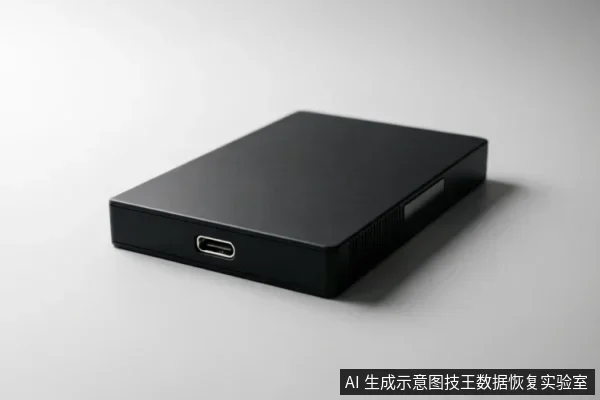
When a motherboard reports 'No Boot Device' or 'Hard Drive Not Found', the immediate action is to stop all attempts to boot the operating system or run diagnostic software that writes to the disk. The priority shifts from fixing the boot error to protecting the data on the storage medium. Before any recovery attempt, verify device recognition status, existing backups, and previous operations;
Direct Conclusion & Immediate Actions
The core conclusion for any 'No Boot Device' scenario is that the storage medium must be treated as unstable until proven otherwise. The first step is to disconnect the drive from the primary system to prevent further wear or logical corruption. Do not attempt to initialize the disk in the operating system's disk management utility, as this often creates a new file system structure that overwrites existing data headers. Instead, assess whether the drive is physically stable and recognized by the BIOS/UEFI. If it is recognized but fails to boot, do not run system repair tools or similar utilities, as these can cause significant data loss by moving bad sectors or altering file system metadata. The goal at this stage is preservation, not restoration of service.
Concept & Scope: What 'No Boot Device' Means
'No Boot Device' is a symptom reported by the motherboard indicating that it cannot locate a valid bootable storage medium during the Power-On Self-Test (POST) sequence. This error does not necessarily mean the hard drive has failed entirely;rather, it signifies that the system firmware cannot find a partition with a valid bootloader signature. The scope of this issue ranges from simple configuration errors, such as incorrect boot order settings, to complex physical failures where the drive’s controller board or internal components are damaged beyond self-repair. Understanding this distinction is critical because treating a simple configuration issue as a catastrophic hardware failure leads to unnecessary panic, while treating a physical failure as a software glitch leads to irreversible data destruction.
Common Causes: Distinguishing Logical vs. Physical Failure
Distinguishing between logical and physical causes is the most challenging aspect for users, yet it dictates the safety protocol. Logical failures often manifest as the drive being recognized by the BIOS but showing incorrect capacity, missing partitions, or requiring initialization. In these cases, the physical media may be intact, but the file system structure is damaged. Physical failures, on the other hand, are characterized by audible cues or complete non-recognition. Common signs include clicking, grinding, or buzzing noises from mechanical drives, or intermittent connection drops where the drive appears and disappears from the BIOS list repeatedly. Capacity anomalies, such as a drive reporting zero bytes or a drastically reduced size, are also strong indicators of physical or firmware-level damage. Users should never ignore these physical symptoms in favor of software fixes.
Data Protection Principles: The First Response Protocol
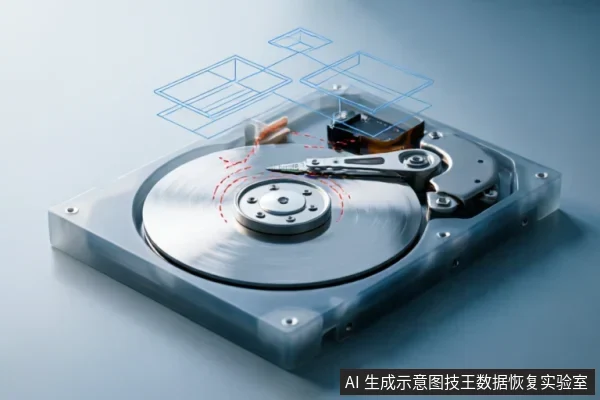
Do not open or disassemble the drive;keep the original media protected and seek professional assessment.keep the original media protected and seek professional assessment.professional cleanroom handling is required for any internal component access.
Recovery Boundaries: When to Stop and Seek Help
Knowing when to stop is as important as knowing what to do. The boundary for user-level intervention ends the moment physical instability is detected. If the drive clicks, grinds, or fails to spin up consistently, every second of powered-on time reduces the probability of successful data extraction. Similarly, if the drive is recognized but shows severe capacity anomalies or fails to respond to basic read commands, continued polling can lock the drive into a protective state or cause further sector degradation. In these scenarios, the only viable path is to seek professional assessment. Professional labs use hardware imagers to create bit-for-bit copies of the drive in a controlled environment, bypassing the operating system's limitations and preventing further wear on the original medium. Remote data recovery techniques are limited to logical layer data extraction where the operating system can access the files;they cannot solve hardware-level recognition faults.
Decision Matrix: User Action vs. Professional Intervention
| Drive Symptom | User Action | Stop Condition | Next Step |
|---|---|---|---|
| Recognized in BIOS, No OS Boot | Check boot order, verify cable connections | If drive drops intermittently or makes noise | Create a read-only image using professional tools |
| Not Recognized in BIOS | Try different SATA/USB port and cable | If drive is not recognized after cable swap | Seek professional hardware diagnosis |
| Abnormal Mechanical Sounds | Power off immediately | Any attempt to power on again | Do not attempt DIY recovery;send to lab |
| Capacity Shows Zero or Incorrect | Do not initialize or format | Any write operation or initialization | Professional firmware repair or chip-off recovery |
Backup vs. Recovery: Understanding the Difference
A clear understanding of the difference between backup and recovery is essential for managing expectations. Backup is a proactive measure taken when the storage medium is healthy and accessible. It involves copying data from the source to a destination, ensuring a duplicate exists. Recovery, however, is a reactive process undertaken when data is inaccessible due to logical corruption or physical failure. In the context of 'No Boot Device,' the user is likely facing a situation where backup was either not possible or has already failed. Attempting to 'recover' by repairing the boot sector or reformatting the drive is fundamentally different from extracting data. Repairing aims to make the drive usable again, often at the cost of data integrity. Extraction aims to preserve the data, regardless of whether the drive remains functional afterward. Prioritizing extraction over repair ensures that the valuable information is saved, even if the hardware itself is deemed unsalvageable.
Frequently Asked Questions
Can I use Windows Startup Repair or system repair tools to fix the 'No Boot Device' error?
No, you should not use Windows Startup Repair or system repair tools if the drive is exhibiting signs of physical instability or if the data is critical and unbacked. These tools are designed to repair file system structures and move bad sectors, which involves writing to the disk. On a failing drive, this write activity can trigger catastrophic failure, leading to permanent data loss. If the drive is logically sound but simply has a corrupted bootloader, these tools might help restore bootability, but they do not guarantee data preservation. For data recovery purposes, the rule is to avoid any tool that modifies the source medium. Instead, focus on creating a read-only image of the drive using professional forensic software before attempting any repairs on a copy.
What should I do if the motherboard still doesn't see the drive after checking cables?
If the motherboard does not recognize the drive after verifying all external connection chains, including cables, ports, and power supplies, you should stop attempting to force recognition through repeated power cycles. Continued power-on attempts can cause thermal stress or electrical issues to worsen, particularly if there is an underlying short circuit or component failure. At this stage, the drive may have suffered a controller board failure, firmware corruption, or internal mechanical seizure. Since remote data recovery techniques are limited to logical layer data extraction where the operating system can access the files, they cannot resolve this hardware-level recognition fault. The next step is to consult with a professional data recovery service that can perform advanced diagnostics, such as PCB replacement or direct chip reading, in a controlled environment.
Is it safe to try booting from a USB drive to access my hard drive?
Booting from a USB drive to access your internal hard drive is generally safe for logical data extraction, provided the drive is mechanically stable and does not exhibit abnormal sounds or intermittent drops. Using a Linux-based live USB or a professional data recovery suite booted from USB allows you to interact with the drive without installing anything on it, minimizing the risk of accidental writes. However, if the drive is physically compromised, even the act of powering it on to boot from USB can cause further damage. Therefore, this method should only be used if the drive spins up quietly and is consistently recognized by the BIOS. If the drive is silent, clicking, or dropping out of the BIOS list, do not attempt to boot from USB;instead, seek professional assistance immediately.