
Seagate External Hard Drive: When to Stop Software Recovery Attempts
Published 2026-10-06 | JiWang Data Recovery Technical Team
You should only attempt software-based recovery on a Seagate external hard drive if it is physically stable, silent, and recognized by the operating system with the correct capacity. If the drive makes abnormal sounds, is unrecognized after checking connections, or shows Code 10, stop immediately and seek professional help. Never format or write to the drive if data is needed.
Direct Conclusion: When to Stop vs. When to Try Software
The decision to use software depends on the drive's physical state. If the device is silent and recognized, software tools may be appropriate for logical issues. However, if the drive exhibits physical instability, software attempts can worsen the damage. The primary indicator for stopping is any sign of mechanical failure or critical hardware error.
Step 1: Verify Physical Connection and Power
Before concluding the drive is failed, verify the external connection chain. A Seagate external hard drive should be detected by the operating system without drivers or firmware updates. If it is not detected, try connecting the drive to a different port on the computer. If possible, use a different cable and try the drive on a different computer. Verify that the drive light is on to confirm power is reaching the device.
Step 2: Check OS Recognition (Device Manager/Disk Management)
If the drive is powered but not accessible, check how the operating system recognizes it. In Device Manager or Disk Management, look for the drive's status. If the drive appears with the correct capacity and no error codes, it is likely a logical issue. If it is missing or shows a critical error, the situation is more severe.
Step 3: Interpret Status (RAW, Unallocated, Code 10)
Specific status indicators dictate the next step. If the drive shows as RAW or Unallocated and you have already tried a different port, cable, and computer, but you need the data, you should consider professional data recovery. If you see Code 10 in Device Manager and have already tried another cable and computer, the drive has probably failed. In this case, software recovery is not the appropriate path.
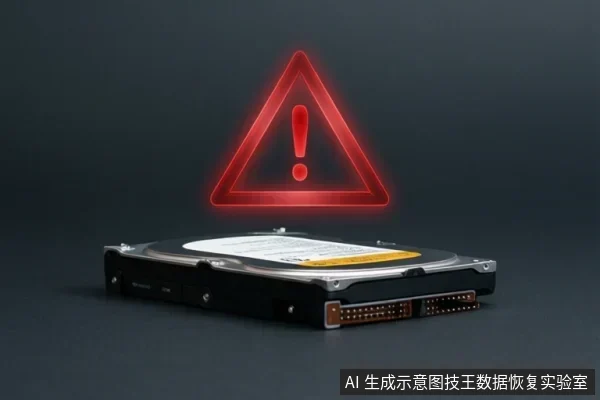
Data Protection Principles: Read-Only and No Formatting
When to Stop: Critical Stop Conditions
You must stop all software attempts and seek professional help if any of the following occur:
- The drive makes clicking, grinding, or friction sounds.
- The drive is completely unrecognized after trying different ports, cables, and computers.
- Device Manager shows Code 10 or similar critical hardware errors.
These signs indicate physical failure. Continuing to power the drive or run software can lead to permanent data loss. In such cases, the drive should be handled by professionals who can perform read-only imaging in a controlled environment.
Frequently Asked Questions
Can I use data recovery software if my Seagate drive shows as RAW?
Yes, if the drive is physically stable and recognized by the OS. However, do not format it. If the drive makes sounds or is unrecognized, stop and seek professional help.
What does Device Manager Code 10 mean for my external drive?
Code 10 typically indicates a hardware failure. If you have already tried different cables and computers, the drive has probably failed and requires professional assessment.
Should I format my drive if it is not accessible?
No, if you need the data. Formatting erases all data. Only format if you do not need the data and the drive is confirmed to be logically corrupted but physically healthy.