
New External Hard Drive Asking to Format: Safe Steps Before Recovery
Published 2026-10-09 | JiWang Data Recovery Technical Team
If a newly purchased external hard drive prompts for formatting, do not format it. Formatting erases all data on the drive. Instead, verify the physical connection and check the drive's status in Disk Management. If it shows as RAW or Unallocated after basic troubleshooting, stop using the drive and seek professional data recovery assessment to prevent further data loss.
Immediate Action: Do Not Format
When a new external hard drive asks to be formatted, the system is indicating a possible issue with the drive's formatting or file system. According to Seagate's USB External Troubleshooter, formatting erases all data on the drive. Therefore, the first and most critical step is to decline the format prompt.
Basic Hardware Troubleshooting Steps
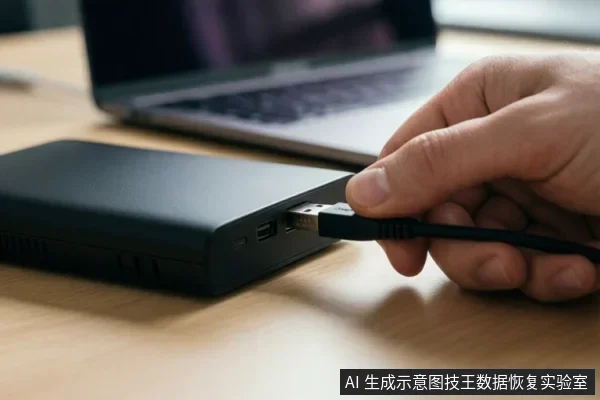
Before assuming the drive is faulty, rule out external connection issues. Follow this sequence to isolate the problem:
- Verify the drive light is on to confirm it is receiving power.
- Try connecting the drive to a different USB port on the computer.
- If possible, use a different USB cable.
- Try using the drive on a different computer.
These steps help determine if the issue is with the computer's USB controller, the cable, or the drive itself. If the drive is recognized and accessible after these changes, the issue was likely a connection fault. If it still prompts for formatting or is not recognized, proceed to the next step.
Interpreting Disk Management Status
Open Disk Management on Windows to check the drive's status. If the drive appears as RAW or Unallocated, this indicates a possible issue with the drive's formatting. In both cases, the data may still be present on the physical media, but the operating system cannot access it normally. Do not attempt to format or initialize the drive at this stage, as this will erase the data.
When to Stop and Seek Professional Help
Stop using the drive and seek professional data recovery assessment if any of the following conditions are met:
- The drive shows as RAW or Unallocated in Disk Management after trying different ports, cables, and computers.
- The drive is not detected in Device Manager and shows error Code 10 after basic hardware troubleshooting. Code 10 suggests the drive has probably failed.
- The drive exhibits abnormal mechanical sounds or repeatedly disconnects.
In these scenarios, continued use or software-based repair attempts can cause further damage. Professional assessment can determine if the data is recoverable and provide a safe path forward. Jiwang Data Recovery Lab recommends stopping all write operations and seeking expert help when these stop conditions are observed.
Frequently Asked Questions
Is it safe to format the drive if it says it needs to be formatted?
No. Formatting erases all data on the drive. If you need the data, do not format. Instead, check the drive's status in Disk Management and seek professional advice if it shows as RAW or Unallocated.
What does it mean if the drive shows as RAW or Unallocated?
It indicates a possible issue with the drive's formatting. If basic troubleshooting (port, cable, computer) has failed, this suggests a logical or physical fault that requires professional assessment to avoid data loss.
What should I do if the drive is not detected in Device Manager?
Check for unknown devices with error codes. If you see Code 10 after trying other cables and computers, the drive has probably failed. Stop using it and seek professional data recovery services.