
Why Your Type-C Dock Fails to Recognize External Hard Drives
Published 2026-10-25 | JiWang Data Recovery Technical Team
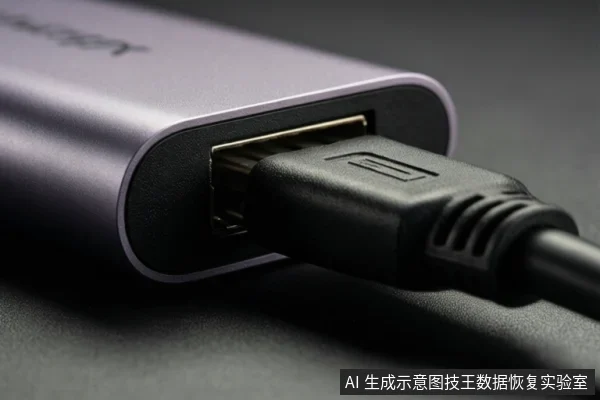
Type-C dock connection failures are often due to power insufficiency, cable issues, or protocol incompatibility. Before assuming data loss, verify power connections, try different ports or cables, and check OS device managers to distinguish between hardware failure and logical file system errors.
Direct Answer: Why Type-C Docks May Fail
External hard drives should be detected by the operating system without drivers or software under normal circumstances, according to Seagate's USB External Troubleshooter. When a Type-C dock fails to recognize a drive, the issue typically lies in the physical connection layer (power or data lines) or the logical file system layer. Docks may introduce connection instability, so verifying power delivery and cable integrity is a critical first step.
Step 1: Basic Hardware Checks (Power, Cable, Port)
Start by isolating the physical connection. Verify that the drive's indicator light is on, which confirms it is receiving power. If the light is off, the dock may not be supplying sufficient power for the drive to spin up. Try connecting the drive to a different port on the computer, use a different cable, or test the drive on a different computer entirely. These steps help determine if the fault lies with the dock, the cable, or the drive itself.
Step 2: Windows Diagnosis (Device Manager, Disk Management)
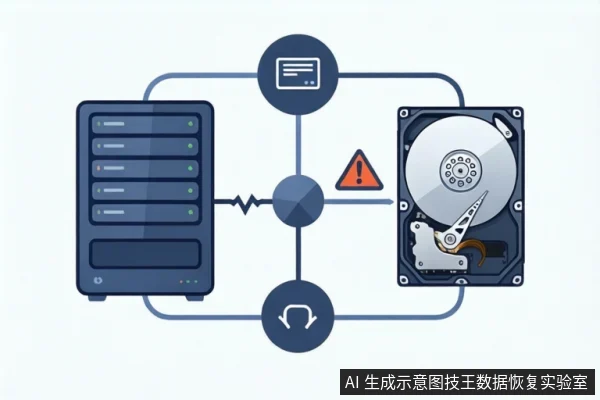
If the drive is not visible in File Explorer, open Device Manager to check for error codes. If you see Code 10 and have already tried another cable and computer, the drive has probably failed, and data recovery should be considered. If the drive appears in Disk Management but shows as RAW or Unallocated, this indicates a possible formatting issue or file system corruption. In this case, do not format the drive if you need the data, as this will erase it. Instead, consider professional data recovery services.
Step 3: macOS Diagnosis (Disk Utility, System Information)
On macOS, if the drive is not detected in Disk Utility, check System Information or System Profiler to verify if the hardware is recognized at a lower level. If the drive is listed in System Information but fails to mount in Disk Utility, this indicates some level of file system corruption. This is a logical failure rather than a physical one, but it still requires careful handling to prevent data loss.
When to Stop and Seek Professional Help
If the drive makes clicking or grinding noises, stop immediately and seek professional help. These sounds indicate mechanical failure, and continued power-on attempts can cause permanent damage to the platters. If the drive is not detected in System Information or Device Manager after trying different ports and cables, it may be a hardware failure. In both cases, DIY troubleshooting is no longer safe or effective.
Frequently Asked Questions
Why does my external hard drive not show up when connected to a Type-C dock?
This can be due to insufficient power delivery from the dock, a faulty cable, or a protocol incompatibility. First, try connecting the drive directly to a computer port or using a different cable to isolate the issue.
What should I do if Windows shows the drive as RAW or Unallocated?
This state typically appears after basic hardware checks (port, cable, computer) have been performed. It suggests a logical issue where the file system is not recognized. Do not format the drive, as this erases data. Proceed to professional data recovery.
Is it safe to keep trying to connect the drive if it makes clicking sounds?
No. These sounds indicate mechanical failure. Do not attempt to power on the drive again, as this risks permanent damage. Disconnect it immediately and contact a professional data recovery service.