
Ym2400 Drive Disappearing: Immediate Safety Steps and Diagnostic Boundaries
Published 2026-10-23 | JiWang Data Recovery Technical Team
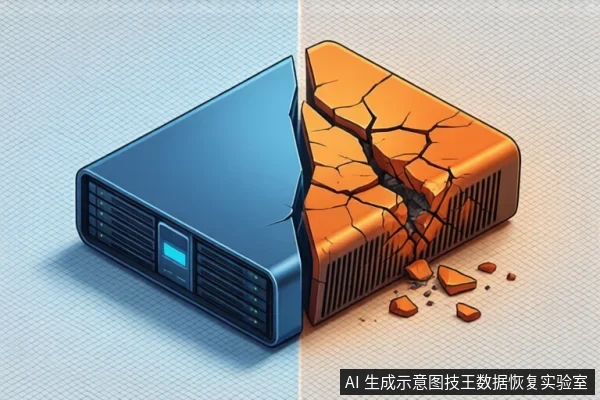
When a Ym2400 storage device disappears from the system, the immediate priority is to stop all read/write activity to prevent further data loss. For external drives, unplug the USB cable immediately. For internal drives, force a shutdown if the system is unresponsive, then disconnect power. Do not attempt to format, initialize, or run disk scanning tools on an unstable or unrecognized drive, as this can overwrite file system metadata or stress the controller, significantly reducing the chances of successful recovery. If the drive makes clicking sounds, gets hot, or is unrecognized across multiple ports, stop all DIY attempts and seek professional data recovery services, as these indicate physical or controller-level failures.
Immediate Safety Steps for a Dropped Ym2400 Drive
The first action when a Ym2400 device drops is physical isolation. If it is an external USB drive, disconnect the cable immediately. If it is an internal drive and the computer is unresponsive, hold the power button to force a shutdown, then unplug the power source. This prevents the operating system from hanging while waiting for the device, which can cause file system errors or driver crashes. Wait at least one minute before reconnecting to allow capacitors to discharge and eliminate residual charge risks. Keep the device in a dry, dust-free environment and avoid moving it, as vibration can damage internal components if it contains mechanical parts.
Diagnostic Information to Collect Before Further Action
Before attempting any further steps, observe the device's behavior to determine the nature of the failure. Check if the drop is consistent or intermittent. Intermittent drops may suggest power supply issues or loose connections, while persistent failure to recognize may indicate controller or firmware problems. Observe the indicator light: if it is off, there may be a power management fault; if it blinks abnormally, the controller may be in a reset or protection mode. Check the BIOS or Disk Management to see if the device is briefly recognized. If it appears in BIOS but disappears in Windows, the issue may be driver-related or a file system error. If it is not recognized in BIOS at all, the problem is likely at the hardware interface or controller level.
Distinguishing Logical Errors from Physical Failures
It is crucial to distinguish between logical errors and physical hardware damage. Logical errors, such as file system corruption or bad sectors, can often be recovered using software tools if the drive remains stable. Physical failures, such as controller damage, NAND flash degradation, or mechanical head issues, require professional intervention. Using software repair tools on a physically failing drive can cause irreversible data loss by overwriting recoverable data or stressing the controller further. If the drive is stable and recognized with correct capacity, you may attempt read-only data recovery. If the drive is unstable, makes noises, or shows zero capacity, stop all software attempts immediately.
Safe Software Testing Boundaries
If the device is stable and recognized, you can perform limited read-only checks. Use professional diagnostic tools to view SMART data, focusing on reallocated sectors and uncorrectable errors. If the SMART data indicates health and the drive mounts stably, you may use read-only recovery software to scan for files. Never save recovered files to the same drive. Avoid using CHKDSK or formatting tools, as these perform write operations that can overwrite file system structures and destroy recoverable data. If the scan causes the drive to drop again or the system to freeze, stop immediately. This indicates that the drive cannot handle the read load, and further testing will only increase the risk of permanent failure.
When to Stop DIY Attempts and Seek Professional Help
Stop all DIY attempts if the device exhibits any of the following signs: abnormal mechanical noises like clicking or grinding, excessive heat to the touch, recognition as RAW format with extremely slow speeds or corrupted file names, or zero capacity in BIOS after multiple attempts. These symptoms indicate physical or controller-level failures that software cannot fix. Continuing to power on the device in these conditions can cause further damage to the storage medium or controller, severely compromising the potential for data recovery. In such cases, the only safe option is to seek professional data recovery services that can perform hardware-level diagnostics and read-only imaging in a controlled environment.
Frequently Asked Questions
Can I use CHKDSK to fix a dropped drive?
No. CHKDSK performs write operations to repair file system structures. On an unstable or dropped drive, this can overwrite recoverable data or cause the controller to fail completely. It should only be used on stable, healthy drives.
What if the drive is recognized in BIOS but not in Windows?
This suggests a driver or file system issue rather than a complete hardware failure. You can attempt to check Disk Management for RAW partitions or unallocated space, but avoid formatting. If the drive is stable, you may try read-only data recovery software.
Is it safe to try a different USB port or cable?
Yes, but only if the device is not making abnormal noises or getting hot. Try a different high-quality USB cable and a rear USB port on the motherboard, which often provides better power delivery. If the issue persists, stop testing to avoid further stress.