
WD Portable Drive Clicking Noise: When to Stop and Data Recovery Limits
Published 2026-09-24 | JiWang Data Recovery Technical Team
Understanding the Clicking Sound Mechanism
Do not open or disassemble the drive;keep the original media protected and seek professional assessment.
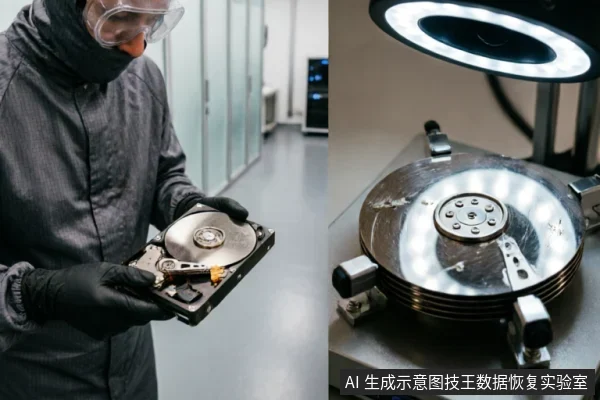
- Immediate Safety Protocol: Users should never attempt to open the drive themselves. Professional recovery requires a cleanroom environment to prevent further contamination and damage. Opening the unit in a non-controlled setting exposes the delicate internal components to dust and debris, which can cause irreversible data loss by scratching the magnetic surface.
- Pre-Recovery Assessment: Before any software intervention, verify the device's recognition status in the operating system. Check for existing backups and review previous operations to establish a baseline. Avoid formatting, initializing, or writing recovered results back to the original medium until the integrity of the source media is confirmed secure.
If the clicking persists, cease all attempts at software-based repair immediately. Software tools cannot resolve mechanical faults and may increase power consumption, leading to further head crashes. The priority shifts to preserving the current state of the drive rather than forcing access. Consult professional services equipped with specialized hardware to assess whether the data remains retrievable under controlled conditions.
Critical Stop Conditions for Software Attempts
Do not open or disassemble the drive;keep the original media protected and seek professional assessment.
Furthermore, if the storage device repeatedly disconnects and reconnects, or if the operating system reports fluctuating or incorrect capacity figures, you must also halt software-based recovery efforts. These symptoms suggest unstable communication between the drive and the host system, often due to failing internal mechanics or severe logical corruption that software cannot safely navigate. Continuing to power the device in such states risks further degradation of the already compromised media.
Before considering any advanced steps, ensure that the issue is not trivial by verifying the external connection chain. Try a different USB cable, port, or computer to rule out peripheral faults. However, if the abnormal noises persist across multiple connections, or if the drive remains completely unrecognizable despite valid connections, do not proceed with automated scanning tools. At this stage, the priority shifts from digital intervention to professional assessment. You should stop all self-service attempts and seek expert evaluation to determine if a controlled, read-only environment is viable for preserving remaining data.
Diagnostic Steps Before Professional Help
| Diagnostic Phase | Actionable Steps & Safety Boundaries |
|---|---|
| 1. Pre-Assessment Verification | Before any professional intervention, verify the current state of the device. Check if the target data on the original medium is confirmed safe. Cross-reference existing backups and review previous operations performed on the drive. Crucial: Avoid formatting, initializing, or writing recovery results back to the original medium. Any write operation risks overwriting recoverable information permanently. |
| 2. Symptom Recognition | Identify specific failure indicators such as abnormal mechanical sounds (e.g., clicking or grinding), repeated disconnection/reconnection cycles, or inconsistent capacity recognition. These symptoms suggest potential hardware instability or logical corruption that requires careful handling. |
| 3. Immediate Stop Conditions | If abnormal mechanical noises are present, or if the device repeatedly drops off and reconnects, stop repeated power cycling and long-duration scanning immediately. Continuous power-on attempts can exacerbate mechanical wear or logical errors. If the device is completely unrecognizable, first confirm the external connection chain (cables, ports) before deciding whether to proceed with a read-only assessment. |
| 4. Next Steps | Do not attempt software fixes while the device exhibits these signs. The priority is to preserve the current state of the original medium. Seek professional evaluation only after ensuring no further writes have occurred. Data integrity depends on halting risky operations early. |
The Necessity of Cleanroom Environments
Assessing Recovery Potential and Limits
When a WD external hard drive emits clicking sounds, it signals potential mechanical instability or severe logical corruption. Before attempting any data recovery software, you must first assess the device’s recognition status and verify existing backups. It is critical to avoid formatting, initializing, or writing any recovered results back to the original medium while the target data on the raw media has not been confirmed safe. This precaution prevents overwriting recoverable information with new file system structures.
If the storage device exhibits abnormal mechanical noises, drops off repeatedly, or shows inconsistent capacity recognition, you should immediately stop repeated power cycling and long-duration scanning operations. These actions can exacerbate mechanical wear or trigger further logical errors. In cases where the device is completely unrecognizable by the operating system, the initial step is to confirm the integrity of the external connection chain, including cables and ports. Only after verifying these external factors should you decide whether to proceed with a read-only assessment.
Attempting to force recognition through aggressive software tools in the presence of physical symptoms like clicking often leads to permanent data loss. The priority is stabilizing the environment rather than forcing access. If the drive fails to appear in disk management despite verified connections, continuing to power it on may cause irreversible damage. Therefore, stopping further power attempts is the safest course of action until professional evaluation determines if the issue is purely logical or involves hardware failure.
Frequently Asked Questions
What steps should I take before initiating any recovery process?
Ensure the target data on the original medium is not yet confirmed as safe. Verify device identification status, check for existing backups, and review previous operations. Crucially, avoid formatting, initializing, or writing recovered results back to the original source media.
How should I respond if the storage device makes abnormal mechanical noises or drops off repeatedly?
Stop attempting repeated power-ups and long-duration scans immediately to prevent head crashes. If the device is completely unrecognizable, first verify the external connection chain (cables, ports, adapters) before deciding whether to proceed with a read-only assessment.
What indicates that a device has entered a state requiring professional intervention rather than software fixes?
Signs include abnormal mechanical sounds (clicking or grinding), repeated disconnections from the system, or recognition of an incorrect capacity. These symptoms suggest hardware-level issues that require stopping all user attempts and moving to professional evaluation.