
Disk-to-Disk Copy Failed: Stop Writing and Check for Physical Damage
Published 2026-09-17 | JiWang Data Recovery Technical Team
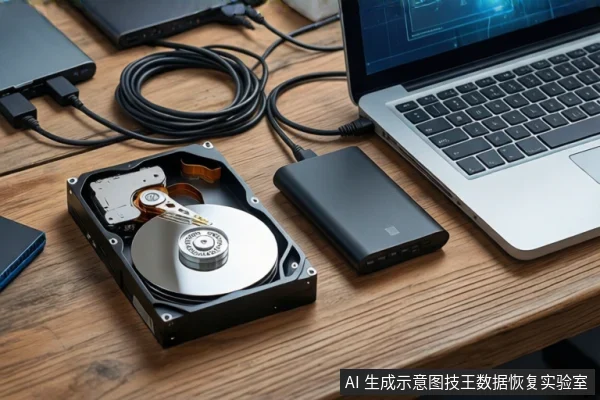
If your disk-to-disk copy fails, the immediate priority is to stop all write operations to both the source and target drives. Do not format, run CHKDSK, or attempt to copy again immediately. These actions can overwrite the very data you are trying to save. The next step is to determine if the failure is logical (software/file system) or physical (hardware/mechanical). If the drive makes clicking noises, shows zero capacity, or disconnects frequently, power it off immediately and seek professional help. If the drive is stable and silent, you may attempt safe, read-only logical recovery methods.
Immediate Safety Steps
The most common cause of permanent data loss during a failed copy is continued user interaction. When a copy fails, the operating system or the drive controller may be in an unstable state. Any attempt to "fix" the drive by formatting it or running aggressive repair tools often involves writing new file system structures, which can destroy the existing data blocks. Even simple actions like opening the drive in File Explorer can trigger background indexing or thumbnail generation, which are write operations. Therefore, the first rule is to disconnect the power or USB connection to the source drive to freeze the current state of the data.
Diagnosing the Failure: Logical vs. Physical
The correct recovery path depends entirely on the nature of the failure. You must distinguish between a logical error, where the data is intact but the map to find it is broken, and a physical failure, where the hardware itself is damaged. Understanding the difference between logical and physical failures is critical for determining if software recovery is safe or if professional intervention is required.
Logical Failure Indicators
A logical failure typically occurs when the drive is physically healthy but the file system is corrupted. Signs include the drive being detected in Device Manager with a stable capacity, but appearing as "RAW," "Unallocated," or prompting for a format in File Explorer. The drive should be silent (no clicking or grinding) and maintain a stable connection. In these cases, the data is likely still present on the platters or NAND chips, but the operating system cannot navigate to it. This scenario is generally safe for software-based recovery, provided no further writes occur.
Physical Failure Indicators
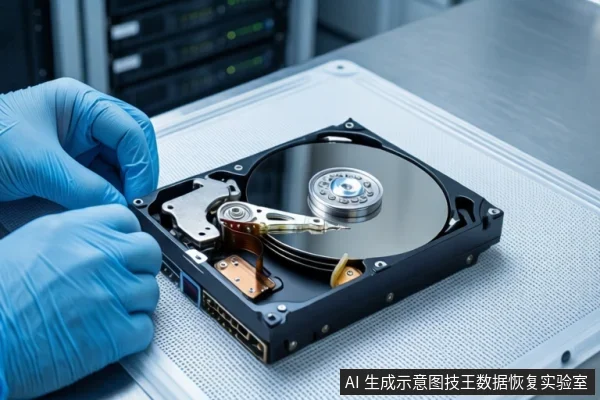
Physical failures involve mechanical or electronic damage. Critical indicators include clicking, grinding, or buzzing noises, which suggest head or motor issues in mechanical drives. If the drive shows zero capacity, is not recognized in BIOS/UEFI after changing cables and ports, or disconnects and reconnects repeatedly, this points to controller failure or severe media degradation. In these cases, software tools are not only ineffective but dangerous, as they force the unstable hardware to work, potentially causing irreversible damage. If you hear mechanical noises, power off the drive immediately.
Common Causes and Safe Next Steps
Copy failures can stem from software conflicts, transmission channel issues, or media defects. Antivirus software may block large file writes, or USB hubs may cause voltage drops leading to CRC errors. However, if the drive is stable, the safest next step is to create a disk image (clone) of the source drive to a healthy target drive. This process reads the source drive in a read-only manner, capturing all readable data, including corrupted sectors, without modifying the original. All subsequent recovery attempts should be performed on this image, not the original drive. If the drive exhibits physical symptoms, do not attempt imaging; instead, seek professional cleanroom services, as DIY disassembly or repeated power cycles will likely result in total data loss.
Frequently Asked Questions
Is it safe to run CHKDSK or format the drive if the copy fails?
No. CHKDSK and formatting are write operations that modify the file system structure. If the data is recoverable, these tools will likely overwrite it, making recovery impossible. Only use these tools if you have a verified backup or if the drive is confirmed to be empty and you intend to reinitialize it.
What is the difference between a backup failure and a data recovery scenario?
A backup failure means the copy process did not complete, but the source data is still intact. A data recovery scenario implies that the source data is inaccessible or corrupted. In a failed copy, you are in a recovery scenario for the source drive. Your goal is to preserve the source data, not to force the copy to complete, which may cause further corruption.
Why does the drive disconnect and reconnect during the copy process?
Frequent disconnections usually indicate a physical issue, such as a failing USB controller, a damaged cable, or a power delivery problem. It can also signal internal drive instability where the controller resets due to read errors. This is a strong indicator of physical failure, and you should stop the process and power off the drive to prevent further damage.