
Hard Drive Making Abnormal Noises When Shaken: Immediate Safety Steps
Published 2026-10-10 | JiWang Data Recovery Technical Team
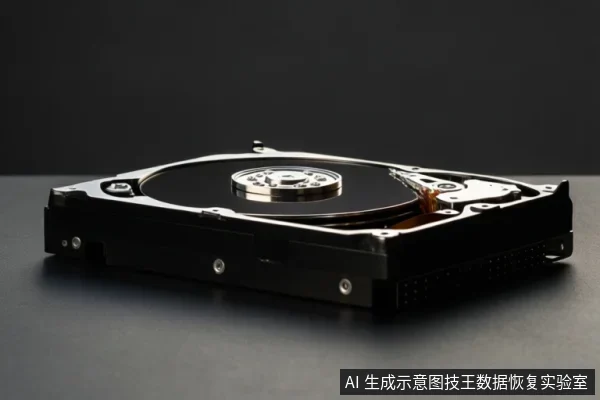
If your hard drive makes abnormal noises when shaken, do not initialize, format, or run recovery software immediately. First, verify if you have backups and check the external connection chain (cables, ports, power). If the noise is mechanical (clicking/grinding) or the drive is unstable, stop powering it on to prevent further physical damage.
Immediate Safety Action: Stop Writing Operations
The primary risk when a drive exhibits abnormal sounds is that user-level operations may accelerate physical degradation. According to confirmed media protection practices, if the target data is not yet secured, you must avoid formatting, initializing, or writing recovery results back to the original media. This applies regardless of whether the drive is an HDD or SSD, as the goal is to preserve the current state of the storage medium for potential professional assessment.
Do not attempt to "fix" the noise by re-seating the drive repeatedly or changing cables if the noise is rhythmic or mechanical. Repeated power-on cycles can cause further damage if the issue is internal. The immediate priority is to disconnect the drive from the computer and power it down.
Low-Risk Checks: Connection and Backup Verification
Before concluding that the drive is physically failed, verify the external environment. If the drive is connected via USB or an external enclosure, check the following:
- Backup Status: Confirm if you have a recent, accessible backup of the critical data. If yes, the risk of data loss is mitigated, and you can proceed with more thorough diagnostics. If no, treat the drive as high-risk and limit interactions.
- Connection Chain: Ensure the USB cable is securely connected and try a different port, preferably a rear USB port on a desktop for better power delivery. If using a powered hub, ensure it is functioning correctly.
- Power Supply: If the drive is a 3.5-inch HDD, ensure it is receiving adequate power. Unstable power delivery can cause recognition issues that may resemble mechanical symptoms.
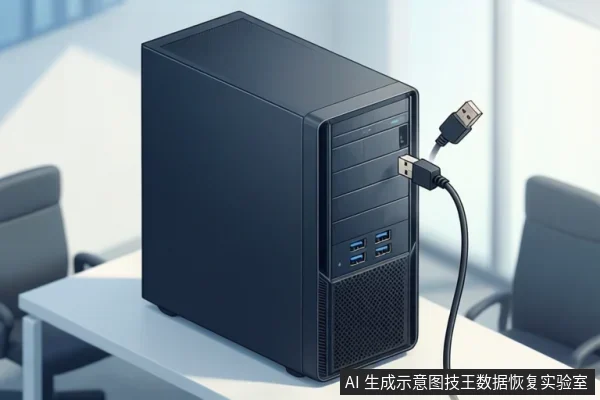
If the drive is silent and stable after these checks, the issue may be logical. If the noise persists or the drive disconnects repeatedly, stop further user-level testing.
When to Stop: Signs of Physical Failure
There are specific conditions under which you must stop all user-level operations and seek professional assessment. These stop conditions are based on observed symptoms that indicate potential physical damage:
- Rhythmic Clicking or Grinding: If the drive makes rhythmic clicking, grinding, or scraping noises, stop all power-on attempts immediately. This suggests potential physical issues that may worsen with continued use.
- Unstable Recognition: If the drive repeatedly disconnects, shows unstable capacity, or fails to mount consistently, stop scanning. Repeated read attempts on an unstable drive can cause further physical stress.
- No Response: If the drive is completely silent and unresponsive after checking power and connections, it may have a controller or PCB issue. Do not attempt to open the drive or perform physical repairs.
In these cases, the safest course of action is to keep the drive in its current state and consult a professional for a read-only assessment. This prevents irreversible data loss due to further physical damage.
Frequently Asked Questions
Is it safe to run a data recovery scan if the drive is making noises?
No. If the drive exhibits abnormal mechanical sounds or instability, scanning can cause further physical damage. Stop and seek professional assessment.
What should I do if I don't have a backup and the drive is noisy?
Do not attempt to format or initialize. Keep the drive in its current state and consult a professional for a read-only assessment to prevent data loss.
Can I fix the noise by re-seating the drive or changing cables?
Yes, if the noise is not rhythmic clicking/grinding. Check the external connection chain first. If the noise persists or is mechanical, stop and do not power on repeatedly.