
External Hard Drive Making Noise but Not Showing Up: Stop Power Immediately
Published 2026-09-16 | JiWang Data Recovery Technical Team
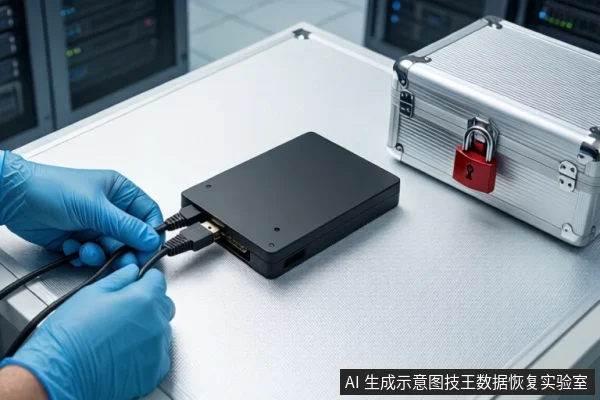
If your external hard drive makes sounds (clicking, grinding, or rhythmic whining) but does not appear in your computer, immediately disconnect the power and data cables. Do not attempt to format, repair, or rescan the drive. These sounds often indicate physical mechanical failure or severe electrical instability where software tools are ineffective and further power cycles can cause permanent data loss. If the drive is silent but unrecognized, check cables and ports first, but avoid running automated repair tools until the drive's stability is confirmed.
Diagnosing the 'Sound': Physical vs. Logical Failure
The nature of the sound is the primary indicator of the failure type. If you hear rhythmic clicking, grinding, or sharp friction sounds during spin-up, this indicates physical mechanical failure, likely a head or motor issue. In this scenario, the drive's internal components are physically damaged or misaligned. Software-based recovery tools cannot communicate with a drive that cannot mechanically position its read/write heads. Attempting to run scans or repairs in this state forces the damaged heads to move against the platters, which can cause irreversible scratching and data loss. The only safe action is to keep the drive powered off and seek professional cleanroom assessment if data recovery is required.
If the drive is silent but not recognized in File Explorer, the issue may be logical or a connection fault. Basic troubleshooting includes trying a different USB port, cable, or computer, and verifying the drive light is on . If the drive is recognized but shows as 'RAW' or 'Unallocated' in Disk Management after basic hardware checks, this indicates a possible issue with the drive's formatting or file system . In this case, the hardware is likely functional, but the logical structure is corrupted. Do not format the drive, as this would destroy the data index. If the drive is stable, you may use Windows File Recovery (Extensive mode for NTFS) to attempt recovery . However, if the drive is unstable or makes any unusual noises, stop all software attempts immediately.
Safe Next Steps for Logical Issues
If you have determined the drive is silent and stable, you can proceed with logical recovery steps. First, minimize or avoid using your computer, as any use can create files that may overwrite the free space where deleted data resides . This is critical because logical recovery relies on the data still being present in the unallocated space. If you are using an NTFS drive and the disk is corrupted, the 'Extensive' mode in Windows File Recovery is recommended for recovery . This mode performs a deeper scan of the file system to locate fragmented or lost files. Remember that Windows File Recovery is a command-line app available from the Microsoft Store . It is a viable option for stable logical failures but is ineffective for physical failures where the drive cannot be properly enumerated by the operating system.
When to Stop and Seek Professional Help
There are specific conditions where you must stop all DIY attempts and seek professional help. If the drive makes rhythmic clicking, grinding, or sharp friction sounds, stop immediately. If the drive shows as 'RAW' or 'Unallocated' in Disk Management after basic hardware checks, and you are unable to recover data with Windows File Recovery, stop and seek professional help. If Device Manager shows Error Code 10 after trying different cables and computers, the drive has probably failed . In this case, the drive has likely suffered a hardware-level failure, and further attempts to power it on or run software tools can cause permanent damage. The only safe next step is to keep the drive powered off and contact a professional data recovery service like Jiwang Data Recovery Lab for assessment.
Frequently Asked Questions
What should I do if my external hard drive is clicking but not showing up?
Disconnect the power and data cables immediately. Do not attempt to boot the computer or run software recovery tools. These sounds indicate physical mechanical failure, and further power cycles can cause permanent platter damage. Seek professional cleanroom assessment if data recovery is required.
Can I use Windows File Recovery if the drive is not recognized?
Only if the drive is silent and stable. If the drive is not recognized due to a connection issue, try different cables and ports first . If the drive is recognized but shows as RAW, you can use Windows File Recovery in Extensive mode for NTFS drives . If the drive makes clicking or grinding sounds, do not use software tools, as they are ineffective and can cause further damage.
Is it safe to format the drive if it shows as RAW in Disk Management?
No, do not format the drive. Formatting will destroy the data index and make recovery impossible. If the drive is stable, use Windows File Recovery to attempt data recovery first . If the drive is unstable or makes unusual noises, stop all software attempts and seek professional help.