
NVR Format Prompt: Why It Appears and How to Safely Assess Recovery
Published 2026-09-10 | JiWang Data Recovery Technical Team
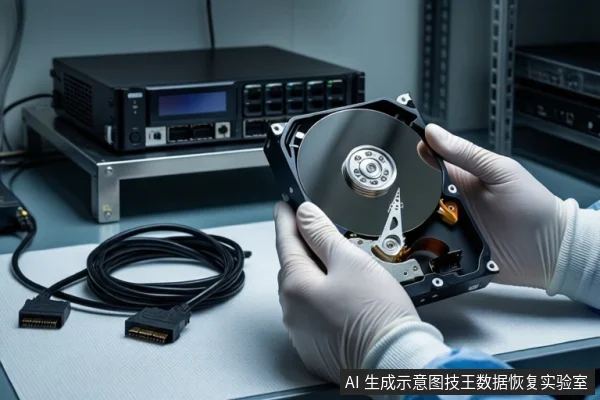
When a Network Video Recorder (NVR) or Digital Video Recorder (DVR) displays a prompt such as "Format," "Initialize," or "Disk Unrecognized," it signals that the system cannot read the file system structure (metadata), not that the data has been erased. The safety of data recovery depends entirely on the physical state of the hard drive. If the drive is physically stable (no clicking, normal spin-up), recovery is generally safe via read-only imaging. If the drive exhibits physical symptoms (clicking, grinding) or shows abnormal capacity (0MB), immediate power-off is required to prevent irreversible damage.
Direct Answer: Why the Prompt Appears
The "Format" prompt is a protective mechanism triggered when the NVR/DVR fails to locate critical file system structures, such as the Master File Table (MFT) or Superblock. This is typically a logical error caused by sudden power loss, voltage fluctuation, or non-standard shutdown. In most cases, the actual video data remains intact on the platters or flash memory, but the index pointing to that data is corrupted or missing. The system prompts for formatting to rebuild this index, which would overwrite the existing metadata and make recovery significantly harder.
Safety Assessment: Physical vs. Logical Failure
Before taking any action, you must distinguish between a logical file system error and a physical hardware failure. The following table outlines common scenarios and their associated risks:
| Condition | Recommended Action | Risk Level |
|---|---|---|
| System prompts format, but drive light blinks normally and no abnormal sounds. | Power off immediately. Do not format. Connect to a computer for read-only scan or create a sector-level image. | Low to Medium. Logical error likely. Risk of data loss if formatted or overwritten. |
| Drive makes clicking, grinding, or friction sounds. | Absolutely do not power on again. Seek professional clean-room service. | High. Physical head or motor damage. Further power-on will scratch platters. |
| Drive recognized as RAW format in computer, partition table missing. | Use professional tools to generate a disk image. Perform extraction on the image, keeping the original drive read-only. | Medium. File system structure damaged. Data likely intact if physical media is healthy. |
| Drive does not light up, does not spin, or is not recognized by computer. | Check cable connections. If confirmed hardware failure, replace PCB or send for repair. | High. PCB, interface, or power module failure. Requires hardware-level intervention. |
Immediate Safe Actions: Stop Writing and Image
The most critical step is to stop all write operations immediately. This means powering off the NVR/DVR and disconnecting the hard drive. Do not click "Confirm Format" or continue recording, as new data will overwrite old data, reducing the recoverable range. If the drive is physically stable, the next step is to create a sector-level image (clone) of the drive. This process copies every sector from the source drive to a target drive, creating a bit-for-bit copy. All subsequent analysis and recovery attempts should be performed on this image, not the original drive. This isolates the original media from further wear or accidental overwrites.
If you are unsure about the physical health of the drive, check the SMART data using tools like CrystalDiskInfo or HDD Tune. Look for critical attributes such as "Reallocated Sector Count" and "Seek Error Rate." If these values are high or the drive is unstable, do not attempt software recovery directly on the original drive. Instead, seek professional assistance.
Stop Conditions: When to Seek Professional Help
You must stop self-recovery attempts and seek professional help from a data recovery laboratory if any of the following conditions are met:
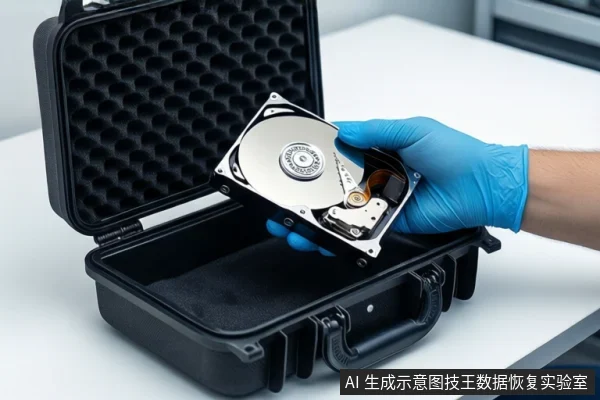
- Physical Noises: The drive makes clicking, grinding, or intermittent stopping noises. This indicates head or motor damage, and further power-on will cause irreversible platter scratches.
- Abnormal Capacity: The drive capacity is reported as 0MB or significantly lower than actual in BIOS/OS. This suggests firmware or controller failure.
- RAID or Enterprise Firmware: The drive is part of a RAID array or uses specialized enterprise firmware. Incorrect handling can destroy array consistency.
- SSD with TRIM: The drive is an SSD and TRIM/Garbage Collection may have been triggered. Data erasure is faster and more permanent on SSDs.
- Overwrite Risk: You have already clicked "Confirm Format" or continued recording, potentially overwriting data. While recovery may still be possible, it is significantly more complex and requires specialized tools.
In these cases, the drive should be sealed and sent to a professional data recovery service with clean-room capabilities. Attempting to open the drive or use consumer-grade software can result in total data loss.
Frequently Asked Questions
Is it safe to click 'Yes' to format the drive in my NVR?
No. Clicking 'Format' will rebuild the file system structure and alter access pointers, making data recovery significantly harder or impossible. It does not immediately erase all data, but it destroys the metadata needed to locate files safely. You should power off the device immediately instead.
What should I do if the hard drive is making a clicking sound?
Stop immediately. Do not power it on again. Clicking sounds indicate physical damage to the heads or motor. Further power-on attempts will scratch the platters, causing irreversible data loss. You must seek professional clean-room service.
Can I use data recovery software directly on the drive?
Only if the drive is physically stable (no noise, normal capacity). However, it is safer to create a sector-level image first and run software on the image. Running software directly on a failing drive can cause timeouts, additional wear, or accidental overwrites. If the drive has bad sectors or is unstable, software recovery is dangerous.