
Storage Device Not Working: Immediate Steps to Protect Your Data
Published 2026-09-24 | JiWang Data Recovery Technical Team
Immediate Action Protocol
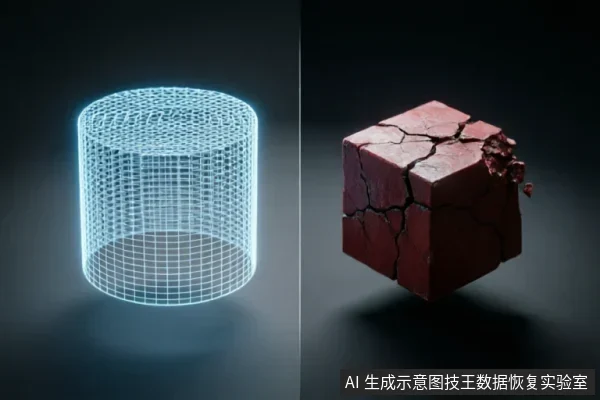
When you encounter a storage device that is not working or has suddenly lost access to your files, the most critical first step is to establish a strict boundary between safe observation and dangerous intervention. Before confirming data safety, verify device recognition status, existing backups, and prior operations;avoid formatting, initializing, or writing recovery results back to the original medium. This principle applies universally across all storage media, whether it is an internal hard drive in your computer, an external USB drive, or a solid-state drive connected via Thunderbolt. The moment you suspect data loss or device failure, every subsequent action must be evaluated against its potential to overwrite or corrupt the underlying data sectors.
The primary goal at this stage is not to "fix" the device immediately, but to preserve the state of the data exactly as it exists. Many users instinctively try to resolve the issue by running disk repair utilities, partition managers, or even attempting to format the drive to make it usable again. These actions are fundamentally incompatible with data preservation. Formatting and initialization commands instruct the operating system to rebuild the file structure, which often involves marking existing data blocks as available for new writes. Even if the data appears intact visually, the logical pointers may be destroyed, making professional recovery significantly more difficult or impossible. Therefore, the immediate protocol requires you to disconnect the device from any system that might attempt automatic repairs or background indexing.
Diagnostic Decision Matrix
To determine the appropriate next steps, you must accurately assess the current state of the storage device. Different symptoms indicate different levels of risk and require distinct handling procedures. The following matrix outlines how to interpret common device behaviors and the corresponding safe actions.
| Device Symptom | Risk Level | Recommended Action | Prohibited Actions |
|---|---|---|---|
| Drive is recognized, stable, but files are missing | Medium | Create a bit-for-bit image backup immediately using read-only tools. | Do not run system repair tools, defragmentation, or file carving software on the original drive. |
| Drive is recognized but makes clicking/grinding noises | Critical | Power off the device immediately. Do not attempt to access files. | Do not repeatedly power on/off. Do not run any software scans. |
| Drive is not recognized by BIOS/OS | High | Check external connections (cables, ports). If still unrecognized, do not open the casing. | Do not open or disassemble the drive;keep the original media protected and seek professional assessment.keep the original media protected and seek professional assessment. |
| System prompts to "Initialize" or "Format" the drive | Critical | Cancel the prompt immediately. Disconnect the drive. | Never click "Initialize" or "Format". This will destroy partition tables. |
| Drive is recognized but extremely slow/laggy | High | Stop all read/write operations. Assess if data is needed before further testing. | Do not run long-term scanning or benchmarking tools. |
Understanding Repair vs. Recovery
A common misconception among users is that "repairing" a drive and "recovering" data are the same process. In professional data recovery, these are distinct and often opposing goals. Repair aims to restore the hardware or file system to a functional state so the drive can be used again. Recovery aims to extract the data from the drive, regardless of whether the drive remains functional afterward. When a device exhibits abnormal mechanical sounds, frequent disconnects, or capacity anomalies, stop repeated power-on and long-term scanning;Do not open or disassemble the drive;keep the original media protected and seek professional assessment.keep the original media protected and seek professional assessment.
Why Software Tools Fail in Physical Scenarios
Software-based data recovery tools operate at the logical level, interpreting file systems and directory structures. They cannot fix physical hardware failures. DiskGenius's bad sector repair function may destroy data in related areas and is not officially supported as a data recovery method. While some software claims to "fix" bad sectors by hiding them, this process involves writing to the drive, which is strictly prohibited when data preservation is the priority. Furthermore, software cannot address issues such as corrupted firmware, failed PCB components, or degraded NAND flash memory cells. If the hardware cannot present the data to the operating system, no amount of software scanning will retrieve it. Relying on consumer-grade tools for physical faults often leads to false hope and increased risk of data loss due to unnecessary power cycles and electrical stress.
Professional Assessment Path
If the diagnostic matrix indicates high or critical risk, or if basic troubleshooting fails, professional intervention is required. Professional data recovery services utilize cleanroom environments and specialized hardware to bypass logical errors and address physical component failures. This path ensures that the original media is handled with minimal stress, maximizing the chances of successful data extraction without further degradation.
Frequently Asked Questions
Can I use disk repair software like DiskGenius to fix bad sectors?
No. DiskGenius's bad sector repair function may destroy data in related areas and is not officially supported as a data recovery method. Using such tools writes to the drive, which can overwrite recoverable data and exacerbate physical damage. Data recovery should never involve writing to the source medium.
Is remote data recovery possible if my drive isn't recognized?
No. Remote data recovery technology is limited to logical data extraction from drives that are accessible by the operating system. It cannot solve hardware-level recognition failures, physical damage, or firmware corruption. If the drive is not recognized, physical intervention is required.
What should I do if my hard drive makes clicking noises?
keep the original media protected and seek professional assessment.