
Can Data Be Recovered from a Failed Kingston 120GB SSD?
Published 2026-09-08 | JiWang Data Recovery Technical Team
Direct Answer
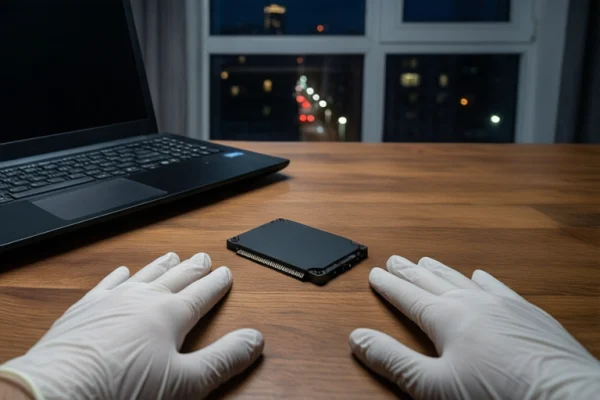
Yes, data recovery from a failed Kingston 120GB SSD is often possible, but it is significantly more time-sensitive and risky than recovering from a mechanical hard drive. The immediate priority is to disconnect power and stop all write operations. If the drive exhibits physical damage signs (burnt smell, visible damage, or repeated failure to initialize), software recovery tools are ineffective and potentially harmful. Professional intervention is required to assess whether the NAND flash chips are intact and to bypass firmware issues without triggering further data erasure.
Immediate Safety Actions
The first step in any SSD failure scenario is to halt all activity. Unlike mechanical hard drives, where data can often be overwritten but not instantly erased, SSDs use a mechanism called TRIM. When files are deleted or the drive is formatted, the operating system sends a TRIM command to the SSD controller, instructing it to mark those blocks as free. The controller may then physically erase these blocks to optimize performance and battery life. This means that once TRIM is executed, the data is gone permanently, not just logically hidden.
Therefore, if your Kingston 120GB SSD is not recognized, is prompting for a format, or is behaving erratically, you must immediately disconnect it from the computer. Do not attempt to run CHKDSK, do not format the drive, and do not use free recovery software that scans the drive. These actions can trigger write operations or further TRIM commands, reducing your chances of recovery to zero.
Diagnosing the Failure Type
Before seeking professional help, it is useful to understand the type of failure you are dealing with, as this dictates the recovery approach. There are two main categories: logical and physical.
Logical Failures
Logical failures occur when the physical components of the SSD are intact, but the software layer is corrupted. This includes:
- Firmware Corruption: The controller cannot communicate with the NAND chips properly. The drive may show up in BIOS but not in the operating system, or it may appear as a 0-byte drive.
- File System Damage: The partition table or file system (NTFS, APFS, etc.) is corrupted, causing the drive to prompt for formatting.
In these cases, the data is likely still present on the NAND flash chips. Professional recovery involves using specialized hardware tools to bypass the corrupted firmware and read the raw data directly from the chips. This is a complex process that requires specific knowledge of the SSD's controller architecture.
Physical Failures
Physical failures involve damage to the hardware components. This includes:
- PCB Damage: Burnt components, short circuits, or broken traces on the printed circuit board. This may be accompanied by a burnt smell or visible scorch marks.
- NAND Chip Failure: The memory chips themselves have failed due to age, wear, or physical shock. This is often irreversible if the chips are physically damaged.
If you suspect physical damage, do not power on the drive. Repeated attempts to power on a damaged PCB can cause further short circuits, potentially destroying the NAND chips or the controller. Professional repair may involve replacing damaged components on the PCB, but this is only possible if the NAND chips themselves are still readable.
Why DIY Software Recovery is Risky for SSDs
Many users attempt to use free or commercial data recovery software to scan a failed SSD. This is generally not recommended for several reasons:
- TRIM Risk: As mentioned, scanning tools may trigger write operations or TRIM commands, leading to permanent data loss.
- Inability to Access Raw Data: Standard recovery software works at the file system level. If the firmware is corrupted or the file system is damaged, these tools cannot access the underlying data. They may even cause the drive to crash or become more unstable.
- Time Wasted: If the drive is physically damaged, software will not work. Spending time on software scans delays professional intervention, which is critical for SSDs due to the TRIM risk.
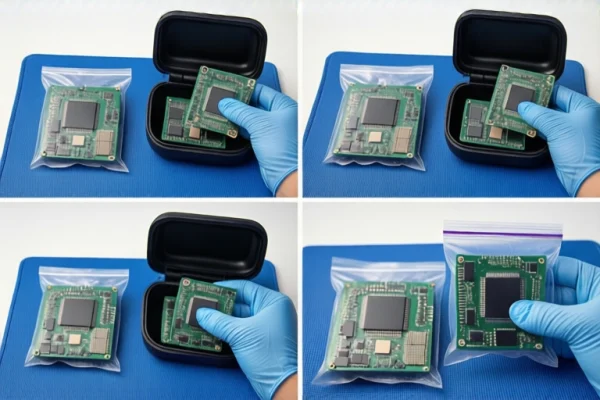
Professional data recovery labs use specialized hardware tools that can communicate directly with the SSD controller, bypassing the file system and operating system. These tools can read the raw NAND flash data, even if the drive is not recognized by the computer. This is the only safe and effective way to recover data from a failed SSD.
Professional Recovery Process
If you decide to seek professional help, here is what you can expect:
- Initial Assessment: The lab will inspect the drive for physical damage and attempt to read SMART data to assess the health of the NAND chips.
- Imaging: If the drive is accessible, the lab will create a bit-for-bit image of the drive. This image is then used for recovery attempts, ensuring that the original drive is not further stressed.
- Firmware Repair: If the firmware is corrupted, the lab may attempt to repair or replace it. This requires specific knowledge of the SSD's controller and may involve using donor drives or specialized software.
- Data Extraction: Once the data is accessible, the lab will extract the files and verify their integrity. You will be provided with a report detailing what was recovered and what was not.
It is important to note that recovery is not guaranteed. The success rate depends on the extent of the damage, the type of failure, and how quickly you seek help. For SSDs, time is of the essence due to the TRIM risk.
When to Stop and Seek Help
You should stop all DIY attempts and seek professional help immediately if:
- The drive is not recognized in BIOS or Device Manager.
- The drive prompts for formatting.
- You see visible physical damage or smell burnt components.
- The drive was recently formatted or files were deleted.
In these cases, any further action you take could reduce your chances of recovery. Professional labs have the tools and expertise to handle these situations safely and effectively.
Frequently Asked Questions
Is it safe to use free data recovery software on a failed Kingston SSD?
No, it is generally not safe. Free software may trigger write operations or TRIM commands, leading to permanent data loss. It also cannot access raw data if the firmware is corrupted. Professional hardware tools are required for safe and effective recovery.
What happens if I format the SSD before attempting recovery?
Formatting the SSD will likely trigger TRIM commands, causing the data to be physically erased. This makes recovery extremely difficult or impossible. If you have already formatted the drive, stop using it immediately and seek professional help as soon as possible.
Can data be recovered if the SSD is not detected in BIOS?
Yes, it is possible, but it depends on the cause of the failure. If the firmware is corrupted or the PCB is damaged, professional repair may be required. If the NAND chips are intact, data can often be recovered using specialized hardware tools. However, if the NAND chips are physically damaged, recovery may not be possible.