
WD2500AAJS-60M0A0 Not Readable: Stop Writing and Assess Physical State
Published 2026-09-21 | JiWang Data Recovery Technical Team
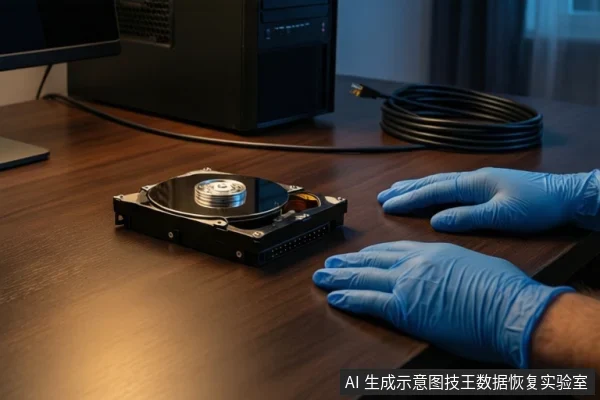
If your WD2500AAJS-60M0A0 drive is not readable, immediately stop all write operations and assess the physical state. If the drive makes clicking or grinding noises, or is not detected in BIOS, disconnect power immediately as this indicates a physical failure requiring professional cleanroom intervention. If the drive is detected but shows as RAW or unallocated, it may be a logical error; however, do not run repair tools like chkdsk without first confirming the drive is physically stable, as these can cause irreversible data loss on failing media.
Distinguishing Logical vs. Physical Failure
The WD2500AAJS-60M0A0 is a 3.5-inch mechanical hard drive (HDD). Unlike solid-state drives, its data recovery depends on the physical integrity of its platters and heads. "Not readable" is a symptom, not a diagnosis. The critical first step is determining whether the issue is logical (file system corruption) or physical (mechanical/electronic failure).
- Logical Failure: The drive spins up normally, makes no abnormal noises, and is detected in BIOS/UEFI. The OS may show the drive as RAW, unallocated, or inaccessible. This suggests the controller is working, but the partition table or file system is corrupted.
- Physical Failure: The drive is not detected in BIOS, makes clicking/grinding/screeching noises, or reads extremely slowly/freezes. This indicates head damage, motor failure, PCB issues, or bad sectors.
Safe Diagnostic Steps: What to Check Before Powering On
Before attempting any software-based recovery, perform these external checks to rule out simple connection issues:
- Check Connections: Ensure SATA data and power cables are firmly connected. Try a different SATA port and power connector on the motherboard/PSU.
- BIOS Detection: Boot into BIOS/UEFI. If the drive is listed, the basic hardware handshake is working. If it is missing, the issue is likely electrical (PCB, motor, or power) or a severe connection fault.
- Listen and Feel: Power on the drive briefly. Listen for rhythmic clicking (head reset failure), grinding (head/platter contact), or high-pitched screeching. Feel the casing for excessive heat. If any abnormal noise or heat is present, disconnect power immediately.
Why Software Repairs Can Be Dangerous on Failing Drives
Users often instinctively run tools like chkdsk or format the drive to fix "RAW" errors. This is dangerous for mechanical drives with potential physical instability:
- Write Operations: Tools like
chkdskperform write operations to repair file system structures. If the drive has bad sectors or unstable heads, these writes can cause the head to scratch the platter, leading to permanent data loss. - Read Stress: Even read-only scans can be harmful if the drive is struggling. If the drive reads slowly or freezes, it is likely encountering bad sectors. Continued read attempts force the head to retry, accelerating wear and potentially causing total failure.
Safe Action: If the drive is silent, stable, and detected in BIOS, you may attempt a read-only scan to assess file system integrity. If the drive exhibits any noise, slowness, or instability, stop all software operations and seek professional sector-level imaging.
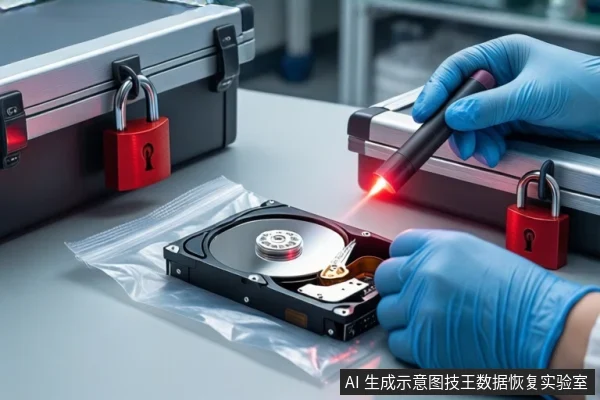
Stop Conditions: When to Seek Professional Help
Immediately stop self-repair and contact a professional data recovery service if you observe any of the following:
- Drive makes rhythmic clicking, grinding, or high-pitched screeching noises.
- Drive is not detected in BIOS/UEFI after checking cables and ports.
- Drive capacity displays incorrectly (e.g., 0 bytes or significantly lower than 250GB).
- Drive repeatedly disconnects and reconnects (USB dropouts or SATA link instability).
- Visible physical damage, burn marks, or liquid exposure on the drive casing.
Professional recovery for mechanical drives often requires cleanroom intervention to replace damaged components or clean contaminants. Success is strictly dependent on the physical integrity of the platter surface, which is why preventing further physical damage is the top priority.
Frequently Asked Questions
Is the WD2500AAJS-60M0A0 a solid-state drive (SSD)?
No, the WD2500AAJS-60M0A0 is a 3.5-inch mechanical hard drive (HDD). This means its data recovery depends on the physical integrity of its platters and heads, unlike SSDs which rely on NAND flash memory and controllers.
Can I use chkdsk to fix the 'not readable' error on my WD2500AAJS-60M0A0?
Only if the drive is physically stable and makes no abnormal noises. If the drive is clicking, grinding, or reading slowly, do not run chkdsk. It performs write operations that can cause the head to scratch the platter, leading to permanent data loss.
What should I do if the drive is not detected in BIOS?
First, check the SATA data and power cables, and try a different port. If the drive is still not detected, it likely has a PCB or motor failure. Stop powering it on and contact a professional data recovery service for diagnosis.