
16GB or 32GB Storage Not Recognized: Safety Steps and Diagnosis
Published 2026-10-11 | JiWang Data Recovery Technical Team
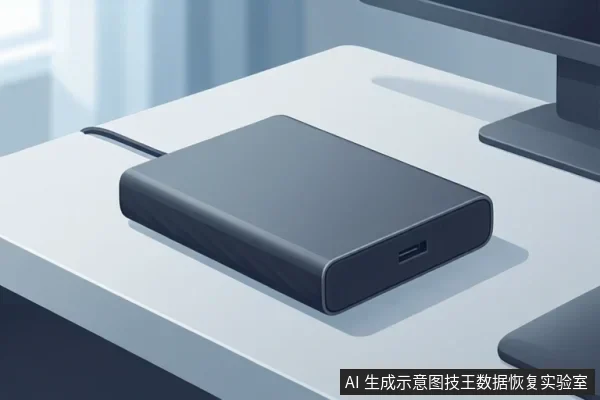
When a storage device is not recognized by your computer, the immediate priority is to prevent further data loss. Stop using the device, and do not attempt to format, initialize, or run disk repair software. These actions can overwrite data or cause physical damage. First, verify the physical connection by trying a different USB port or card reader. If the device remains unrecognized, stop all power-on attempts and consult a professional data recovery service, as the issue may involve hardware failure.
Immediate Safety Actions
- Disconnect the device from the computer immediately.
- Do not attempt to format, initialize, or run any disk repair or data recovery software.
- Check if the device is hot to the touch. If it is, let it cool down completely before any further inspection.
- Listen for any unusual sounds such as clicking, grinding, or buzzing. If you hear these, do not power it on again.
Basic Connection Checks
Before assuming the device is faulty, rule out simple connection issues. These steps are safe and do not risk data loss.
- Try a different USB port on your computer. Prefer rear ports on desktops, as they are often more stable than front panel ports.
- If using a card reader, try a different reader or a different computer.
- Check for physical damage to the connector pins or the card slot.
- Ensure the device is not locked (if it has a physical switch) and that the card is fully inserted.
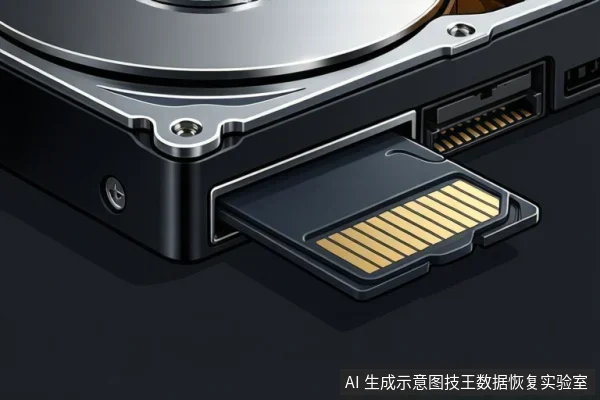
When to Stop and Seek Help
If the device is still not recognized after basic connection checks, stop all attempts to power it on. Repeated power cycles can worsen hardware failures. Seek professional help if:
- The device makes clicking, grinding, or unusual noises.
- The device is hot to the touch.
- The device is not recognized after trying different ports or readers.
- You are unsure whether the issue is a connection problem or hardware failure.
Professional data recovery services can assess the device in a controlled environment without risking further damage. Jiwang Data Recovery Lab provides such services for various storage media.
Frequently Asked Questions
How can I tell if the issue is a connection problem or hardware failure?
If the device is recognized but files are missing, it is likely a logical issue where software scans may be safe. If the device is not recognized at all, or if you hear clicking/grinding noises or feel excessive heat, it indicates potential hardware failure. In these cases, stop using the device immediately and seek professional help, as software scans can cause further damage.
What specific physical checks should I perform on an SD or TF card?
Before trying a different reader, visually inspect the gold contacts (pins) on the card for dirt or oxidation and gently clean them with a soft, dry cloth. Also, check the card slot in the reader for any visible debris or bent pins. If the contacts are clean and the slot is clear but the card is still not recognized, stop using it to avoid physical damage.
What are the observable signs that distinguish logical issues from physical damage?
Logical issues often present as the device being recognized by the OS but showing as empty, asking to be formatted, or having a corrupted file system. Physical damage is indicated by the device not appearing in the system at all, making unusual noises (clicking, grinding), or becoming hot to the touch. If you observe signs of physical damage, do not attempt DIY recovery; seek professional help immediately.