
Storage Drive Shows Wrong Capacity: How to Protect Your Data
Published 2026-10-08 | JiWang Data Recovery Technical Team
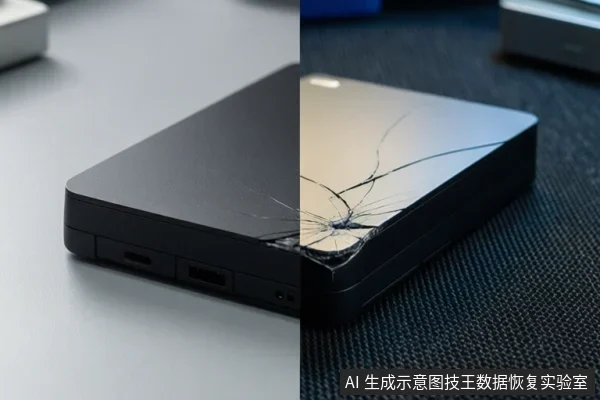
Whether data recovery is viable when a drive shows an unexpected capacity depends primarily on the physical integrity of the storage medium and whether the target data has been overwritten. The immediate priority is to stop all write operations, avoid formatting or initializing the device, and verify if existing backups are available before attempting any recovery software.
Direct Answer and Immediate Actions
Seeing a capacity value in your operating system does not confirm that the data is safe. It only indicates that the drive's controller is reporting a size to the host. If the capacity is incorrect or the files are missing, the file system may be corrupted, or the physical media may be failing. Your first step must be to disconnect the drive from any active system to prevent further writes. Do not attempt to 'fix' the capacity by re-partitioning or formatting, as these actions overwrite the file system structures and potentially the data blocks themselves.
Why Capacity Visibility Does Not Guarantee Data Integrity
Capacity visibility is a user-reported symptom, not a diagnostic indicator of data health. A drive can report its full size while the underlying file system is fragmented, corrupted, or the physical sectors are unreadable. In cases of logical corruption, the data may still exist on the media but is inaccessible due to broken pointers. In cases of physical damage, the drive may report a size based on its firmware configuration, but the actual reading heads or flash cells may be failing. Because you cannot distinguish between these states without professional assessment, any action that modifies the drive's state is risky.
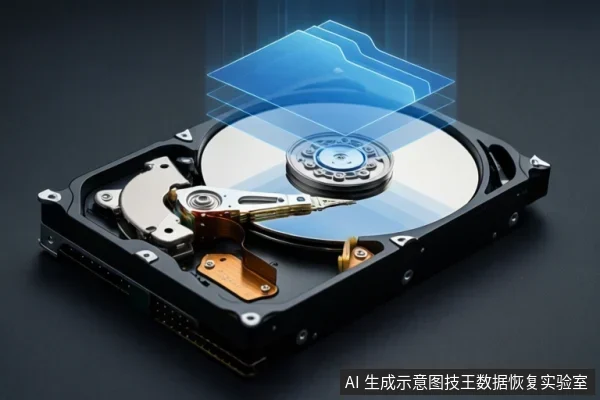
Safe Assessment Steps vs. Dangerous Operations
To protect your data, follow these safe assessment steps: identify the device type (HDD or SSD) if possible, check for any existing backups, and keep the drive powered off. Avoid dangerous operations such as running disk check tools that repair errors, using third-party recovery software that writes logs to the drive, or attempting to initialize the disk. If the device is making clicking, grinding, or other abnormal mechanical noises, power it off immediately and do not attempt to read it again. If the device is an SSD and you have performed a secure erase, full format, or TRIM-triggering operation, stop further software scans as data may be irrecoverably erased. If you are unsure of the device type or the exact nature of the capacity anomaly, stop self-diagnosis and seek professional assessment to prevent further data loss.
Frequently Asked Questions
Does seeing the correct capacity in the system mean my data is safe?
No. Capacity visibility only indicates that the drive's controller is reporting its size. It does not confirm that the file system is intact, that data blocks are readable, or that the physical media is healthy. Data can be lost due to logical corruption, bad sectors, or controller issues even if the capacity appears normal.
Should I try to format the drive to fix the capacity issue?
No. Formatting is a destructive operation that overwrites file system structures and potentially data blocks. If the capacity anomaly is caused by a logical error, formatting may make it worse. If it is caused by physical damage, formatting will not fix it and may accelerate data loss. Always stop writing and seek professional assessment first.
What should I do if the drive is making strange noises?
Power off the device immediately. Do not attempt to read the drive again until it has been professionally assessed.