
Can You Restore a Hard Drive Name and Folder Structure? It Depends on Media Health
Published 2026-09-21 | JiWang Data Recovery Technical Team
Direct Answer: Core Determinants of Recovery Possibility
The possibility of restoring a computer hard drive's name (volume label) and directory structure depends primarily on the integrity of the file system metadata (such as the MBR or MFT) and the physical read stability of the media. If the drive is recognized by the operating system, remains silent, and is stable, software-based reconstruction of the volume label and directory tree is feasible. However, if the drive exhibits physical symptoms like clicking sounds, intermittent disconnection, or capacity errors, software attempts are ineffective and potentially destructive. In such cases, professional hardware-level intervention is required before any data can be accessed.
Logical vs. Physical Failure: How to Diagnose
The first step in determining recovery feasibility is identifying whether the failure is logical or physical. This distinction dictates whether you can use software tools or if you must stop immediately to prevent further damage.
Logical Failure (Software-Applicable)
A logical failure occurs when the physical media is readable, but the file system structure is damaged. Common symptoms include the drive being visible in Disk Management but showing as "RAW," "Unallocated," or having a corrupted volume label. In these scenarios, the data is likely still present on the platters or NAND chips, but the "map" (metadata) that points to it is broken. If the drive is stable and silent, you can attempt to rebuild the directory structure using file system check tools or specialized recovery software that scans for file signatures.
Physical Failure (Hardware-Required)
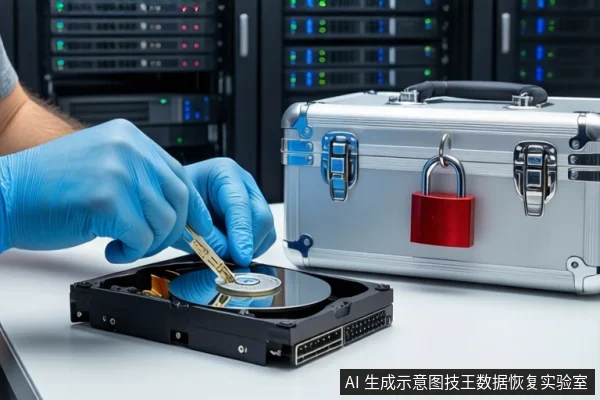
A physical failure crosses the boundary of logical issues into hardware faults. Symptoms include the drive emitting clicking or grinding sounds (common in HDDs), intermittently disconnecting, failing to spin up, or reporting a capacity significantly different from its actual size. If you observe any of these signs, stop all software attempts immediately. Continuing to power on a physically failing drive can cause head crashes or accelerate flash memory degradation, making recovery impossible. Professional cleanroom services or chip-level extraction are necessary in these cases.
The Role of File System Metadata in Name Restoration
"Name restoration" is technically a reconstruction of file system metadata, not just a simple rename. The volume label is a simple text string stored in the file system's root directory, which is often easy to rebuild if the rest of the structure is intact. However, more commonly, the issue involves the corruption of the Master Boot Record (MBR) or Master File Table (MFT). When these structures are damaged, the operating system cannot parse the partition information, leading to the loss of the drive name and directory tree. Recovery software works by scanning the media for residual file header signatures (like JPG or DOCX markers) and attempting to reconstruct the parent-child directory relationships. This process is a form of reverse engineering that relies on the data not having been overwritten by subsequent operations.
SSD vs. HDD: TRIM and Physical Wear Impacts
The type of storage media significantly impacts recovery difficulty. For mechanical hard drives (HDDs), data remains on the platters until it is explicitly overwritten. This allows for a window of opportunity to recover lost names and structures if the media is stable. In contrast, solid-state drives (SSDs) use the TRIM command to optimize performance. When a file is deleted or a drive is formatted, the SSD controller may immediately erase the corresponding data blocks to free up space. This makes metadata-based name restoration extremely difficult or even impossible for SSDs, as the underlying data may no longer exist. Therefore, if you are dealing with an SSD, the urgency to act is higher, and the success rate is lower compared to HDDs.
Safe Next Steps: Read-Only Imaging and Scanning
If you have determined that your drive is stable and the failure is logical, follow these steps to maximize the chance of successful recovery:
- Stop All Writes: Immediately cease any activity that writes to the drive. Do not format, initialize, or attempt to "fix" the drive using built-in system tools, as these actions will overwrite the metadata you are trying to recover.
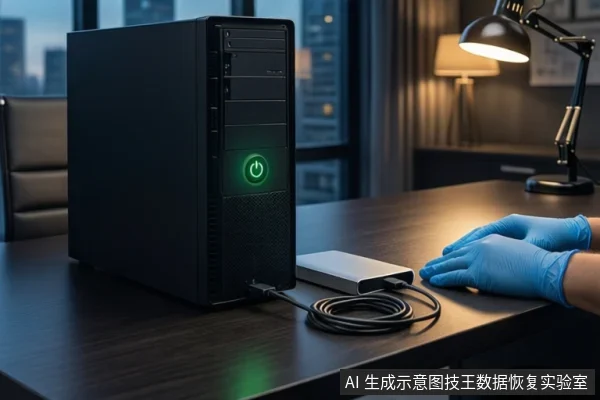
- Create a Read-Only Image: The safest approach is to create a bit-for-bit image of the drive. This allows you to perform all recovery operations on the image file, preserving the original media in its current state.
- Scan for File Signatures: Use professional recovery software to scan the image for file headers and reconstruct the directory tree. This process can be time-consuming but is the most reliable method for restoring lost names and structures.
If at any point the drive begins to make unusual noises, disconnects, or shows signs of instability, stop the process immediately and seek professional help. Attempting to force a read on a failing drive can cause irreversible physical damage.
Frequently Asked Questions
What does 'hard drive name restoration' technically involve?
It involves reconstructing the file system metadata, specifically the volume label and the directory tree structure. This is not just renaming a drive but rebuilding the logical map that allows the operating system to locate and access files.
Why is SSD recovery harder than HDD recovery for name restoration?
SSDs use the TRIM command, which can cause the controller to erase data blocks immediately after deletion or formatting. This means the underlying data needed to reconstruct the name and structure may no longer exist, unlike in HDDs where data remains until overwritten.
What are the immediate stop conditions for software recovery attempts?
Stop immediately if the drive emits clicking or grinding sounds, intermittently disconnects, is not recognized in BIOS/UEFI, or reports a capacity significantly different from its actual size. These are signs of physical failure where software attempts can cause further damage.