
Recovering Deleted Data from 'Huiwang Neishi': Safe Steps and Risk Limits
Published 2026-10-09 | JiWang Data Recovery Technical Team
To recover deleted data from the 'Huiwang Neishi' path, immediately stop using the computer to prevent overwriting the free space where the data resides. If the device is stable and recognized, use Windows File Recovery in extensive mode, especially for non-NTFS drives or if regular mode fails, ensuring the destination is a different drive. If the device makes abnormal noises or is not recognized, stop immediately and seek professional assessment.
Immediate Safety Actions: Stop Writing
In the Windows file system, the space used by a deleted file is marked as free space, which means the file data can still exist and be recovered. However, any use of the computer can create files, which may over-write this free space at any time. To increase the chances of recovering a file, minimize or avoid using the computer after deletion. Do not install new software, save new files, or run disk cleanup tools on the affected drive.
Assessment: Logical vs. Physical Failure
Before attempting software recovery, verify the physical state of the device. If the drive is recognized by the operating system and operates without unusual sounds, it is likely a logical deletion issue suitable for software-based recovery. If the device makes clicking, grinding, or other abnormal noises, or if it is not recognized by the OS or BIOS, these are indicators of physical failure. In such cases, software scanning is ineffective and may cause further damage. Stop all operations and seek professional help.
Software Recovery Steps: Windows File Recovery
Windows File Recovery is a command line app available from the Microsoft Store to recover lost files deleted from local storage devices. Follow these steps:
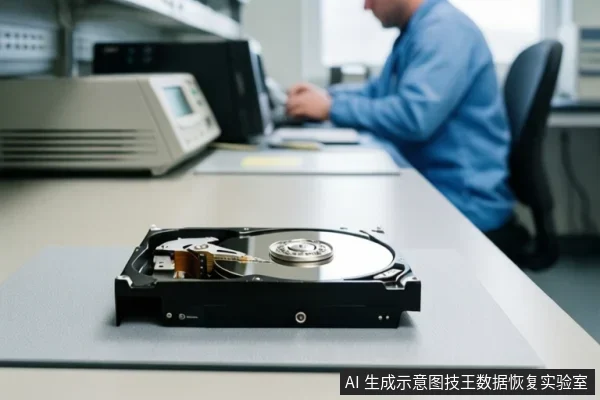
- Download and install Windows File Recovery from the Microsoft Store on a different computer or drive if possible, or ensure the destination drive is different from the source.
- Open Command Prompt as an administrator.
- Use the
winfrcommand. For non-NTFS file systems, you must use extensive mode (-rflag) because recovering files from non-NTFS file systems is only supported by extensive mode. - If you used Regular mode and failed, try again in extensive mode if the file type is supported.
- Specify the source drive (where 'Huiwang Neishi' is located) and the destination drive (a different physical drive).
When to Stop: Physical Damage Indicators
It is possible that the free space was overwritten, especially on a solid-state drive (SSD). If the device is an SSD, recovery may not be possible if TRIM commands have already erased the data blocks. If the device exhibits any of the following conditions, stop immediately: the device makes clicking, grinding, or other abnormal noises; the device is not recognized by the OS or BIOS; or the device is physically damaged or has been exposed to water or heat. These conditions indicate physical failure where software recovery is not applicable and may worsen the damage.
Frequently Asked Questions
What should I do immediately after deleting files from 'Huiwang Neishi'?
Stop using the device immediately to prevent overwriting the deleted data. Do not install new software or save new files to the same drive.
Can I recover files if I formatted the drive?
Yes, if it was a quick format and the data has not been overwritten. Use 'extensive' mode in recovery tools to scan for deleted files.
Why is my SSD recovery failing?
SSDs often use TRIM commands that can erase data blocks almost immediately after deletion. If the free space has been overwritten, recovery may not be possible.