
Hard Drive Prompts for Format: Stop Writing and Check for Physical Damage
Published 2026-09-24 | JiWang Data Recovery Technical Team
Immediate Safety Steps: Stop Writing and Isolate the Drive
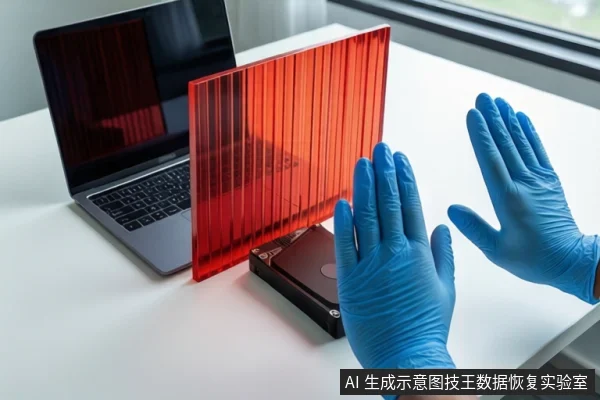
When a hard drive prompts for formatting or appears unformatted, the immediate priority is to stop writing to the device to prevent data overwriting . Do not initialize, partition, or format the drive, as creating a partition after losing data reduces the chance of a successful recovery . In the Windows file system, space used by a deleted file is marked as free, meaning the data can still exist and be recovered until it is overwritten by new files . Therefore, any action that writes new data to the drive can permanently destroy the files you are trying to save.
If the drive is an internal drive, shut down the computer and disconnect the power and data cables. If it is an external drive, safely eject it and unplug the USB connection. Avoid repeatedly plugging it in to test if data is visible, as this can trigger background processes that write to the drive.
Diagnosing the Failure: Logical vs. Physical Indicators
The prompt to format usually indicates that the operating system cannot recognize the file system structure, often resulting in the drive showing as "RAW". This is typically a logical error, such as file system corruption, rather than the data being physically erased. However, you must distinguish this from physical failure before attempting any software recovery.
Logical Failure Indicators:
- The drive is silent (no clicking or grinding sounds).
- The drive is visible in BIOS/UEFI settings.
- The drive capacity displays correctly (e.g., 1TB shows as ~931GB).
- The drive is stable and does not disconnect frequently.
If these conditions are met, the issue is likely logical, and software recovery is a viable option.
Physical Failure Indicators (Stop Conditions):
- The drive makes clicking, grinding, or friction sounds.
- The drive is not visible in BIOS/UEFI settings.
- The drive capacity displays incorrectly (e.g., 0MB or significantly lower than rated).
- The drive disconnects frequently or shows signs of physical instability.
If you observe any of these physical symptoms, stop all software attempts immediately. Clicking sounds typically indicate head assembly failure in mechanical hard drives, and continuing to power the drive can cause permanent platter damage. In such cases, professional physical repair is required.
Software Recovery Options for Logical Failures
If the drive is physically healthy and the issue is logical, you can attempt recovery using Windows File Recovery, a command-line application available from the Microsoft Store . This tool is designed to recover lost files from local storage devices.
For NTFS drives that have been formatted or show as RAW, the 'Extensive' mode is the recommended recovery option . If you are recovering files from non-NTFS file systems such as FAT or exFAT, the 'Extensive' mode is the only supported option . If you initially tried 'Regular' mode and failed, you should try again in 'Extensive' mode, provided the file type is supported .
Note on SSDs: On solid-state drives (SSDs), free space may be overwritten quickly due to mechanisms like TRIM, which can make file recovery impossible . If your drive is an SSD and has been formatted or deleted, the window for recovery is much shorter than for mechanical hard drives. If the drive is an HDD, data remains on the platters until physically overwritten, offering a higher chance of recovery if no new data has been written.
When to Stop and Seek Professional Help
Software recovery tools are effective for logical errors but cannot fix physical damage. If the drive makes abnormal noises, is not recognized in BIOS, or shows unstable capacity, software attempts are not only ineffective but can also worsen the damage. In these cases, the drive requires professional intervention in a controlled environment to prevent further data loss. Do not attempt to open the drive yourself, as this will expose the platters to dust and cause irreversible damage.
For complex logical issues where software recovery fails or results in corrupted files, professional data recovery services can perform sector-level imaging and file system reconstruction. This process is safer for unstable drives and can recover data that standard tools cannot access.
Frequently Asked Questions
Can I recover data if my hard drive asks me to format it?
Yes, if the drive is physically healthy and the issue is logical (file system corruption). You should stop writing immediately and use recovery tools like Windows File Recovery in Extensive mode. If the drive makes clicking sounds, recovery is unlikely without professional physical repair .
What is the difference between a quick format and a full format in terms of data recovery?
A quick format only marks the space as free and removes the file index, making data potentially recoverable until overwritten . A full format writes zeros or patterns to the drive, which typically makes data recovery impossible because the original data is physically erased.
Why is recovery harder on SSDs than on HDDs?
SSDs use the TRIM command, which instructs the drive to erase unused blocks. This can happen quickly after deletion or formatting, making data recovery nearly impossible . HDDs do not have TRIM, so data remains on the platters until physically overwritten, providing a longer window for recovery.