
Is It Safe to Recover Data from an Uninitialized Disk? When to Stop Scanning
Published 2026-10-18 | JiWang Data Recovery Technical Team
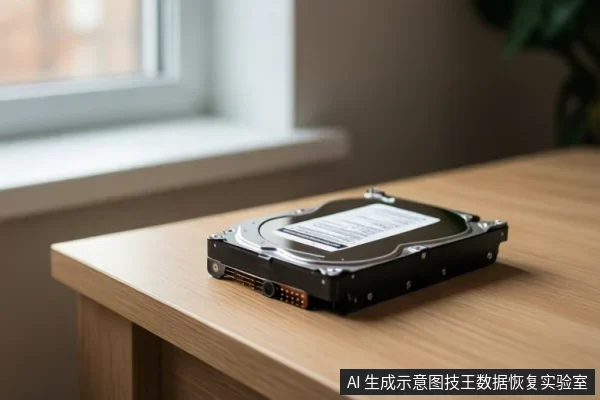
Recovering data from an uninitialized disk is safe only if the drive is physically stable and the recovery process is strictly read-only. You must stop immediately if the disk makes clicking sounds, shows abnormal capacity, or causes system crashes, as these indicate physical or firmware failure where software scanning causes further damage.
Safety depends on read-only status and physical health
The term "uninitialized" in Windows Disk Management typically indicates that the partition table is missing or corrupted, not necessarily that the underlying data is gone. However, the safety of any recovery attempt hinges entirely on the physical condition of the media. If the drive is mechanically sound and recognized by the system with its correct capacity, a read-only scan can safely extract data. If the drive exhibits physical symptoms, any software interaction is dangerous and should be halted immediately.
Why 'Uninitialized' is Dangerous: Initialization erases data
According to Microsoft's documentation on Windows Disk Management, the initialization process erases all data on the disk. This is a critical distinction: while the data may still physically exist on the platters or flash chips, the logical map (partition table) is destroyed. If you allow Windows to initialize the disk to make it usable, you are actively overwriting the metadata that points to your files, making recovery significantly harder or impossible. Similarly, formatting a volume will destroy any data on the partition. Therefore, the primary risk in an uninitialized state is not the lack of data, but the temptation to "fix" the disk by initializing or formatting it, which actively destroys the remaining logical structure.
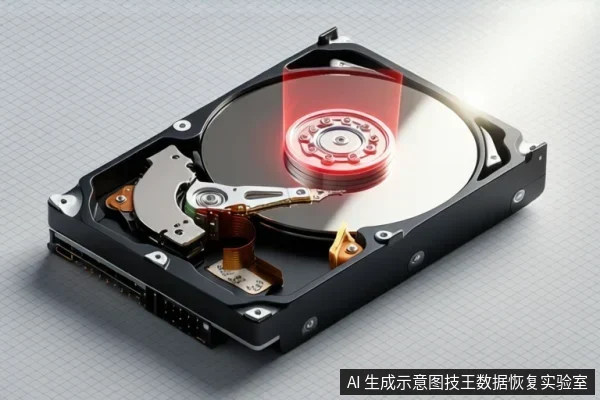
Safe Recovery Conditions: Stable recognition, no noise, read-only tools
To safely attempt recovery, the disk must meet specific criteria. First, it must be recognized by the BIOS or operating system with its correct capacity. Second, it must be silent, with no clicking, grinding, or friction sounds. Third, the recovery tool must operate in a strict read-only mode, meaning it does not write any cache, logs, or temporary files to the source drive. Many consumer-grade recovery software packages violate this principle by writing temporary data during deep scans, which can overwrite recoverable sectors. If you are not certain your tool is truly read-only, it is safer to avoid scanning altogether and seek professional assistance that uses hardware-level imaging.
When to Stop: Physical symptoms and firmware errors
You must stop all software attempts and power down the drive immediately if you observe any of the following conditions. Hearing clicking or grinding noises indicates head damage or mechanical failure; continued power-on cycles will scratch the platters and cause permanent data loss. If the disk capacity shows as 0 bytes or an incorrect size, this suggests firmware or controller failure, where software scans can trigger protective locks or further corruption. Finally, if the system experiences blue screens, freezes, or USB disconnections during access, the drive is likely suffering from severe bad sectors or signal errors. In these cases, the drive is physically unstable, and any attempt to read data via software will likely accelerate the failure. The only safe path is professional physical repair in a cleanroom environment.
Frequently Asked Questions
Is it safe to run a deep scan on an uninitialized disk?
It is risky if the software writes cache or logs to the drive. Professional read-only tools are safer, but if the disk is physically unstable, any scan is dangerous and should be avoided.
What does 'uninitialized' mean for my data?
It means the partition table is missing. Data may still exist on the sectors, but the map to find it is gone. Initializing will erase this data, so you should not proceed with initialization if data preservation is the goal.
Should I format the disk to make it work again?
No. Formatting destroys data. If data is important, do not format. Seek recovery first, and only format after you have confirmed that no recoverable data remains or that you have successfully backed up the files.