
F41A File Loss: Immediate Steps to Prevent Further Data Overwriting
Published 2026-10-12 | JiWang Data Recovery Technical Team
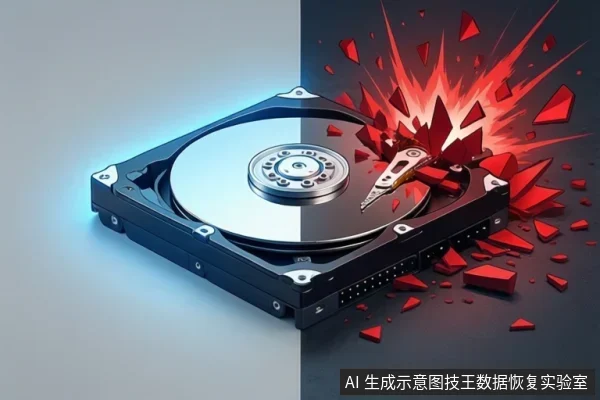
When you discover file loss on an F41A device, the immediate priority is to stop all write operations to prevent overwriting existing data. Do not format, initialize, or run disk repair tools. Verify if the device is still recognized by the system and check for existing backups before attempting any recovery software.
Immediate Action: Stop Writing
The most critical step in preserving data integrity is halting any activity that modifies the storage medium. This is not merely a passive state of waiting but an active protection measure. Every time the device is powered on and accessed, there is a risk that the operating system or background processes may write new data, logs, or temporary files to the available space. If the missing files were deleted or lost due to a logical error, their data blocks may still exist on the media but are marked as available. Any new write operation can overwrite these blocks, making recovery impossible. Therefore, disconnect the device from the computer immediately after confirming the loss. If the device is an internal drive, shut down the computer. If it is an external drive, unplug it. This action freezes the current state of the data, preserving the highest possible chance of recovery.
Safe Assessment Steps
Before attempting any recovery, you must assess the current status of the device without causing further harm. The following steps are considered safe because they do not involve writing new data to the F41A device:
- Check System Recognition: Reconnect the device briefly to see if it is recognized by the operating system. Note whether it appears in Device Manager or Disk Management. If it shows up with a capacity, it is likely a logical issue. If it does not appear at all, it may be a hardware or connection issue.
- Verify Existing Backups: Check if you have any recent backups of the lost files. If a complete and verified backup exists, the urgency of recovery is reduced, and you can proceed with caution. If no backup exists, treat the device as critical and avoid any risky operations.
- Observe Device Behavior: Listen for any unusual noises if it is a mechanical drive. Check for signs of instability, such as the device disconnecting and reconnecting repeatedly. These signs indicate potential physical damage, which requires a different approach than logical errors.
It is important to distinguish between safe assessment and destructive operations. Checking recognition and observing behavior are safe. However, running disk check tools, formatting, or initializing the disk are destructive. These actions modify the file system structure and can overwrite data. Even if the system prompts you to format the disk to make it usable, do not proceed. This prompt often indicates file system corruption, and formatting will erase the very data you are trying to recover.
When to Stop DIY Attempts
Not all situations are suitable for do-it-yourself recovery attempts. You should stop DIY efforts and seek professional help if you observe any of the following conditions:
- Unusual Mechanical Noises: If the device makes clicking, grinding, or repetitive beeping sounds, stop all power-on attempts immediately. These sounds often indicate physical damage to the internal components. Continuing to power on the device can cause further damage, reducing the chances of recovery.
- System Prompts to Initialize or Format: If the operating system asks you to initialize or format the disk before you can access it, do not proceed. This suggests that the partition table or file system is corrupted. Initializing will erase the partition structure, making recovery significantly more difficult.
- Device Not Recognized: If the device is not recognized in BIOS or Device Manager after checking connections and trying different ports, stop DIY attempts. This may indicate a hardware failure that requires specialized equipment to diagnose and repair.
In these cases, the risk of causing further damage outweighs the potential benefit of a DIY attempt. Professional data recovery services have the tools and expertise to handle physical damage and complex logical errors safely. They can create a bit-by-bit image of the device, which allows them to work on a copy rather than the original, preserving the integrity of the data.
Frequently Asked Questions
Is it safe to run a disk check (Chkdsk) to see why files are missing?
No, running Chkdsk or similar repair tools can modify file system structures and potentially overwrite data. It is considered a destructive operation in the context of data loss. These tools are designed to fix errors, but in doing so, they may alter the metadata that points to your files, making them unrecoverable. If you suspect file loss, avoid using any repair utilities until you have confirmed that the data is safe or has been backed up.
What should I do if the device is recognized but shows 0 bytes or 'Unallocated' space?
This suggests partition table or file system corruption. Do not initialize or format. Stop using the device and seek professional assessment to attempt partition reconstruction. When a drive shows as unallocated, it means the operating system cannot find the partition structure. The data may still be there, but it is inaccessible. Initializing the drive will create a new partition table, overwriting the old one and making it much harder to recover the original data. Professional tools can often reconstruct the partition table without writing new data to the drive.
Can I copy files to another drive to save them?
Only if the files are accessible and the device is stable. If files are missing or inaccessible, copying may trigger further read errors or writes. If accessible, copy to a different physical drive, not the same one. If you can still see and open the files, copying them to another drive is a safe way to preserve them. However, if the files are missing or you are getting errors when trying to open them, do not attempt to copy them. This can cause the device to work harder, potentially leading to physical damage or further data loss. In such cases, it is better to seek professional help to extract the data safely.