
Computer Partitions Disordered: Safe Identification and Handling Principles
Published 2026-10-07 | JiWang Data Recovery Technical Team
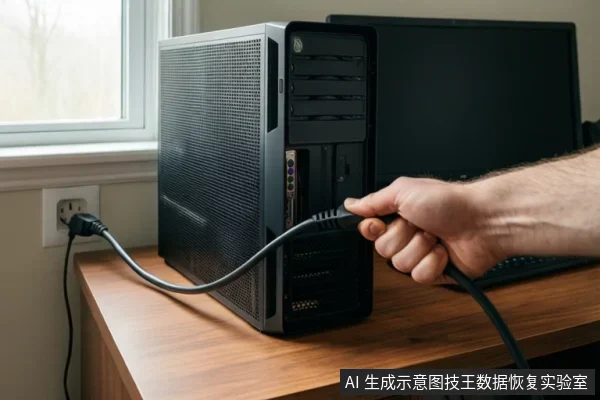
If your computer partitions appear disordered, missing, or unreadable, the immediate priority is to stop all write operations to the affected drive. Do not format, initialize, or run disk repair tools that modify the file system. Verify if the drive is physically recognized and check for existing backups. If the drive makes abnormal noises or is unstable, disconnect it immediately and seek professional assessment, as continued power-on can cause irreversible physical damage.
Identifying the Fault Type: Logical vs. Physical
Partition disorder is a symptom, not a diagnosis. The first step is to determine whether the issue is logical or physical, as this dictates the safe course of action. Logical errors typically involve file system structure damage, such as a corrupted partition table or RAW file system status, where the drive is still recognized by the system but data is inaccessible. Physical failures involve hardware components, often indicated by abnormal noises, failure to recognize in BIOS/UEFI, or unstable connections. Distinguishing between these two types is critical because software solutions are only safe for logical errors on stable drives, whereas physical failures require professional intervention to prevent further damage.
Safe Handling Principles for Partition Issues
The core principle for handling partition issues is "read-only, no write." Once data loss or disorder is detected, you must prevent any operation that overwrites the existing data structure. Formatting or initializing a drive with disordered partitions can overwrite data and make recovery impossible. Similarly, running disk repair tools on an unstable or physically damaged drive can cause further damage by forcing reads on bad sectors or modifying file system metadata. If the drive is stable and the issue is purely logical, you may attempt to create a backup or image of the drive before attempting any repair. However, if the drive exhibits signs of instability, such as slow reads, repeated disconnections, or abnormal sounds, stop all software attempts immediately.
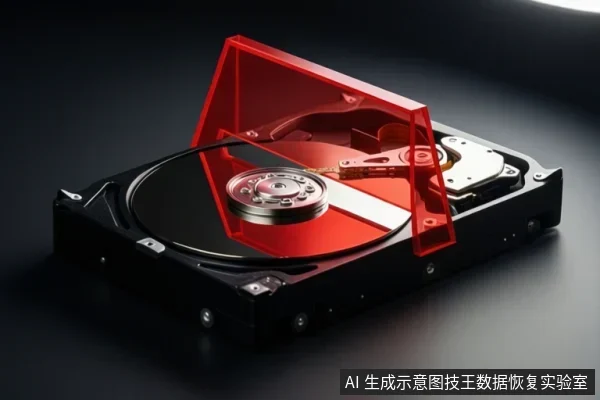
When to Stop and Seek Professional Help
There are specific conditions where DIY attempts should cease to prevent secondary data loss. If the drive makes clicking, grinding, or repetitive spinning noises, stop all software attempts and disconnect immediately. If the drive is not recognized in BIOS/UEFI or Device Manager despite correct cabling, stop DIY attempts as this indicates a hardware or controller failure. If the file system is reported as RAW or unallocated and the data is critical, avoid running 'chkdsk' or format prompts until a backup or professional assessment is completed. In these scenarios, the risk of irreversible damage outweighs the potential benefit of self-repair. Professional data recovery services, such as those provided by Jiwang Data Recovery Lab, can assess the drive in a controlled environment to determine the best course of action.
Frequently Asked Questions
Should I format the drive if it says 'RAW' or 'Unallocated'?
No. Formatting overwrites the file system structure and may destroy data that is still recoverable. Only format if you have confirmed no important data remains or have completed a successful backup.
Is it safe to run disk repair tools like chkdsk on a disordered partition?
It depends on the drive's physical health. If the drive is stable and the issue is purely logical, it may be safe. However, if the drive is unstable or makes noises, chkdsk can cause further damage by forcing reads on bad sectors. Assess physical stability first.
What should I do if the drive is not recognized at all?
Check cabling and power connections first. If the drive is still not recognized in BIOS/UEFI, stop attempting software solutions. This likely indicates a hardware failure (controller, motor, or PCB) that requires professional assessment.