
Why External Drive Recovery Time Depends on Read Stability, Not Data Size
Published 2026-09-13 | JiWang Data Recovery Technical Team
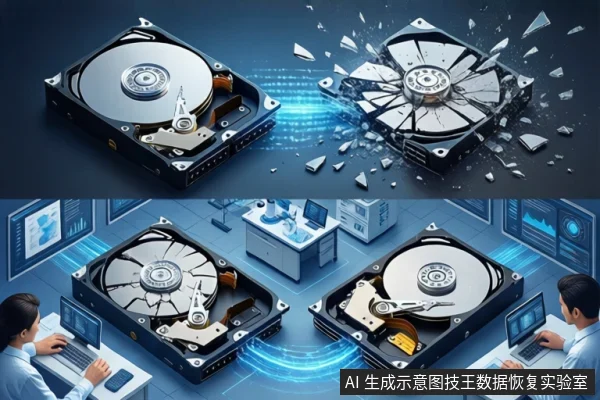
When an external drive is not recognized, the time required to recover data is not primarily determined by the amount of data (e.g., 1TB vs. 100GB). Instead, it is dictated by the physical health of the storage medium and the stability of its read operations. If the drive has physical damage or unstable reads, the process requires slow, repeated attempts to capture data, which significantly extends the timeline compared to stable logical failures.
Safe Diagnostic Steps for Unrecognized Drives
Before assuming the drive is failed, perform basic hardware troubleshooting to rule out connection issues. If the drive is not detected, try connecting it to a different USB port, using a different cable, or testing it on a different computer . Verify that the drive's indicator light is on to confirm it is receiving power .
If these steps fail, check Windows Device Manager. If the drive appears with an Error Code 10 after trying different cables and ports, the drive has likely failed physically . In this case, stop using the drive immediately. Further software attempts or repeated power cycles can cause further physical damage and reduce the chances of successful recovery.
How Read Stability Affects Recovery Timeline
For drives that are detected but have logical issues (such as lost files or a corrupted file system), the recovery time depends on the file system type and the stability of the drive. If the drive is stable, you can use Windows File Recovery, a command-line tool available from the Microsoft Store .
For NTFS drives, you can use 'Regular' mode for recently deleted files or 'Extensive' mode for files deleted a while ago, after formatting, or on corrupted disks . For non-NTFS file systems like FAT or exFAT, only the 'Extensive' mode is supported for recovery .
However, if the drive is recognized but read speeds are extremely slow or it disconnects frequently, this indicates read instability. In such cases, avoid repeated manual scans or software recovery attempts, as they may cause data loss during extraction. Professional imaging with specialized algorithms is needed to prevent further damage and ensure data integrity.
When to Stop DIY Attempts
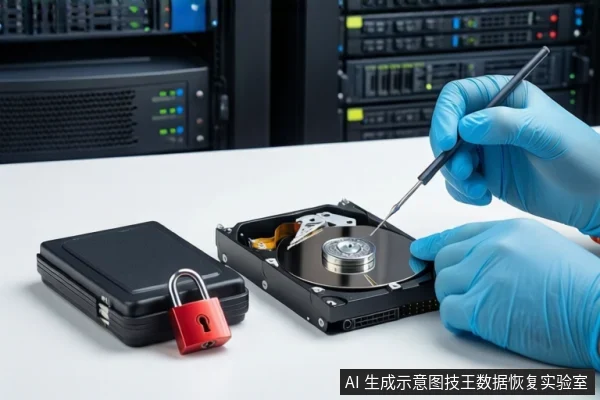
Stop using the drive immediately if it makes clicking, grinding, or other abnormal noises. This indicates physical failure, and continued use can cause irreversible damage. If the drive shows Error Code 10 in Device Manager after basic troubleshooting, stop software attempts as the drive has likely failed physically. Do not format, initialize, or run disk repair tools if the drive is not recognized or is unstable, as this may overwrite recoverable data.
Frequently Asked Questions
Why does data recovery take longer for some drives than others if the data size is the same?
Recovery time depends on the drive's read stability and physical health. Drives with bad sectors or physical damage require slow, repeated read attempts to capture data, which significantly extends the process compared to stable drives with logical errors.
What should I do if my external drive is not recognized in Windows?
First, try a different USB port and cable . If the drive still shows an error (like Code 10 in Device Manager) or makes abnormal noises, stop using it immediately . This likely indicates physical failure, and further software attempts may cause data loss.
Can I use Windows File Recovery on an external drive that is not showing up?
Windows File Recovery is a command-line tool for recovering lost files from local storage devices . However, it is only effective if the drive is physically readable and the issue is logical (e.g., deleted files or corrupted file system). If the drive is not detected or has physical damage, this tool will not work.