
Western Digital LDR: Stop Writing and Check Physical State
Published 2026-09-18 | JiWang Data Recovery Technical Team
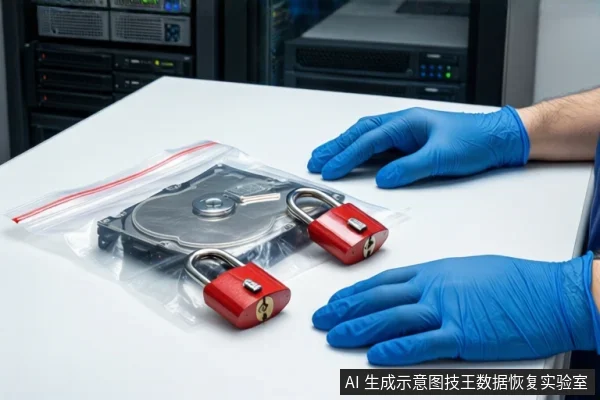
When encountering Western Digital LDR (Local Drive Recovery) issues or data loss, the immediate priority is to stop all write operations. If the drive exhibits physical symptoms such as clicking noises, failure to spin, or frequent disconnections, power it off immediately and seek professional cleanroom assistance, as software-based LDR tools cannot fix mechanical damage. If the drive is stable and recognized, the issue is likely logical (file system corruption or accidental deletion). In this case, avoid running aggressive repair tools like CHKDSK on the original drive without a verified sector-by-sector image, as these may overwrite recoverable data. LDR is primarily a system-level repair mechanism for logical faults, not a deep data recovery tool for physical failures.
Understanding LDR vs. Data Recovery
LDR is a local repair solution designed to restore system bootability or repair logical file system errors using pre-installed environments or hidden partitions. It is distinct from general third-party data recovery software, which focuses on extracting lost files from storage media. LDR relies on stable I/O requests to read metadata and perform repairs. If the storage medium has physical bad sectors or controller failures, LDR tools typically cannot run effectively. In such cases, forcing the tool to run may exacerbate mechanical wear or stress flash memory cells. Therefore, LDR is best suited for logical layer faults or minor system configuration errors, not for deep data extraction from physically damaged drives.
Decision Framework: Logical vs. Physical Failure
The correct next step depends entirely on the physical state of the drive. You must distinguish between logical errors (software/file system) and physical hardware failures.
- Physical Failure Indicators: Clicking, grinding, or spiral noises; drive not recognized by the system; zero capacity displayed; frequent disconnections; or signs of physical damage (drop, water exposure). Action: Power off immediately. Do not attempt software scans, formatting, or LDR tools. These actions can cause permanent platter damage or controller failure. Seek professional cleanroom assistance.
- Logical Failure Indicators: Drive is stable, silent, and recognized by the system, but files are missing, folders are empty, or the file system shows as RAW. Action: Stop writing to the drive. Create a read-only sector-by-sector image (bit-for-bit copy) of the drive to a healthy backup drive. Perform all recovery or repair attempts on the image, not the original drive.
Safe Next Steps for Stable Drives
If the drive is stable and you have confirmed it is a logical issue, follow these steps to maximize data safety:
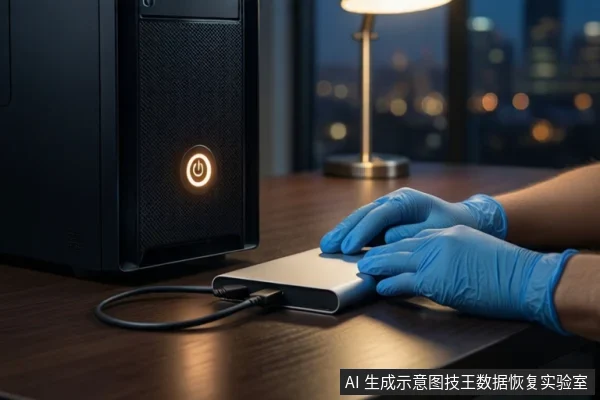
- Stop All Writes: Disconnect the drive from any system that might automatically write to it (e.g., indexing services, antivirus scans). If possible, use a hardware write-blocker or connect the drive in read-only mode.
- Create an Image: Use professional imaging tools to create a full sector-by-sector copy of the drive. This preserves the exact state of the data, including deleted files and file system structures. Do not skip this step.
- Work on the Image: Run LDR tools, CHKDSK, or data recovery software on the image file, not the original drive. CHKDSK can modify cluster chains and rewrite damaged areas, which may destroy recoverable data if run on the original media without a backup.
- Assess SSD vs. HDD: If the drive is an SSD, note that TRIM commands may have already erased deleted data blocks, making recovery less likely. If it is an HDD, data may remain until overwritten. Act quickly in both cases, but understand the different urgency levels.
Frequently Asked Questions
What is Western Digital LDR and does it recover deleted files?
Western Digital LDR (Local Drive Recovery) is a system-level repair tool designed to fix boot issues or logical file system errors using pre-installed environments. It is not primarily a data recovery tool for extracting deleted files. For deleted files, you should use dedicated data recovery software on a sector-by-sector image of the drive, not on the original media.
Can I run LDR or CHKDSK if my drive is making clicking noises?
No. Clicking noises indicate physical mechanical failure, such as damaged read/write heads. Running LDR, CHKDSK, or any software tool on a physically failing drive can cause permanent platter damage. Power off the drive immediately and seek professional cleanroom assistance.
Why should I not use an unverified backup to restore a failing drive?
Using an unverified backup to restore a failing drive is risky because the backup file itself may be corrupted. If the backup is damaged, the restoration process will fail or write incorrect data, potentially destroying the original data on the failing drive. Always verify backup integrity before attempting restoration, and prioritize extracting data from the original drive first if it is still readable.