
New Hard Drive Not Showing Up in Windows: Step-by-Step Troubleshooting Guide
Published 2026-09-24 | JiWang Data Recovery Technical Team
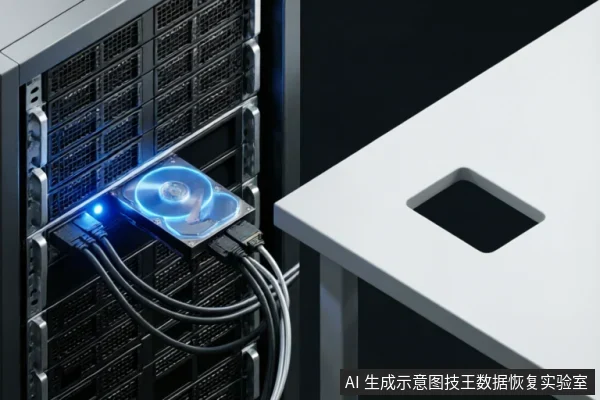
When a newly installed hard drive does not appear in your computer's file explorer, the issue is most frequently related to physical connections, power supply, or BIOS/UEFI configuration rather than data loss. You should first verify that the drive is detected at the hardware level (BIOS/UEFI) before attempting software fixes. If the drive is not detected in BIOS, check cables and ports;if it is detected but not visible in Windows Explorer, initialize the disk in Disk Management.
Direct Conclusion & Immediate Actions
The primary diagnostic step is to determine if the operating system's firmware (BIOS/UEFI) recognizes the drive. If BIOS does not list the drive, the problem is hardware-related (cables, power, or drive failure), and software solutions will fail. If the drive appears in BIOS but not in Windows Explorer, it is likely unpartitioned or formatted with an incompatible file system. The next step is to check Disk Management to see if it shows as 'Unallocated' or 'Healthy'. Initializing a drive in Disk Management creates a new partition table. This action is reversible only if the drive is empty. If the drive contains existing data from a previous setup, initialization will render that data inaccessible without professional recovery services.
Diagnostic Logic: Hardware vs. Software Detection
To accurately diagnose why a new hard drive is not showing up, you must distinguish between a hardware communication failure and a logical configuration gap. The operating system relies on the motherboard's firmware to enumerate storage devices during the boot process. If the firmware cannot establish a handshake with the drive, the operating system has no device to mount, resulting in the drive being completely invisible in File Explorer.
A common misconception is that a drive not appearing in "This PC" indicates a fatal error. However, this is often a benign state for a brand-new drive that has never been initialized. Conversely, if the drive is entirely absent from the system even at the firmware level, it suggests a break in the physical chain of communication. Understanding this distinction prevents users from wasting time running disk repair utilities on a drive that is physically disconnected or powered off.
Step-by-Step Troubleshooting Guide
Follow this structured sequence to isolate the fault. Each step builds upon the previous one, moving from physical inspection to software configuration.
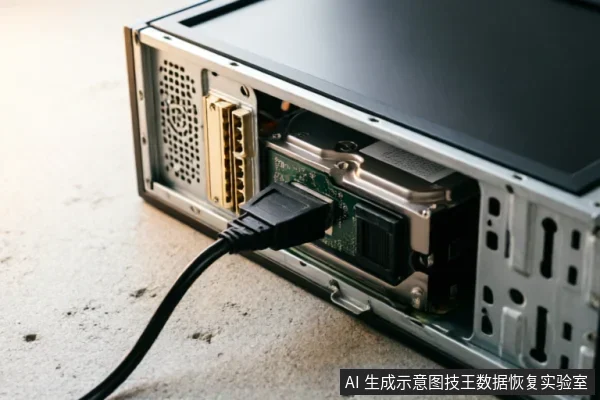
- Verify Physical Connections: Power down the computer and disconnect the power cable. Reseat the SATA data cable and power connector on both the drive and the motherboard. For external drives, try a different USB port and cable. Ensure all connections are firm and free of debris.
- Check BIOS/UEFI Recognition: Power on the computer and enter the BIOS/UEFI setup (usually by pressing Del, F2, or F10). Navigate to the storage configuration section. Look for the new drive in the list of connected devices. If it appears here, the hardware is functional, and the issue is likely software-related.
- Inspect Disk Management: If the drive is in BIOS but not in File Explorer, right-click the Start button and select "Disk Management." Look for the drive in the lower pane. It may appear as "Unallocated" (black bar) or "Healthy" but without a drive letter.
- Initialize and Format: If the drive is "Unallocated," right-click it and select "Initialize Disk." Choose GPT or MBR based on your system requirements. After initialization, create a new simple volume and assign a drive letter. The drive should now be visible in File Explorer.
Troubleshooting Decision Matrix
| Observation | Diagnosis | Action Required |
|---|---|---|
| Drive not in BIOS/UEFI | Hardware/Connection Issue | Check cables, power, and ports. Try a different drive bay. |
| Drive in BIOS, not in Explorer | Logical/Configuration Issue | Use Disk Management to initialize and format the drive. |
| Drive in BIOS, Shows 0 Bytes | Firmware/Controller Failure | Stop use. Seek professional data recovery assessment. |
| Drive in BIOS, No Drive Letter | Missing Mount Point | Assign a drive letter in Disk Management properties. |
Critical Warnings: Data Preservation Boundaries
While troubleshooting a new drive, it is crucial to understand the boundaries of data preservation. If you are installing a drive that was previously used in another system, initializing it will erase any existing partition table. This action is destructive to the structure of the data, making it inaccessible through normal means. Professional recovery services may be required to retrieve data from such drives, but success depends on the extent of the overwriting.
Never attempt to force-format a drive that contains critical data. If the drive is recognized in BIOS but shows errors or unusual behavior, cease all write operations. Repeated attempts to access a failing drive can exacerbate physical damage or trigger security locks in SSDs. The safest course of action is to document the drive's model number and serial number, and consult with a professional service provider for an evaluation.
Recovery Possibility Assessment
The possibility of recovering data from a drive that is not showing up depends entirely on the nature of the failure. If the issue is purely a missing drive letter or an uninitialized state, recovery is straightforward and involves standard formatting procedures. However, if the drive is not detected in BIOS, the problem is likely hardware-related. In such cases, data recovery is possible only if the drive's internal components are intact and accessible via specialized hardware tools.
For drives that show signs of physical failure, such as clicking noises or complete non-response, self-repair attempts are discouraged. The risk of permanent data loss increases with each power cycle. A professional assessment is necessary to determine if the drive can be repaired or if the data can be extracted using cleanroom techniques. The outcome of such assessments varies based on the specific condition of the media and must be evaluated on a case-by-case basis.
Frequently Asked Questions
What happens if I initialize a new drive that has important data?
Initializing a drive creates a new partition table, which renders any existing data inaccessible. If the drive contains important data from a previous setup, do not initialize it. Instead, seek professional data recovery services to preserve the data before performing any initialization steps.
Why can't my computer see the drive in BIOS?
If the drive is not listed in BIOS, the issue is hardware-related. Common causes include loose SATA cables, insufficient power supply, or a faulty drive. Check all physical connections and ensure the drive is properly seated in the motherboard slot. If the problem persists, the drive may be defective.
Is it safe to use third-party partition tools if Windows doesn't see the drive?
Using third-party partition tools when Windows does not see the drive is generally unsafe and unnecessary. These tools often require the OS to recognize the drive first. If the drive is not visible in BIOS, software tools cannot interact with it. Focus on resolving the hardware connection issues before considering any software-based partitioning.