
Club3D USB4 NVMe Enclosure Impact on Data Backup and Storage Safety
Published 2026-09-02 | JiWang Data Recovery Technical Team
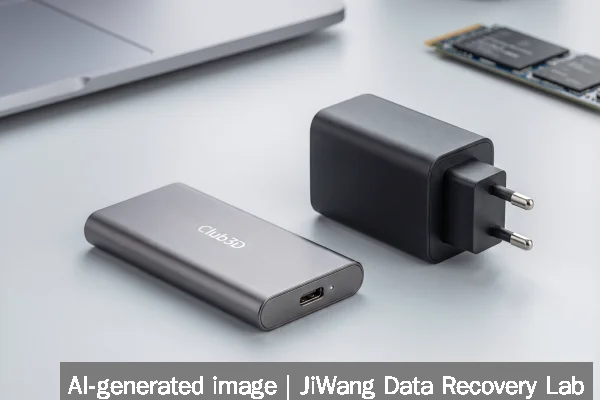
If your data resides on an NVMe drive inside a new Club3D CAC-2510 USB4 enclosure and you now face unreadable files, system freezes during transfers, or sudden disconnection errors, stop all write operations immediately. Do not reformat, run disk repair tools, or reconnect the enclosure repeatedly. Unplug it and power down the host system. The safest next step is to connect the NVMe drive directly to a known-good internal M.2 slot on a compatible motherboard—bypassing the enclosure entirely—to verify whether symptoms persist. If the drive functions normally internally, the issue lies in the enclosure’s firmware, cable, power delivery, or USB4 protocol negotiation—not the drive itself.
Symptoms and Risk
Users deploying the Club3D CAC-2510 may observe intermittent I/O stalls, file corruption after large transfers (>50 GB), inconsistent device enumeration (e.g., “Unknown USB Device” in Windows Device Manager), or spontaneous disconnects under sustained load. These are not typical signs of drive failure but rather protocol-level instability. Unlike mechanical HDD failures—which often announce themselves with clicking or slow seeks—USB4 enclosure issues mimic logical corruption: files open with garbled content, Time Machine backups halt mid-process, or rsync reports “Input/output error” without SMART warnings. Critically, such behavior increases risk of silent data corruption: bits flipped during transfer due to link-layer retries or buffer overruns, undetected by host OS checksums. This undermines backup integrity, especially for versioned or incremental archives where later snapshots depend on earlier ones.
Known Facts
The Club3D CAC-2510 is a verified 40 Gbps USB4 Gen 3×2 enclosure supporting PCIe 4.0 x4 tunneling for NVMe SSDs. It requires a certified USB4 cable (not USB 3.2 Gen 2×2) and a host port compliant with USB4 v1.0 or later—including full support for DisplayPort Alt Mode and PCIe tunneling. Verified compatibility is limited to select Intel Evo laptops (12th–14th gen Core), Apple MacBooks with Thunderbolt 4/USB4 (M1 Pro/Max and later), and recent AMD Ryzen 7040+ systems with updated USB4 firmware. The enclosure does not support UASP over USB 3.2 fallback; if USB4 negotiation fails, it disconnects entirely—no graceful degradation. Power delivery is capped at 15W, insufficient for high-end Gen4 NVMe drives drawing >12W under load, risking thermal throttling or brownout-induced controller resets.

Possible Causes
Observed failures fall into three non-overlapping categories: protocol stack mismatches, power delivery instability, and firmware edge cases. Protocol mismatches occur when host USB4 controllers omit required PCIe tunneling extensions or misinterpret USB4 router topology messages—especially on early BIOS/UEFI implementations. Power delivery instability arises when the enclosure’s 15W limit conflicts with peak SSD draw during garbage collection or TRIM execution, causing voltage droop that triggers NVMe controller resets. Firmware edge cases include incorrect handling of asynchronous interrupt coalescing or improper response to host-initiated link training retries. None of these indicate physical drive damage, nor do they imply SSD wear-leveling failure or NAND degradation. All are reversible once the drive is removed from the enclosure context.
Safe Checks
Before assuming drive failure, perform these read-only diagnostics: First, boot from a Linux live USB (e.g., Ubuntu 24.04 LTS) and run dmesg | grep -i "usb\|nvme" to inspect kernel logs for “link training failed”, “tunneling disabled”, or “power budget exceeded”. Second, use smartctl -a /dev/nvme0n1 to confirm SMART health—look specifically for “Critical Warning” = 0x00 and “Available Spare” ≥ 90%. Third, test the same NVMe drive in a different USB4 enclosure (if available) or directly on an internal M.2 slot. Fourth, try a different certified USB4 cable—cable quality is a documented variable in USB4 compliance testing. Fifth, check host firmware: verify BIOS/UEFI is updated to the latest revision supporting USB4 PCIe tunneling per manufacturer advisories. All checks must avoid mounting the drive read-write or initiating any filesystem repair.
Actions to Avoid
Never initialize, format, or run CHKDSK, fsck, or Disk Utility First Aid on the affected volume while connected via the Club3D enclosure. These tools assume stable block-layer access and may overwrite valid metadata if the underlying USB4 link introduces transient I/O errors. Do not flash NVMe drive firmware while attached externally—the USB4 tunnel does not guarantee atomic firmware update delivery, risking bricking. Avoid repeated hot-plug cycles: each reconnection forces full USB4 topology discovery, increasing chance of state corruption in host controller drivers. Never open the enclosure to “check connections”—NVMe modules are not user-serviceable in this form factor, and ESD exposure risks controller damage. Do not attempt RAID reconstruction or virtual machine disk repair unless the underlying storage has been validated as healthy outside the enclosure.
Data-Preservation Workflow
Preserve original data using a strict read-only chain: (1) Physically remove the NVMe SSD from the Club3D enclosure. (2) Install it directly into a compatible internal M.2 slot on a desktop or laptop with verified PCIe 4.0 support. (3) Boot from external media and mount the drive read-only (mount -o ro,noload on Linux; “Read-only” checkbox in macOS Disk Utility). (4) Use ddrescue or dcfldd to create a sector-by-sector image to a separate, healthy storage target—never back up to the same enclosure or a drive sharing its USB controller. (5) Validate image integrity with SHA-256 hash comparison against a second copy. Only after confirming image fidelity should analysis proceed. This workflow isolates the drive from USB4 variables and ensures no writes occur to original NAND cells.
Frequently Asked Questions
Does the Club3D CAC-2510 cause permanent SSD damage?
No verified case links the enclosure to irreversible NAND wear, controller failure, or firmware corruption. Observed issues stem from USB4 protocol instability or power delivery limits—not electrical overstress or command injection. Physical SSD health remains intact if removed before repeated forced resets.
Can I trust backups made through this enclosure?
Only if verified with end-to-end checksums (e.g., rsync --checksum + SHA-256 of full archive) and confirmed readable after full restore testing. USB4 tunneling introduces uncorrectable bit errors in rare link-layer failure modes, making checksum validation mandatory—not optional—for any backup intended for recovery.
Is Thunderbolt 4 compatibility guaranteed?
Thunderbolt 4 hosts support USB4, but not all implement full PCIe tunneling. Some OEM systems disable tunneling by default in BIOS or require explicit enablement. Compatibility depends on host firmware—not just port labeling. Verify with lspci (Linux) or System Report (macOS) that “PCIe Root Port” appears under the Thunderbolt controller.
Why does my NVMe drive work fine internally but fail in the enclosure?
This confirms the issue resides in the USB4 interface layer—not the SSD. Common culprits include host USB4 controller bugs, insufficient cable certification (e.g., using a USB 3.2 cable), or power starvation during sustained writes. The drive itself passes all low-level diagnostics when bypassing the enclosure.
Should I replace my backup strategy because of this enclosure?
No—replace the *implementation*, not the strategy. The 3-2-1 rule (3 copies, 2 media types, 1 offsite) remains valid. But avoid relying solely on USB4-attached NVMe for primary backups until interoperability is confirmed across your specific host hardware, cable, and firmware stack.