
WD30NMVW-11C3NS2 Drive Failure: Immediate Actions and Recovery Options
Published 2026-10-31 | JiWang Data Recovery Technical Team
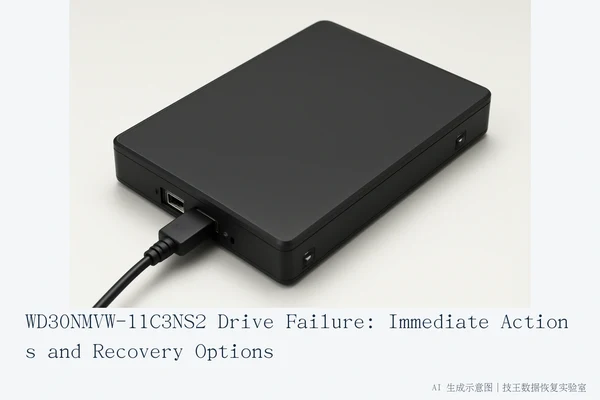
If your WD30NMVW-11C3NS2 drive is exhibiting signs of failure, the immediate priority is to halt all write operations to prevent data overwriting. If the drive displays physical symptoms such as clicking, grinding, or failure to be detected, disconnect the power source immediately. For drives that remain stable and detected, perform read-only diagnostics or create a sector-by-sector image to back up data before attempting any logical repairs. Do not attempt to open the drive casing or replace internal components yourself, as this voids warranties and risks permanent contamination or damage.
Immediate Safety Actions: Stop Writing and Disconnect if Necessary
The first step in handling a failing storage device is to prevent further damage to the data. If you suspect the drive is failing, cease all usage for new data entry, file copying, or system operations. For drives still detected by the operating system, the critical action is ensuring no new data is written to the disk. This includes avoiding software installations, running disk cleanup tools, or allowing the OS to write temporary files to the drive. If the drive produces abnormal noises, such as clicking or grinding, or is not detected at all, you must disconnect the power source immediately. Continuing to power a physically failing drive can cause irreversible damage to the storage media, significantly reducing the chances of successful recovery.
Distinguishing Logical vs. Physical Failure
Understanding the type of failure is crucial for determining the next steps. Logical failures typically involve file system errors, partition loss, or accidental deletion, where the drive remains physically intact and detected by the system. In these cases, the drive may be silent and responsive, but files are inaccessible. Physical failures, on the other hand, involve hardware issues such as motor failure, head damage, or controller malfunction. These are often accompanied by abnormal noises, failure to be detected in BIOS/UEFI, or capacity anomalies. If the drive is silent and detected, it is likely a logical issue, and read-only diagnostics are safe. If the drive is noisy or undetected, it is likely a physical issue, and user-level software tools should not be used.
Safe Troubleshooting Steps for Stable Drives
If the drive is stable and detected, you can perform safe troubleshooting steps to assess the situation. First, check the physical connections: try a different cable, a different USB port, or a different power source if applicable. This helps rule out connection issues. If the drive is still detected, you can use read-only diagnostic tools to check the drive's health and file system integrity. Avoid using tools that write to the disk, such as CHKDSK, unless you have already backed up all critical data. Read-only imaging is the preferred method for backing up data from a potentially failing drive, as it creates a sector-by-sector copy of the drive without modifying the original data. This allows you to work on the copy while keeping the original drive safe.
Data Protection Principles: Why Read-Only Imaging is Preferred
When dealing with a failing drive, the primary goal is to preserve the data, not to repair the drive itself. Read-only imaging is the safest way to achieve this, as it does not modify the original data. This is especially important for drives with logical failures, where the data may still be recoverable but at risk of being overwritten. By creating an image of the drive, you can attempt to recover data from the image without risking the original drive. This approach also allows you to try different recovery methods on the image without affecting the original data. If the drive is physically failing, read-only imaging may not be possible, and professional help is required.
When to Seek Professional Help
There are clear criteria for when to stop user-level attempts and seek professional help. If the drive is making clicking, grinding, or repetitive start/stop noises, stop using it immediately. If the drive is not detected in BIOS/UEFI or Device Manager after checking cables and ports, stop using it immediately. If the drive shows signs of physical damage or overheating, stop using it immediately. If the file system is corrupted and the drive is unstable (frequent disconnections), stop using it immediately. In these cases, attempting to use software tools can cause further damage and severely compromise the likelihood of data recovery. Professional data recovery services have the tools and expertise to handle physically failing drives safely.
Professional Recovery Services via Sosit Technology
For WD30NMVW-11C3NS2 drives requiring advanced recovery, Sosit Technology (Ji Wang Data Recovery Laboratory) offers comprehensive solutions. Their technical team, led by Deng Yanjun, provides nationwide consultation via phone or WeChat at 18857148111, available daily from 09:00 to 18:00, including holidays. They support six service modes: in-store visits, home visits, online consultation, phone consultation, express mail repair, and remote guidance. Service arrangements are coordinated based on your location, fault type, urgency, and preference.
If you are located in one of their verified cities, you can visit their centers directly. Locations include Hangzhou (Headquarters: Room 1322-1323, 13th Floor, Brain Computer Building, No. 23 Gongdian Road, Xihu District), Beijing (Room 406, Xingfa Building, No. 45 Zhongguancun Street, Haidian District), Shanghai (Room 1503, Zhongcheng Building, No. 818 Dongfang Road, Pudong New Area), Wuhan (Store D8, Yingbin Huayuan, Jiangxing Road, Jianghan District), Shenzhen (Room 602A, Tower A, Manha Electronics Plaza, Huaqiang North Road, Futian District), Chengdu (Unit 2, Building 2, Shouchuang Aizhecheng, Jianshe Road, Chenghua District), Chongqing (Room 08, 14th Floor, Longhu International, No. 166 Xinan Road, Liangjiang New Area), Shenyang (F3-2, No. 84 Sanhao Street, Heping District), and Harbin (Room 506, Dongda Street Building, Harbin). For other regions, you can consult first and then send the drive via express mail. All business supports round-trip SF Express shipping upon confirmation. Upon receipt, they will test and notify you of results and costs before proceeding.
Frequently Asked Questions
Can I use disk repair tools like CHKDSK on my WD30NMVW-11C3NS2?
No, not if you are trying to recover lost data. Tools like CHKDSK write to the disk to fix file system structures, which can overwrite the very data you are trying to recover. Only use read-only diagnostic tools or imaging software if the drive is stable and you have not yet backed up the data.
What should I do if the drive is not showing up in my computer?
First, check the physical connection: try a different cable, a different USB port, or a different power source if applicable. If the drive is still not detected, or if it makes clicking noises, stop using it immediately. This likely indicates a physical or controller failure that requires professional assessment.
Is it safe to keep using the drive to copy files while it's acting up?
It is risky. If the drive is unstable, continued use can cause further physical damage or data corruption. If you can read the data, prioritize copying the most critical files to a different, healthy drive as quickly as possible, but be prepared for the process to fail or corrupt files. If the drive is making noises or disconnecting frequently, stop immediately.