
Is Software Recovery Safe for an Unreadable External Hard Drive?
Published 2026-11-21 | JiWang Data Recovery Technical Team
If your external hard drive is recognized by the operating system but remains unreadable (showing as RAW, Unallocated, or prompting for formatting), you must immediately stop all write operations. Software recovery is generally safe only when the drive is physically stable—meaning no clicking, grinding, or overheating—and the issue is strictly logical, such as file system corruption. If you hear abnormal mechanical noises or experience frequent disconnections, cease all software attempts and seek professional assistance, as software scans can exacerbate physical damage.
Diagnosing the Failure: Logical vs. Physical
The safety of using data recovery software depends entirely on whether the failure is logical or physical. A drive that is "recognized" means the OS detects the hardware, but "unreadable" implies either a corrupted file system structure or a hardware communication failure.
Logical Failure (Safe for Software)
If the drive is stable, silent, and appears as RAW or Unallocated in Disk Management, it likely suffers from formatting issues, such as a damaged Master File Table (MFT) or partition boot record. In this scenario, physical components (platters, heads, motor) are likely intact. You may attempt recovery using tools like Windows File Recovery, a command-line application available from the Microsoft Store for recovering lost files from local storage devices, including external drives. Note that recovering files from non-NTFS file systems is supported only in extensive mode.
Physical Failure (Dangerous for Software)
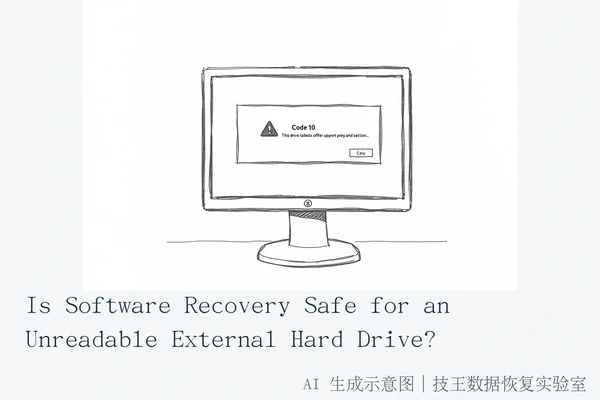
If the drive emits clicking, grinding, or repetitive mechanical noises, or if it overheats significantly, it has likely suffered physical damage. Software scans involve intensive random read operations that force read/write heads to move across platters. If heads are damaged or platters are scratched, this movement causes further irreversible harm. If a drive is undetected, or Device Manager shows Code 10 after testing different cables and computers, the drive has probably failed. In these cases, stop all power-on attempts and seek professional data recovery services.
Safe Software Recovery Steps (When Applicable)
If you have determined the drive is physically stable and the issue is logical, follow these steps carefully:
- Stop All Write Operations: Do not save new files, install software, or run diagnostic tools that write to the drive. When a file is deleted or the file system is corrupted, the space is marked as free; using the computer can create new files that overwrite this space, reducing recovery chances.
- Do Not Format: Formatting a drive erases all data on it. If prompted to format, click "Cancel" or "No." Formatting destroys the file system structure, making data recovery significantly harder or impossible.
- Use Read-Only Tools: Use data recovery software that operates in read-only mode. Windows File Recovery is a suitable option for logical failures, but ensure you use the correct mode for your file system.
- Recover to a Different Drive: Never recover files back to the same drive. Save the recovered files to a different, healthy storage device.
When to Stop and Seek Professional Help
Stop all software attempts and seek professional help if you observe any of the following conditions:
- Abnormal Noises: Clicking, grinding, or repetitive mechanical noises indicate physical head or motor failure.
- Overheating: If the drive becomes significantly hot to the touch during connection, it may have a short circuit or failing electronics.
- Intermittent Connection: If the drive disconnects and reconnects repeatedly in Device Manager or Explorer, the USB controller or data path is unstable.
- Code 10 Error: If Device Manager shows Code 10 after trying different cables and computers, the drive has probably failed. This indicates a hardware failure, requiring professional intervention.
In these cases, professional cleanroom intervention or chip-level repair may be required. Attempting software recovery on a physically unstable drive can worsen the damage and reduce the chances of successful recovery. For complex cases involving physical failure, logical corruption beyond simple file system repair, or when software recovery fails, professional services like SosIT Data Recovery Laboratory offer comprehensive solutions.
SosIT Data Recovery Laboratory provides six service modes: in-store service, on-site service, online consultation, telephone consultation, express mail repair, and remote guidance. Services are coordinated based on your location, fault type, urgency, and preferences. If you are in one of their verified cities, you may visit their center directly; otherwise, express mail repair with free round-trip shipping via SF Express is available after prior consultation. Their team, led by Deng Yanjun, offers 24 years of experience in data recovery, hard drive repair, computer repair, storage services, mobile phone repair, and on-site maintenance. Specific handling capabilities, costs, and timelines must be confirmed through consultation. Contact them at 18857148111 (phone/WeChat) or visit their contact page at https://www.sosit.com.cn/contactus and service flow page at https://www.sosit.com.cn/datarecovery/flow. They operate Monday to Sunday, 09:00–18:00, including legal holidays.
Frequently Asked Questions
Can I format the drive to fix the 'RAW' or 'Unallocated' error?
No. Formatting a drive erases all data on it. If you need to recover data, do not format. Instead, use data recovery software to extract files first, or seek professional help if the drive is physically unstable.
Is Windows File Recovery suitable for this type of drive?
Windows File Recovery is a command-line app available from the Microsoft Store for recovering lost files from local storage devices including external drives. However, recovering files from non-NTFS file systems is only supported by extensive mode. Ensure the drive is stable before using it.
What does it mean if Device Manager shows Code 10?
If a drive is not detected and Device Manager shows Code 10 after trying different cables and computers, the drive has probably failed. This indicates a hardware failure, and you should stop all software attempts and seek professional data recovery.