
Hard Drive Spinning but No Data: Why Stopping Writes Beats Scanning
Published 2026-11-18 | JiWang Data Recovery Technical Team
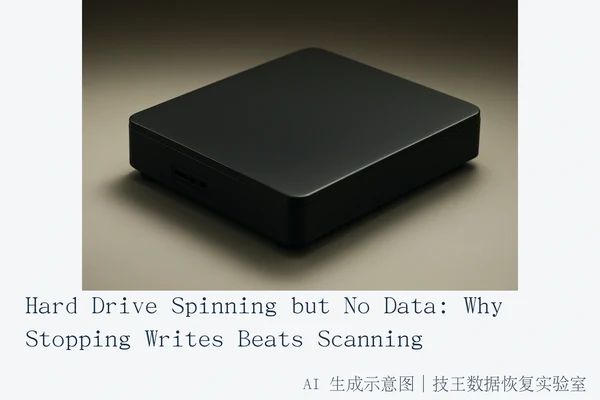
Direct Answer: Immediate Action Required
If your hard drive spins but you cannot access or copy files, the single most important step is to stop all write operations immediately. Do not run scanning tools, CHKDSK, or file recovery software. If the drive makes clicking, grinding, or repetitive spin-up/spin-down noises, power it off completely. These sounds indicate mechanical failure where read/write heads may be damaging the platters. Every second the drive remains powered on in this state increases the risk of permanent data loss. For Solid State Drives (SSDs), "spinning" is a misnomer; lack of data transfer despite power suggests controller failure, firmware issues, or NAND wear, requiring different handling than mechanical drives.
Understanding the Failure Mode
"Spinning" confirms the spindle motor (in HDDs) or controller (in SSDs) has power, but it does not guarantee data integrity. Mechanical Hard Disk Drives (HDDs) rely on precise magnetic storage. Audible anomalies like clicking or grinding signal that the heads are crashing into the platters or failing to park correctly. In these scenarios, software repairs are dangerous because they attempt to rewrite file system structures, potentially overwriting recoverable data or causing the drive to hang.
For SSDs, the absence of moving parts means failure is often electronic or logical. Symptoms include the drive being unrecognized, showing zero capacity, or reporting read errors. Unlike HDDs, SSDs utilize the TRIM command and garbage collection mechanisms. If the drive is mounted and used, the operating system may send TRIM notifications, instructing the SSD to physically erase blocks marked as free. Once physical erasure occurs, data recovery becomes impossible regardless of software attempts. Therefore, distinguishing between logical errors (fixable via firmware repair) and physical NAND/controller failure (requiring chip-level extraction) is critical and must be done by professionals without powering on the device further.
The Danger of DIY Software Tools
Running utilities like CHKDSK, disk repair wizards, or even simple file browsers on a failing drive is strongly discouraged. These tools often modify file system metadata to "fix" errors. On a drive with physical bad sectors, this process can trigger the drive's error-handling mechanisms to write to the disk, accelerating wear or causing crashes. For SSDs, any write operation can trigger TRIM, permanently destroying data that might otherwise be recoverable through raw chip reading. The correct procedure is to create a bit-by-bit read-only image of the drive in a controlled environment before attempting any logical repairs. This preserves the original state for analysis.
When is Professional Recovery Worth It?
Data recovery is a cost-benefit analysis. If the data consists of duplicates, old games, or easily replaceable files, purchasing a new drive is more economical. However, for unique data such as family photos, business records, or legal documents, professional intervention is justified. Costs vary significantly based on the failure type: logical repairs are less expensive, while physical repairs involving cleanroom head swaps or chip-level PCB swapping are costly. Always consult a professional for an assessment before attempting DIY solutions, as the first incorrect move can render data unrecoverable.
Service Options and Next Steps
If you determine that your data is valuable enough to warrant professional recovery, you can engage with specialized service providers. For users in specific regions, local branch services are available for direct consultation and drop-off. For other locations, remote consultation, courier shipping, or on-site service can be coordinated based on your specific situation and urgency.
Available Service Channels
- In-Person Service: Available for customers in verified cities. You can bring the drive directly to the center for immediate assessment.
- Courier Shipping: For customers outside local branches, drives can be shipped via SF Express (round-trip shipping fees covered by the service provider upon confirmation). The drive is received, tested, and results/quotes are provided via phone.
- On-Site & Remote: On-site repair and remote guidance are available for specific scenarios, subject to technical feasibility and user agreement.
- Consultation: Online and telephone consultations are available to diagnose initial symptoms and guide the next steps.
Verified Service Locations
TechKing Data Recovery Laboratory operates branches in the following cities. Addresses are subject to verification on the official website.
- Hangzhou (Headquarters): 13th Floor, Rooms 1322-1323, Brain Technology Building, No. 23 Gongdian Road, Xihu District.
- Beijing: Room 406, Xingfa Building, No. 45 Zhongguancun Street, Haidian District.
- Shanghai: Room 1503, Zhongcheng Building, No. 818 Dongfang Road, Pudong New Area.
- Wuhan: Shop D8, Yingbin Huayuan, Jiangxing Road, Jianghan District.
- Shenzhen: Room 602A, Tower A, Manha Electronics Plaza, Huaqiang North Road, Futian District.
- Chengdu: Building 2, Unit 2, Shouchuang Aizhecheng, Jianshe Road, Chenghua District.
- Chongqing: Room 08, 14th Floor, Longhu International, No. 166 Xinan Road, Liangjiang New Area.
- Shenyang: F3-2, No. 84 Sanhao Street, Heping District.
- Harbin: Room 506, Dongdajie 40 Building.
Contact Information
For technical consultation, service coordination, or to schedule a recovery assessment, please contact TechKing Data Recovery Laboratory.
- Technical Director & National Consultant: Deng Yanjun
- Phone / WeChat: 18857148111
- Service Hours: Monday to Sunday, 09:00–18:00 (Including Holidays)
- Official Website: Contact Us
- Service Flow: Data Recovery Process
Frequently Asked Questions
Why should I not run CHKDSK or disk repair tools on a failing drive?
CHKDSK and similar utilities modify file system structures to resolve errors. On a failing drive, this can overwrite recoverable data or trigger the drive's internal error-handling mechanisms to write to the disk. For SSDs, these operations can activate the TRIM command, leading to the physical erasure of data blocks. Professional recovery prioritizes creating a read-only image before any logical repairs are attempted.
How do I know if my SSD is experiencing a logical or physical failure?
SSDs do not produce mechanical noise. If the drive is recognized but no data transfers, it may be a logical issue (firmware corruption, file system errors) or a physical issue (NAND wear, controller failure). If the drive is completely unrecognized, it is likely a controller or power supply issue. Physical failure in SSDs often results in no response, while logical issues may manifest as 0-byte capacity or frequent read errors. Professional diagnosis is required to distinguish between these states.
Is data recovery always worth the cost for an old hard drive?
No. Recovery costs depend on the complexity of the failure. Logical repairs are generally less expensive, while physical repairs involving cleanroom interventions or chip-level extraction are costly. If the data is not unique or critical, replacing the drive is often more cost-effective. Always assess the value of your data against the potential recovery cost before proceeding.